

Navigating your Sidebar
Below, you'll find a complete overview of all the actions available in your sidebar and what each one does. This guide will help you understand how to navigate and utilize every feature to its fullest potential.
Dashboard
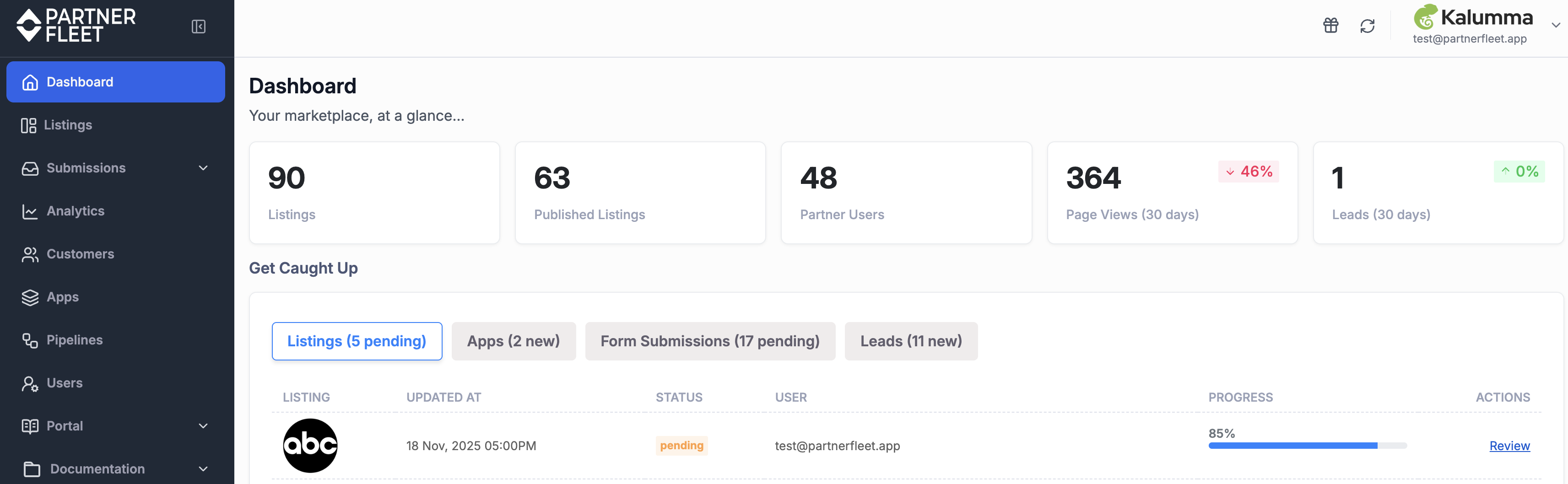
Your Marketplace, at a Glance
When you log in to PartnerFleet, you’ll land on your dashboard—the central place to manage your marketplace. Get an immediate snapshot of your ecosystem’s performance, including total listings, active users, page views, and leads generated.
Get Caught Up, Faster
Use the tabbed navigation to take action right away. Review and approve listings, respond to partner submissions, and manage incoming leads—all from one streamlined workspace designed to keep you moving.
Listings
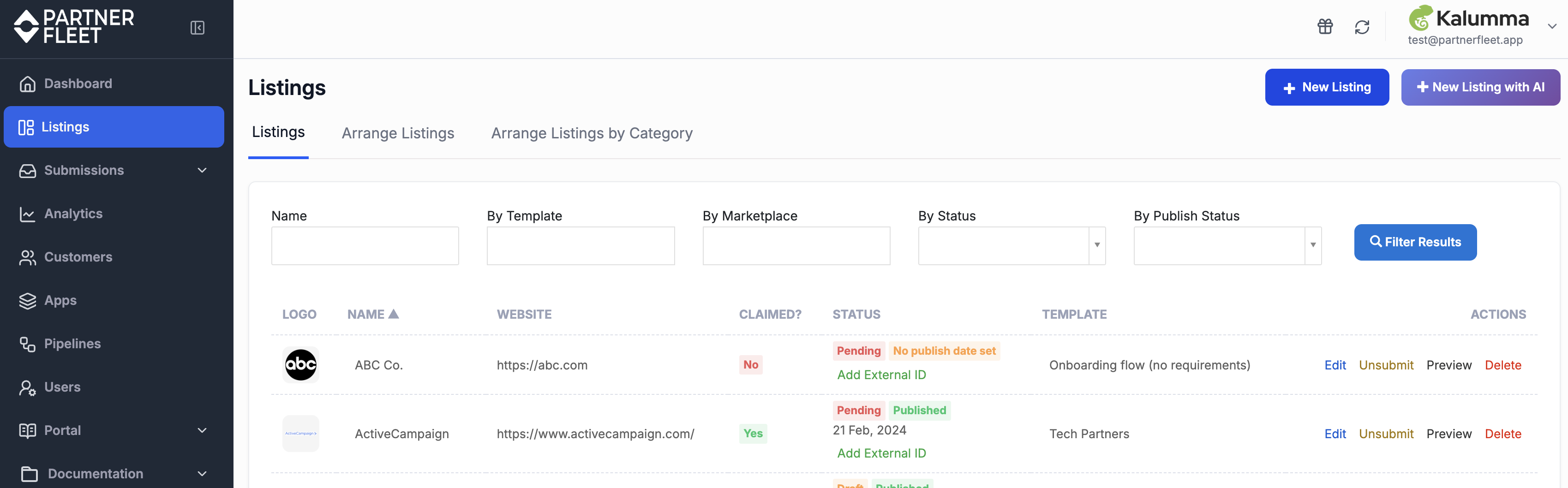
Manage Your Listings
This is where you manage everything related to your marketplace listings. Create and edit listings, control how they appear on your homepage, and organize them using categories for easy discovery. Quickly find what you’re looking for by searching listings by name or filtering by template to streamline navigation and ongoing management.
Learn more on how to customize your listings https://help.partnerfleet.io/docs/customize-a-partner-listing
Submissions
Submissions Overview
The Submissions section gives you a centralized view of everything submitted through your marketplace—including forms, leads, and reviews. Whether you’re reviewing a partner application, qualifying an incoming lead, or approving a review before it’s published, this is where you manage it all.
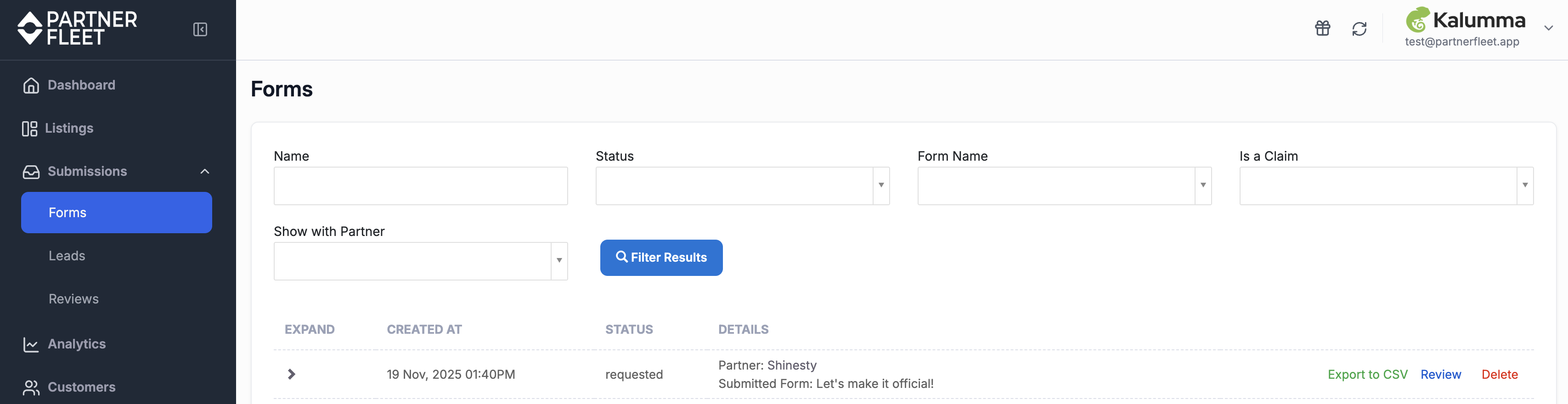
Forms
Manage all marketplace forms in one place. Quickly find what you need by searching by form name, type, or status. Expand individual submissions to view detailed responses, approve applications, or export submission data to CSV for reporting and analysis. This section serves as the primary workspace for reviewing and managing all form-based submissions.
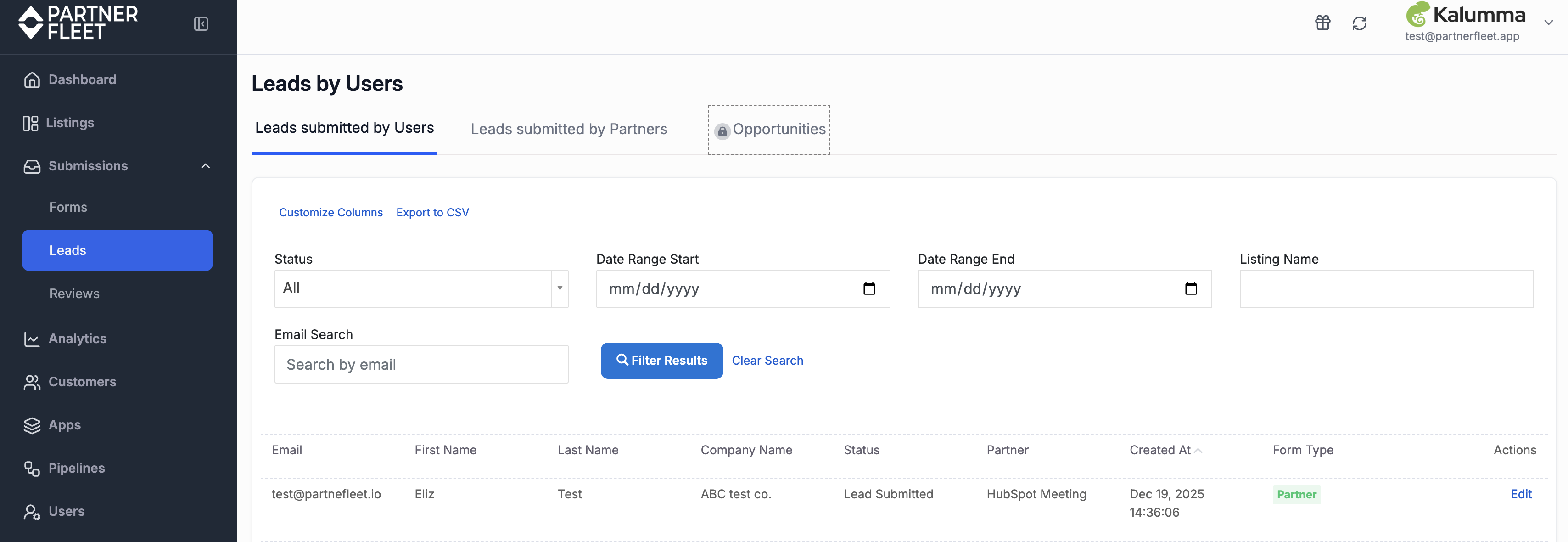
Leads
Easily organize and review incoming leads using the two top tabs, which separate leads submitted by frontend users from those submitted by partners. Switch between tabs to quickly locate, qualify, and follow up on the right leads.
Learn more about the different type of lead forms that are available to you https://help.partnerfleet.io/docs/lead-forms-template-vs-listing
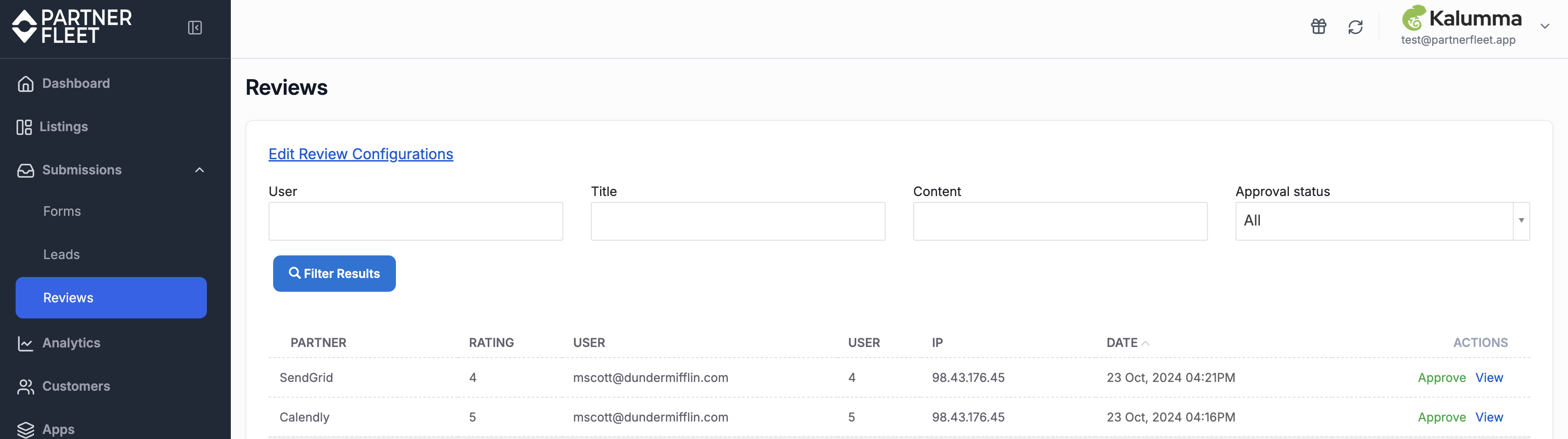
Reviews
Configure and manage marketplace reviews from this section. Control whether star ratings are displayed, where stars appear on listing cards, and whether reviews require approval before going live. You can also enable headshot uploads and filter reviews by user, title, content, or approval status—giving you full control over how reviews are moderated and displayed.
Analytics
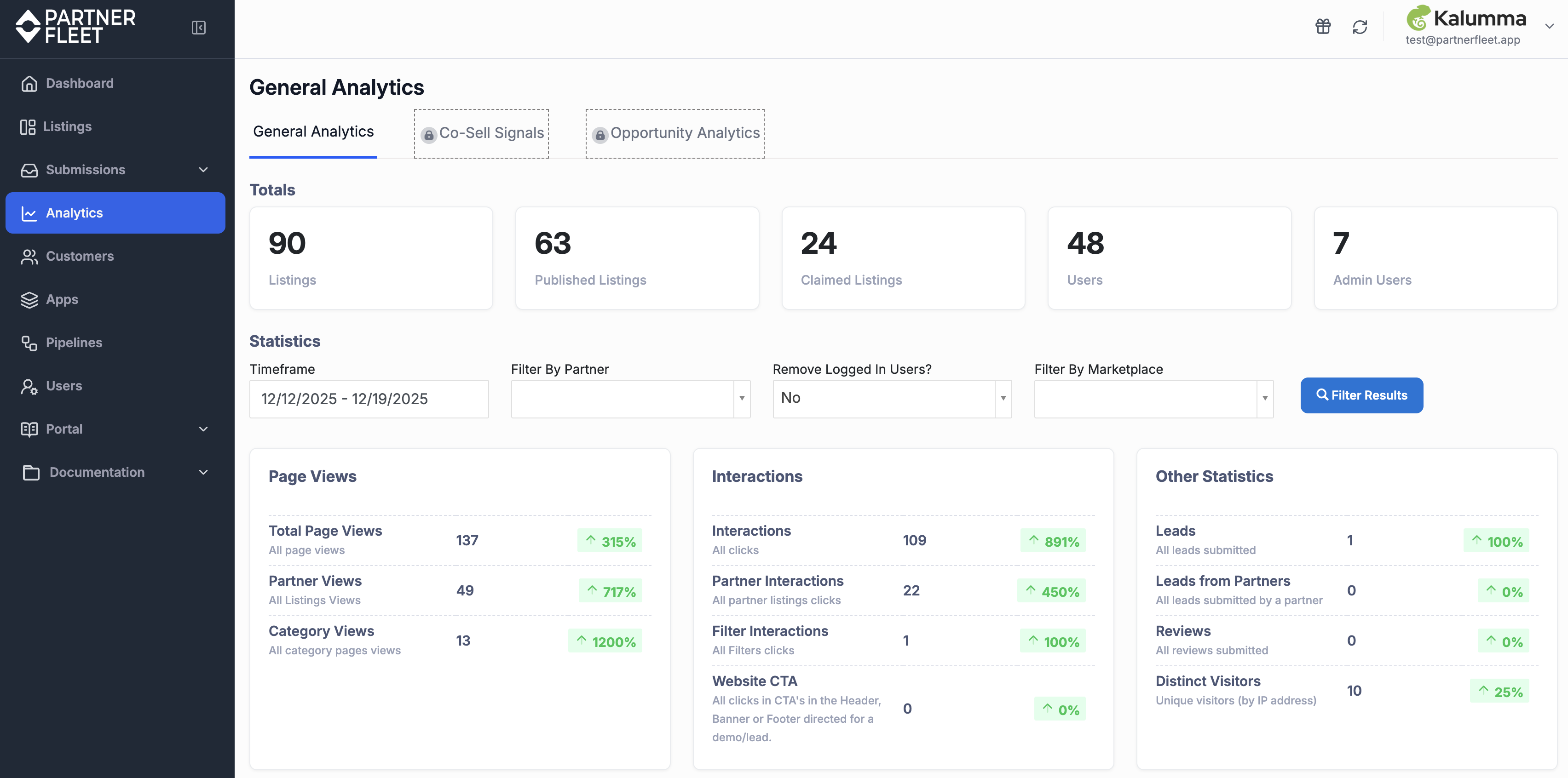
General Analytics
Partner Fleet’s analytics dashboard makes it easy to understand how your marketplace is performing at a glance. Use built-in filters to explore key metrics—including page views, interactions, leads, and visitors—so you can focus on the data that matters most to your goals. Track growth and performance trends over time by viewing the past week, month, or a custom date range.
Top 5 Insights at a Glance
The Top 5 view gives you a quick snapshot of what’s driving engagement across your marketplace. See your top-performing partners, listings, or categories and understand where traffic and activity are concentrated. This makes it easy to uncover high-impact opportunities and prioritize areas with the greatest potential.
Together, these insights turn marketplace activity into clear, actionable data—helping you make confident, strategic decisions backed by performance trends.
Co-Sell Signals
Co-Sell Signals in PartnerFleet—powered by integrations with Crossbeam and Slack—help you identify and act on high-intent marketplace activity in real time. By matching marketplace visitors with Crossbeam partner data, you can quickly uncover shared prospects and existing customers and move faster on joint opportunities.
Key capabilities include:
- High-Intent Alerts: Receive real-time Slack notifications when engaged visitors interact with your marketplace.
- Smarter Partner Alignment: Instantly identify co-sell opportunities with partners based on shared accounts and activity.
- Faster, Coordinated Action: Collaborate with partners more effectively to improve outreach and increase conversion.
To learn more, read the full announcement on our blog: here.
Pipelines
Manage Your Pipelines
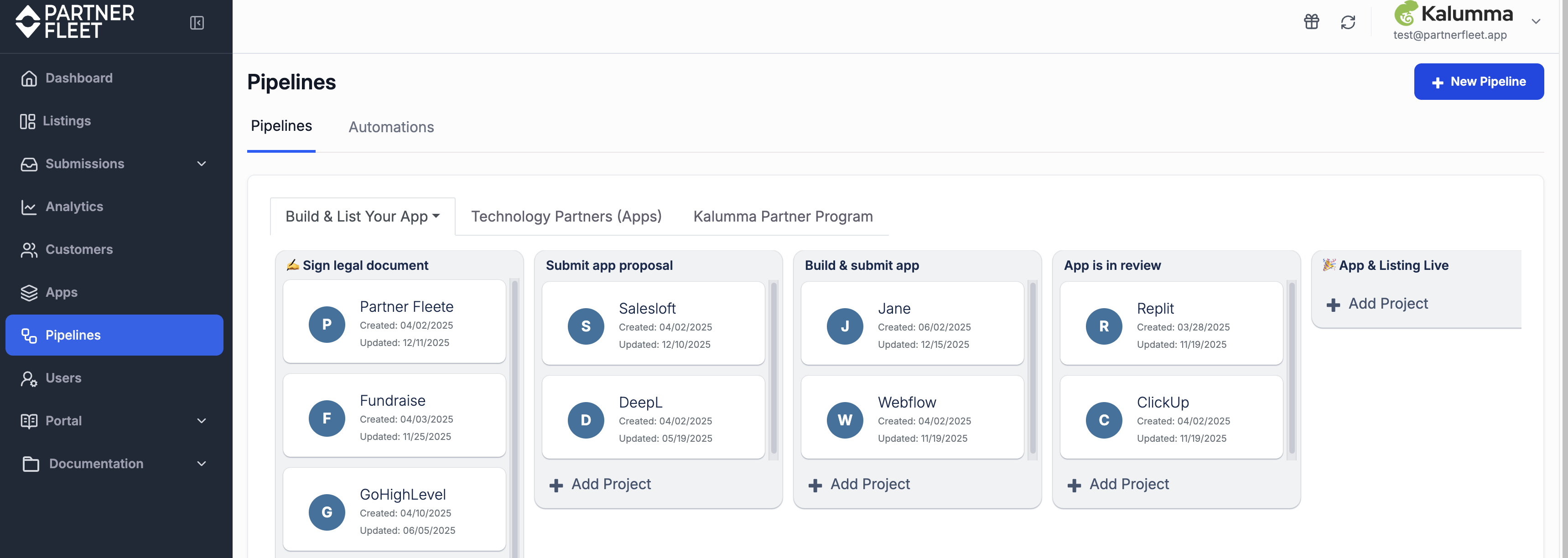
Pipelines in PartnerFleet’s Developer Portal give you full control over every stage of the partner journey—from initial interest to launch and beyond. Design structured workflows that keep partners moving forward, maintain visibility across progress, and ensure no steps are missed along the way.
With built-in automation, pipelines do more than organize—they take action. Automatically trigger tasks, notifications, approvals, and access to resources at each stage, reducing manual effort while creating a consistent, scalable experience for every partner.
For third-party developers, pipelines provide a clear, guided path to building and launching apps or integrations within your ecosystem. Each stage surfaces the right technical documentation, tools, and checkpoints at the right moment, helping developers move faster, collaborate more effectively, and ship with confidence.
Users
User Management Overview
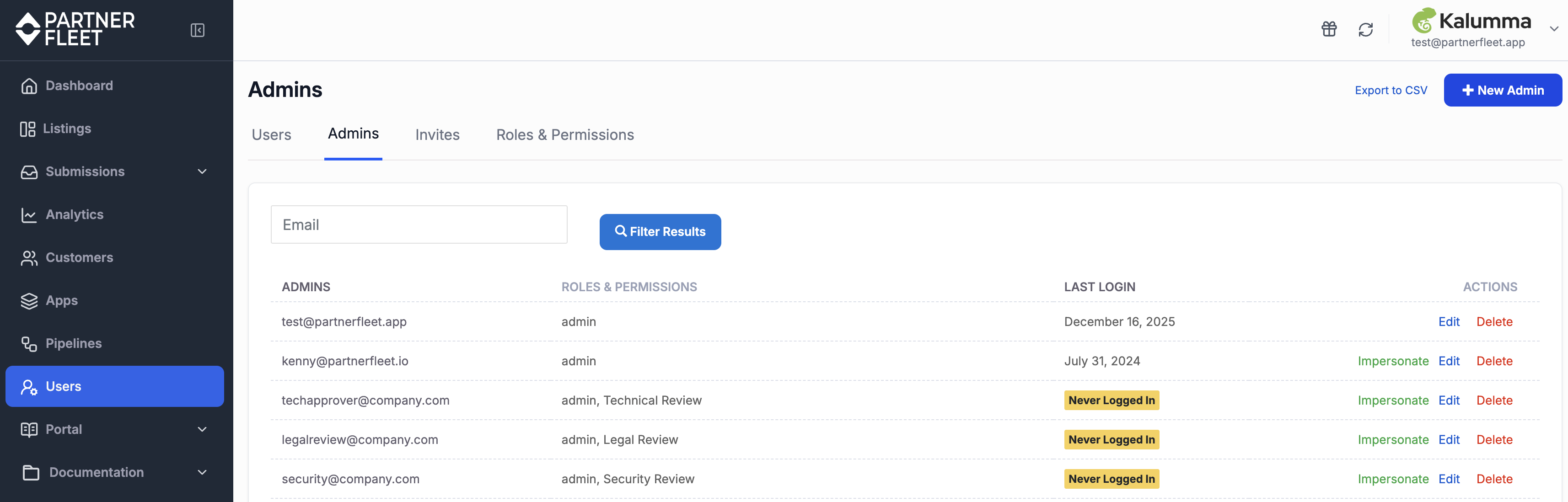
The User Management section brings all account administration into one centralized workspace. Use the top-level tabs to navigate between Users, Admins, Invites, and Roles & Permissions, making it easy to manage access and stay organized.
From here, you can manage admin and partner accounts, monitor invitation statuses, and assign roles and permissions to ensure the right level of access across your marketplace. For reporting and analysis, user and account data can be exported to CSV at any time.
A powerful feature of User Management is impersonation, which allows you to view the marketplace exactly as a partner would. This makes it easier to understand the partner experience, validate configurations, and troubleshoot issues with confidence.
Together, these tools give you full control over user access while providing valuable insight into how partners interact with your marketplace.
Portal
Portal Overview
The Portal is where you manage the full partner experience—from accounts and resources to forms and access controls. It provides a centralized, streamlined workspace to administer partner accounts, control access to key resources, and collect information through custom forms—helping you run a more organized and scalable partner program.
Accounts
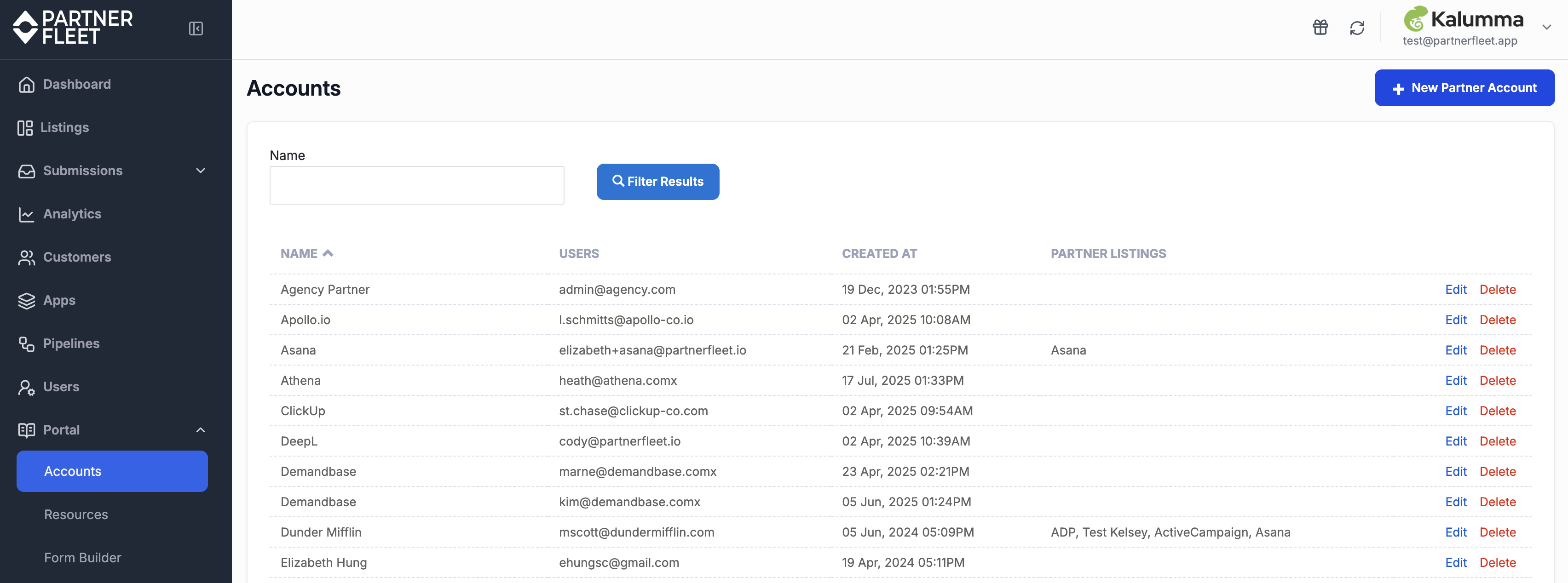
Under Portal → Accounts, you can view and manage all partner account details in one place. This includes partner applications, associated users, generated affiliate links, submitted leads, and active invites. Use the Edit action to update account settings, review partner activity, and access related data as needed.
Resources
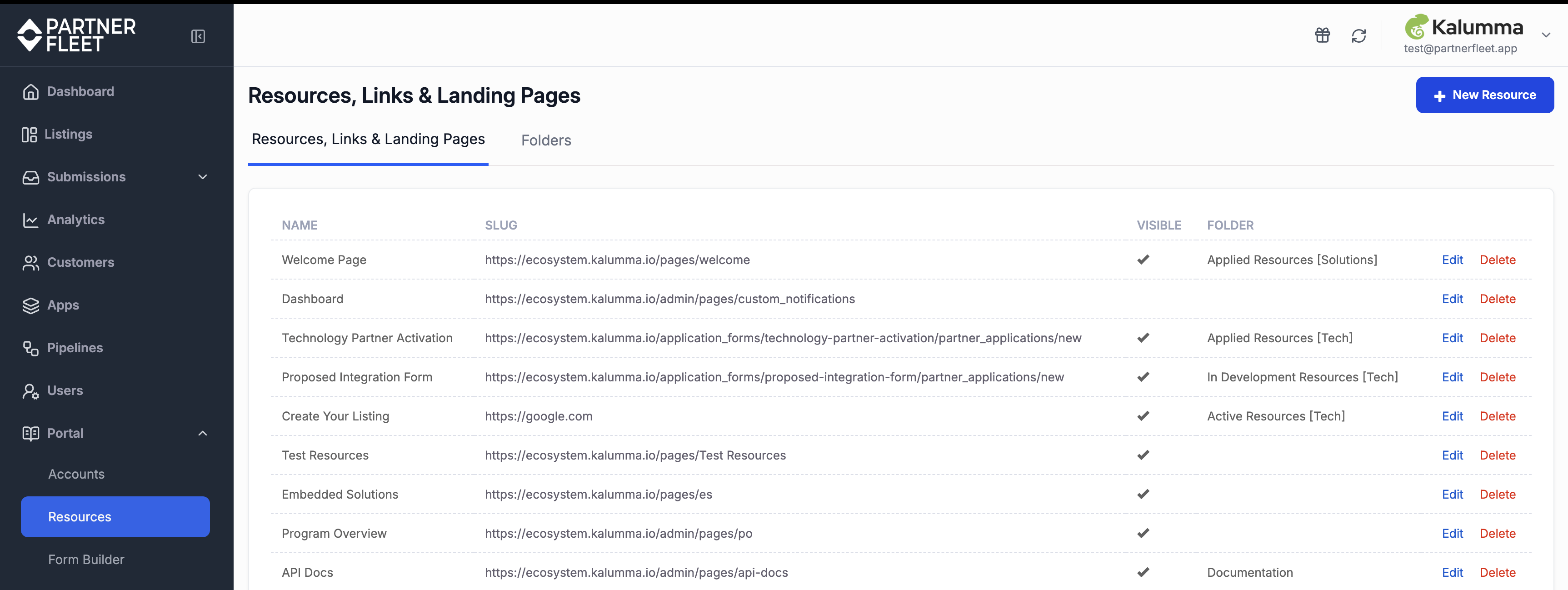
The Resources area is split into two top-level tabs: Resources (Links & Landing Pages) and Folders. These work together to control how content is organized and displayed in your partners’ portal.
Use the Resources tab to create partner-facing content such as links, landing pages, and uploaded documents. Then, use the Folders tab to organize those resources into permission-based folders, ensuring partners only see the materials relevant to them.
When configured together, resources placed into folders are surfaced directly within the partner portal—providing partners with a clean, structured experience and easy access to the right content at the right time.
Form Builder
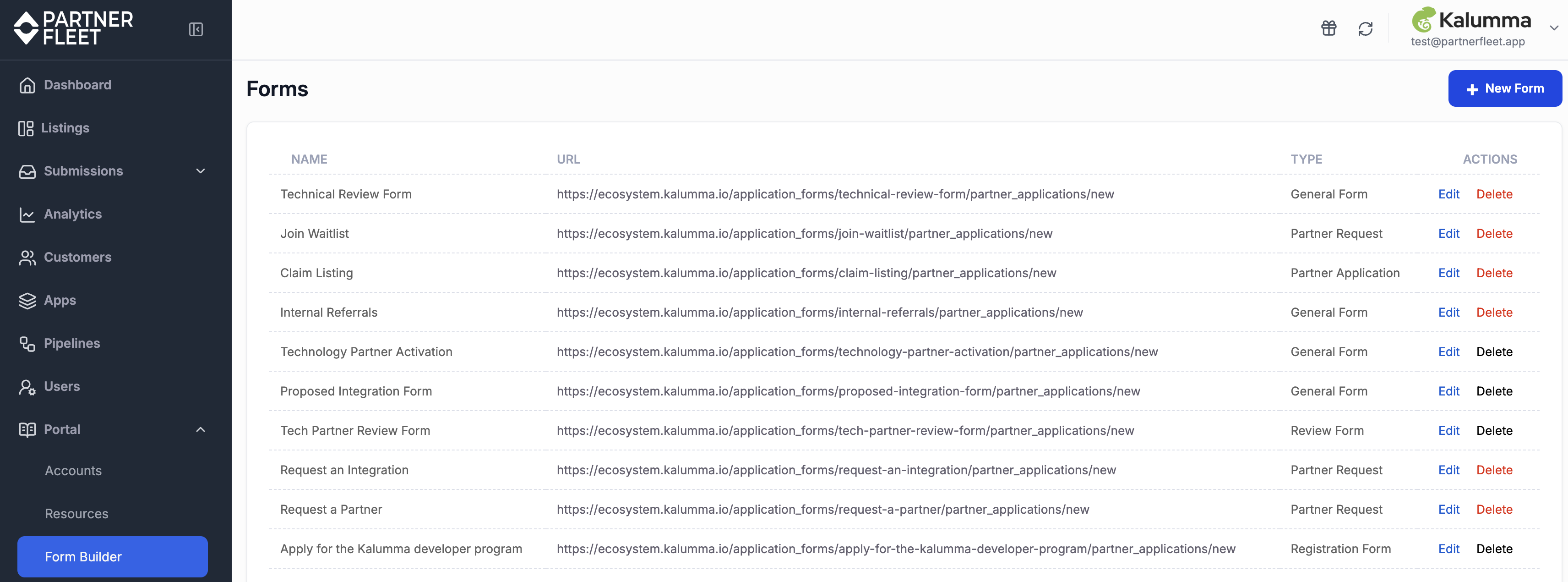
Use the Form Builder to create custom forms that support partner onboarding and engagement. Available form types include Application, Registration, Partner Request, and General forms—making it easy to standardize data collection and streamline partner interactions across your program.
Integrations
Integrations Overview
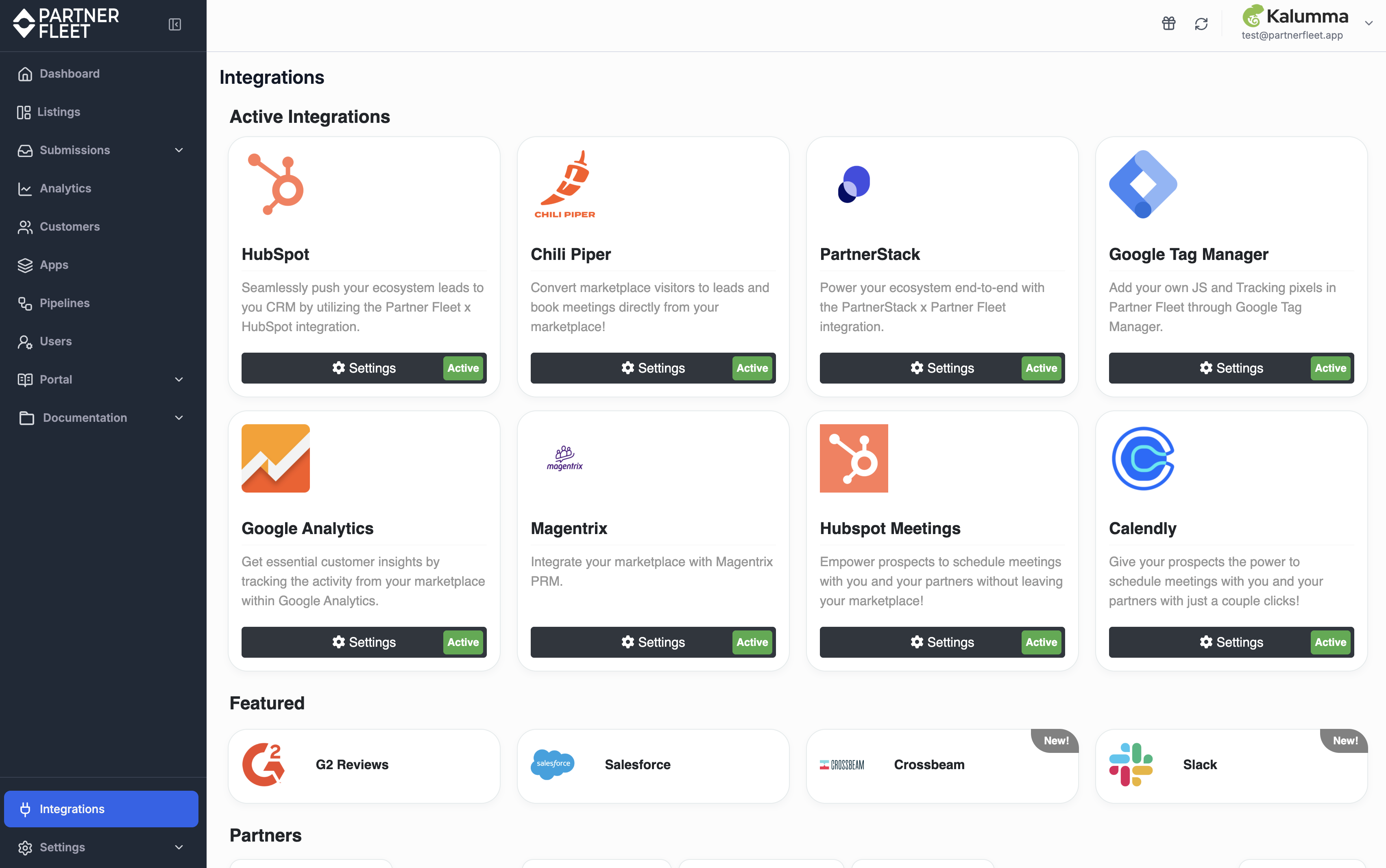
Partner Fleet integrations connect your marketplace and partner workflows with the tools your teams already use. By integrating with platforms like Crossbeam for co-sell intelligence, Salesforce for streamlined lead tracking, Slack for real-time notifications, and HubSpot for CRM synchronization, you can centralize data and move faster across partner motions.
These integrations improve visibility into partner activity, accelerate deal cycles, and enable more effective collaboration between partnerships, sales, and revenue teams—supporting a more connected and scalable co-selling strategy.
Learn more about the different types of integrations available here
Settings
Settings Overview
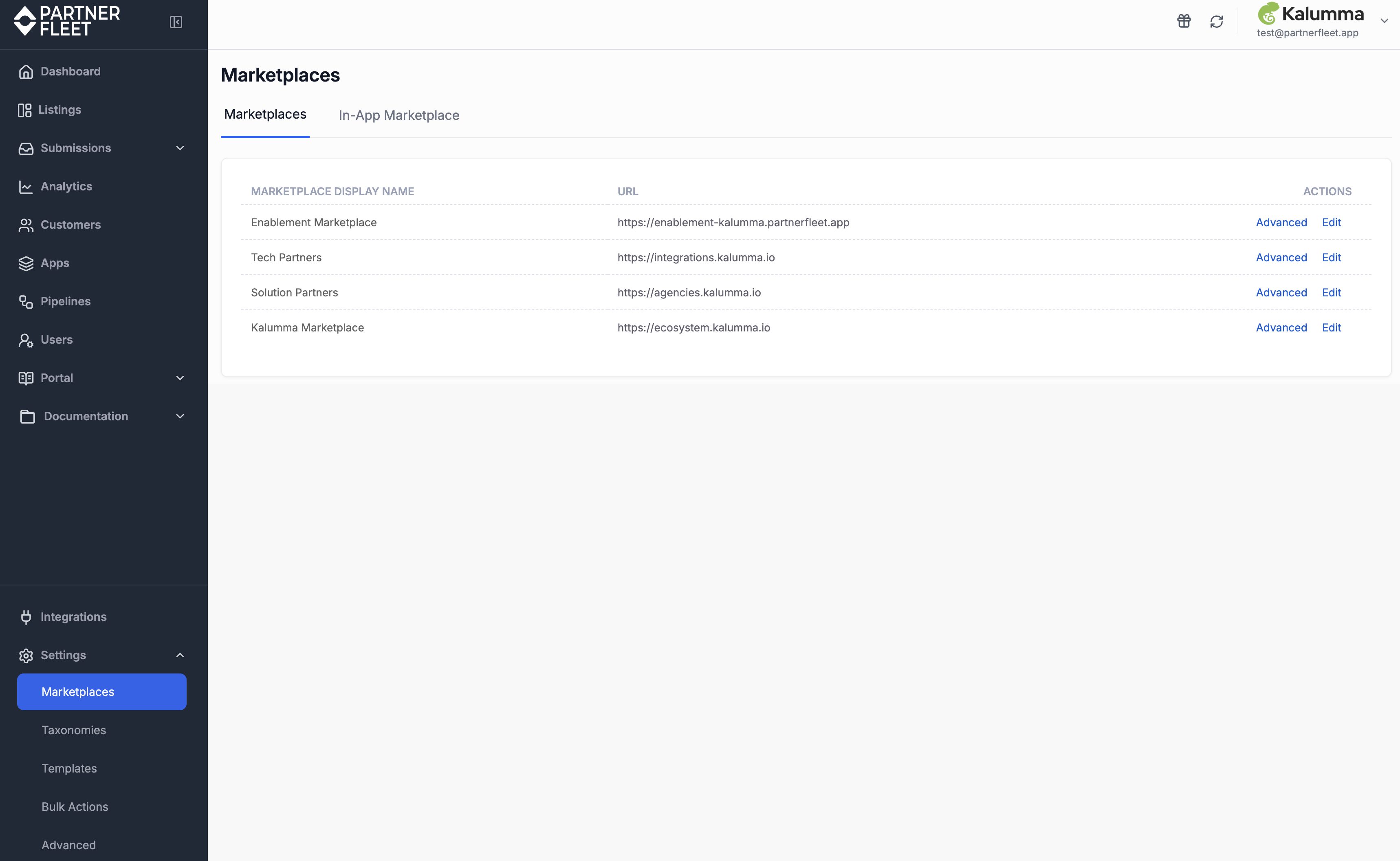
The Settings area is where you configure your Partner Fleet marketplace experience—across both public and in-app marketplaces. From branding and structure to automation and security, this is where you fine-tune how your marketplace looks, behaves, and operates.
Marketplace Customization
Customize the visual and functional aspects of your marketplace to match your brand and goals. Configure settings such as logos, categories and filters, SEO metadata, social sharing images, and advanced CSS or HTML for deeper customization and control over the user experience.
Taxonomies
Taxonomies define how listings are organized and discovered in your marketplace. Configure categories and filters to improve navigation, searchability, and overall discovery.
Learn more about Categories and Filters.
Templates
Create and manage listing and form templates to ensure consistency across your marketplace. Templates help standardize content, streamline onboarding, and scale listing creation efficiently.
Learn more about templates here.
Advanced Settings
Use Advanced settings to manage deeper system configuration, including custom fields, email templates, automations, webhooks, and SSO options. These tools help you tailor workflows, integrations, and authentication to your organization’s needs.
Global Controls
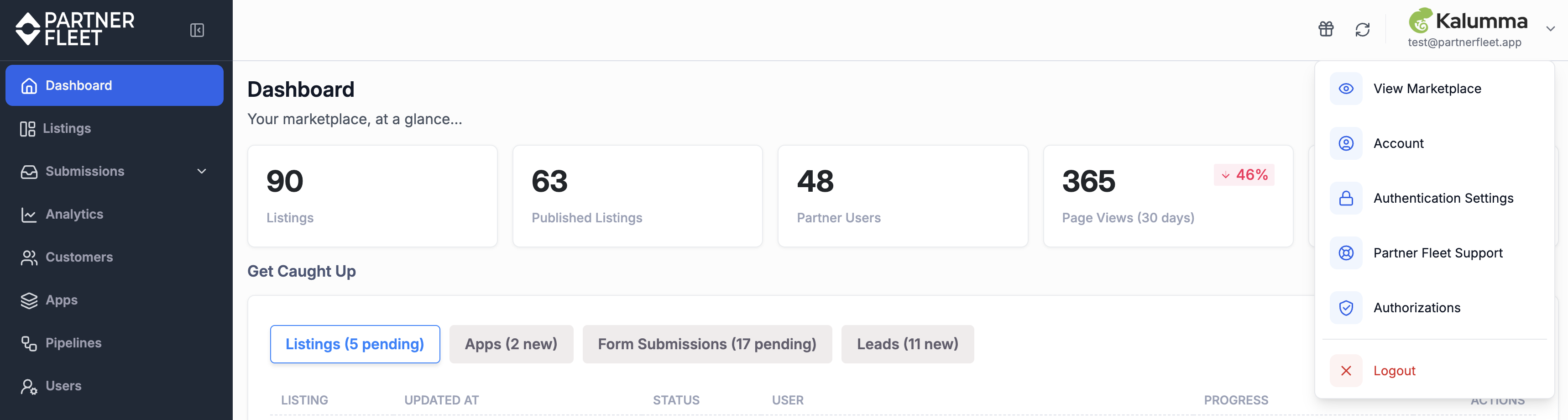
The Global Controls are located in the top-right corner of the application and provide quick access to system actions, personal settings, and support resources.
Refresh Icon: Instantly refresh the page to load the latest updates and changes.
Company Logo & Username Menu: Open the dropdown to access key account and system options, including:
- View Marketplace: Preview the marketplace as it appears to end users.
- Account Management: Update and manage your personal admin account settings.
- Authentication Settings: Configure security preferences such as session timeouts, password requirements, and lockout policies.
- Partner Fleet Support: Access help documentation and support resources.
- Log Out: Securely sign out of your PartnerFleet account.
These controls are always available, allowing you to manage settings, preview changes, and get help without leaving your workflow.
Updated about 1 month ago