

Categories
Understanding and Setting Up Categories in Your Marketplace
Why Categories Matter
In your marketplace, categories serve a vital function: they organize products, services, or partners into distinct groups. This organization is not just about keeping things tidy; it plays a crucial role in helping both your existing customers and potential prospects navigate and make the most of our marketplace with ease. By intuitively grouping offerings, we ensure that users can find what they're looking for quickly and discover new interests without feeling overwhelmed by choices.
What is a Category?
A category, sometimes referred to as a taxonomy, is essentially a way to classify the offerings in your marketplace into a structured hierarchy. This structure does more than just aid in navigation—it's a powerful tool for enhancing the visibility of your products or services on search engines.
The Power of Unique URLs
Each category you create generates a unique URL. This is not just a technical detail; it's an opportunity. These unique URLs are essential for search engine optimization (SEO), making your offerings more discoverable to potential customers through search engines. By incorporating relevant keywords into your category names and descriptions, you enhance your marketplace's SEO, driving more organic traffic to your site.
How to set up Categories
Categories can be found in Settings -> Taxonomies-> Categories
See Screenshot
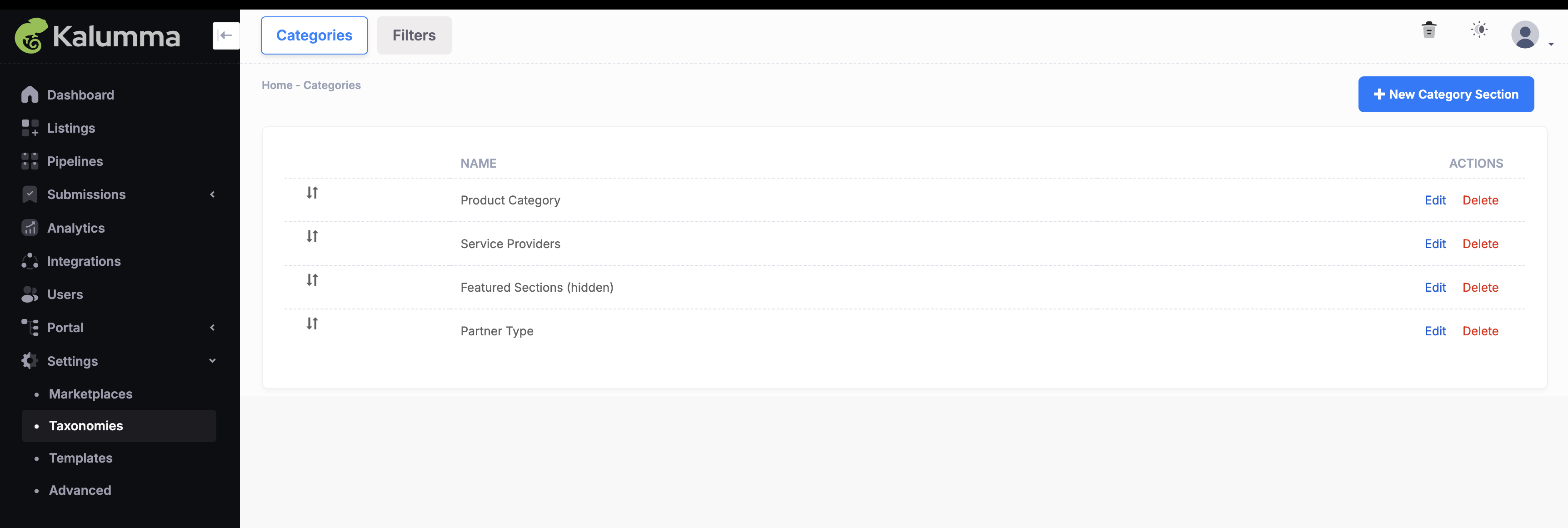
To create a new category click on the green button + New Category Section
To edit an existing category click on Edit.
To delete a category click on the Delete.
For the category to display on sidebar navigation bar on the frontend of the Marketplace the Use in Sidebar Navigation box must be checked
See Screenshot
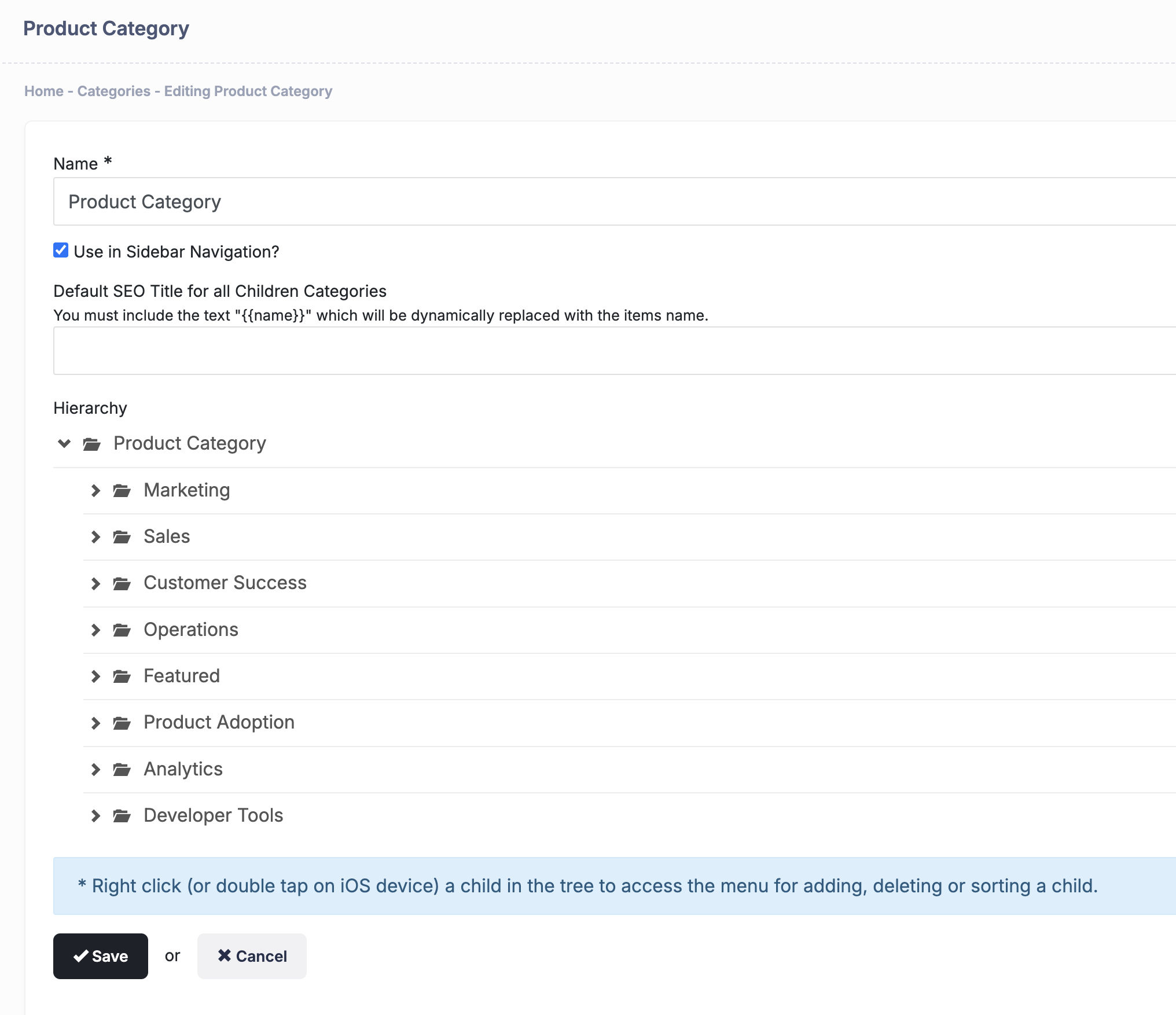
Name your main category, in this example its Product Category, and to add a new category right click on the category and then click add to set the name. Continue building out categories and subcategories by repeating that step.
Always make sure to click Save when making updates.
See Screenshot
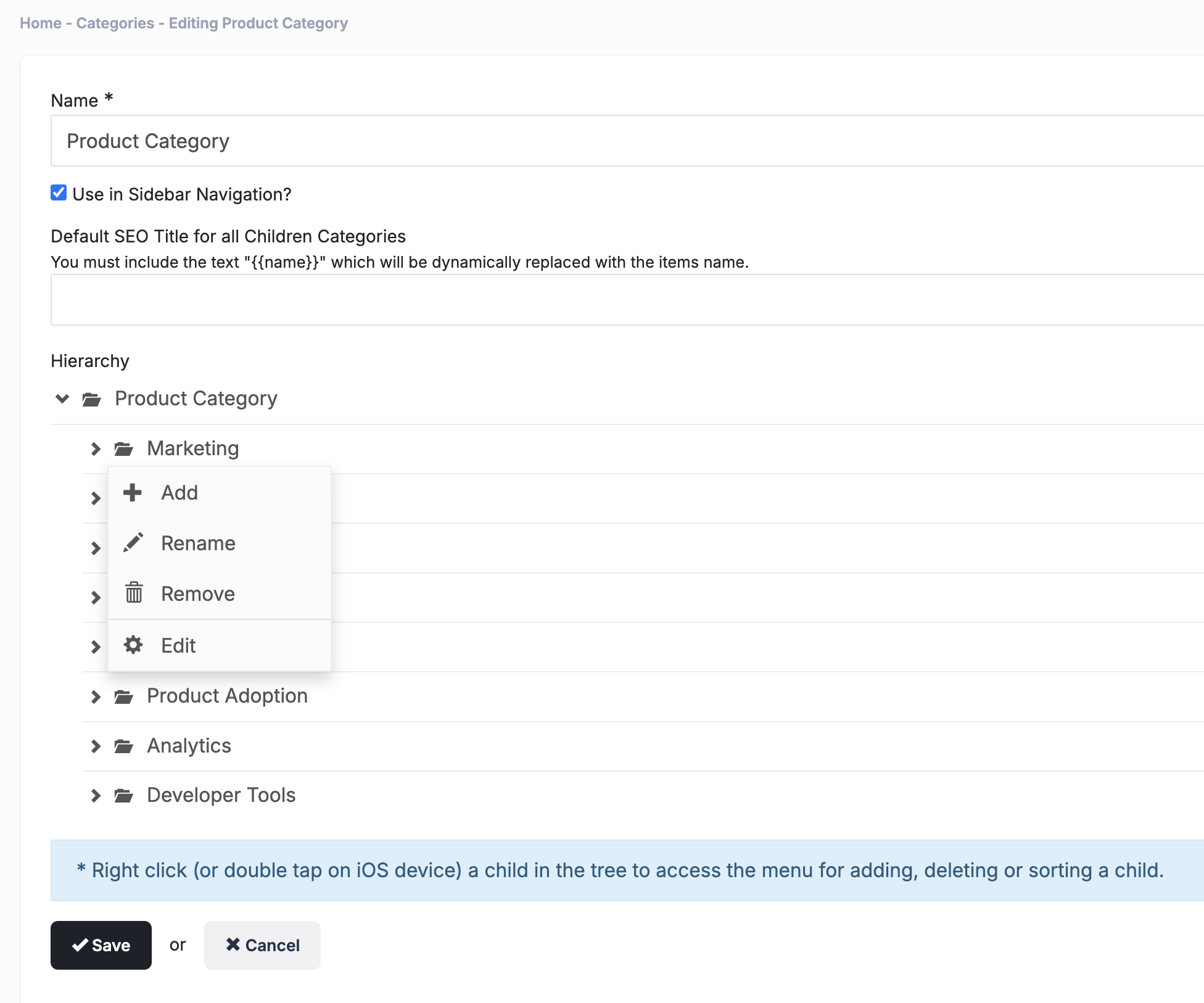
Setting up highlight categories or adding SEO content
To access additional category options right click on the category and then click Edit.
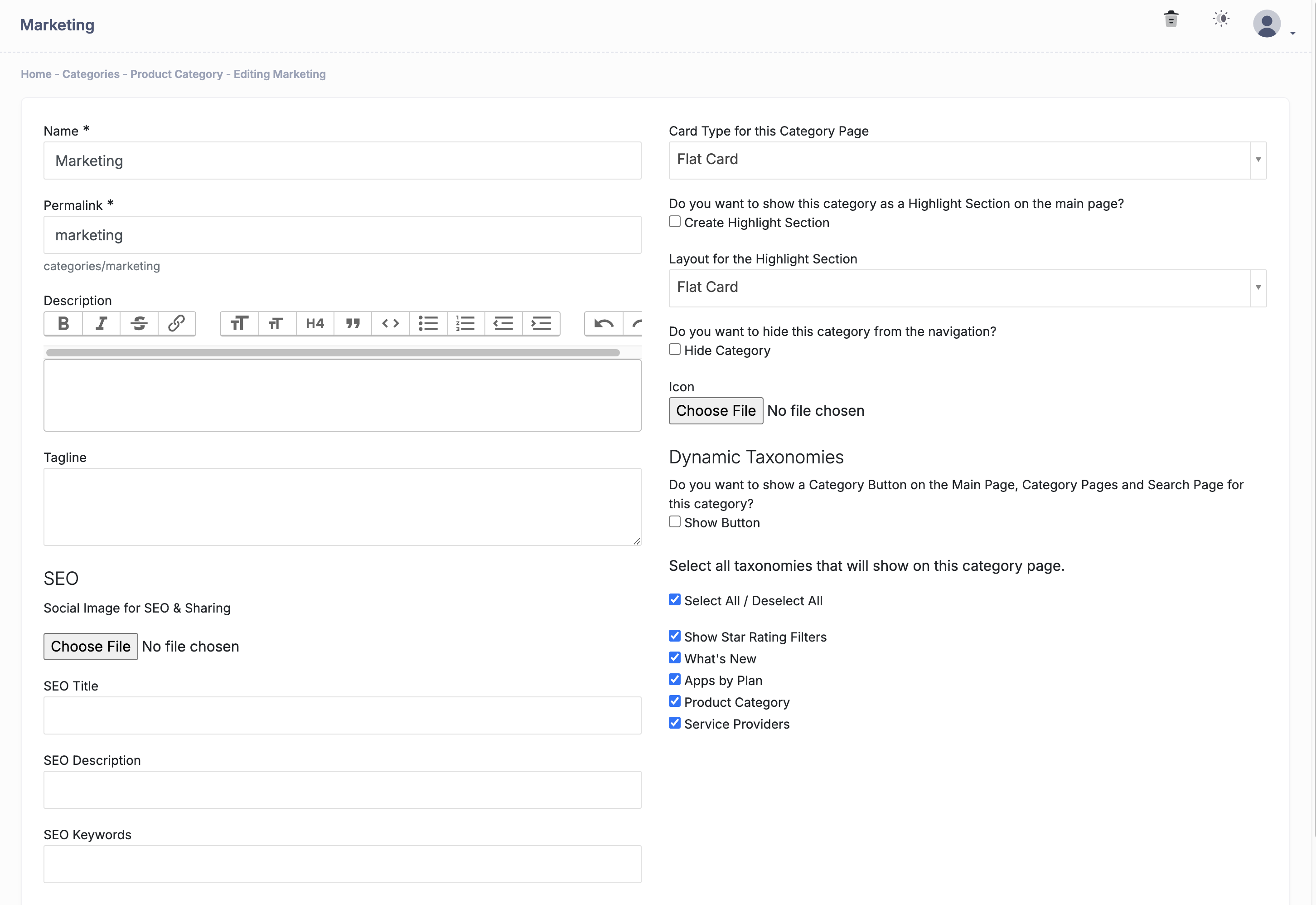
Once on this page you can set some default content.
- Create HomePage Highlight - Check this box if you want this to generate a highlight on the homepage.
- Description - Shows up on the category landing page to guide and add value.
- Tagline - Shows if the category is set to be a homepage highlight.
- Layout when Highlighted - Choose how partner cards are rendered if this is a highlighted category.
- SEO image and details - Enhance SEO details or add an SEO image when sharing the link socially.
See Screenshot
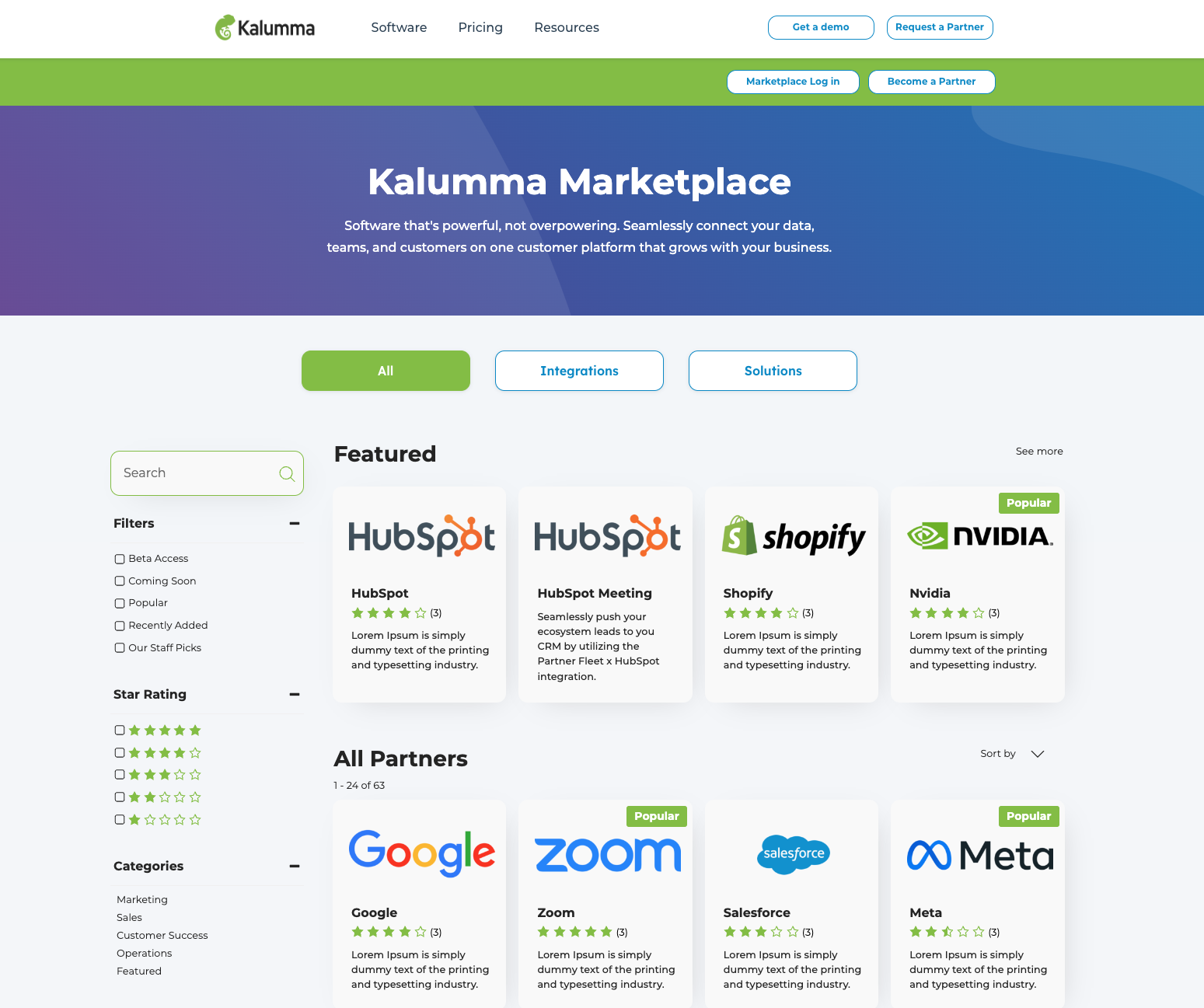
The Featured section below is an example of how a homepage highlight will display on the the frontend.
See Screenshot
Video Walkthrough - How to setup a Homepage Highlight
Adding Categories to Your Marketplace
To add categories:
- Navigate to Settings > Marketplaces.
- Select the marketplace you want to update, then click Edit.
- Enter desired categories in the Related Categories field, then Save.
After saving, click the trash can icon in the top-right corner to clear the cache, ensuring updates reflect quickly on the frontend. This step helps speed up any backend changes, keeping the marketplace up-to-date for users.
Updated over 1 year ago