

Invite Teammates with Contact Fields
Let applicants add their colleagues to a Partner Application or Registration Form, so everyone gets a partner portal invite when the application is approved.
A partner's whole team usually needs access to your marketplace: the person who applies, the developer building the integration, and the marketer writing the listing. Contact fields let the applicant add those people right on the application form. When you approve the application, each of them gets an invite to your partner portal, so you never have to add them one at a time.
Contact fields are available on the Partner Application and Registration Form form types.
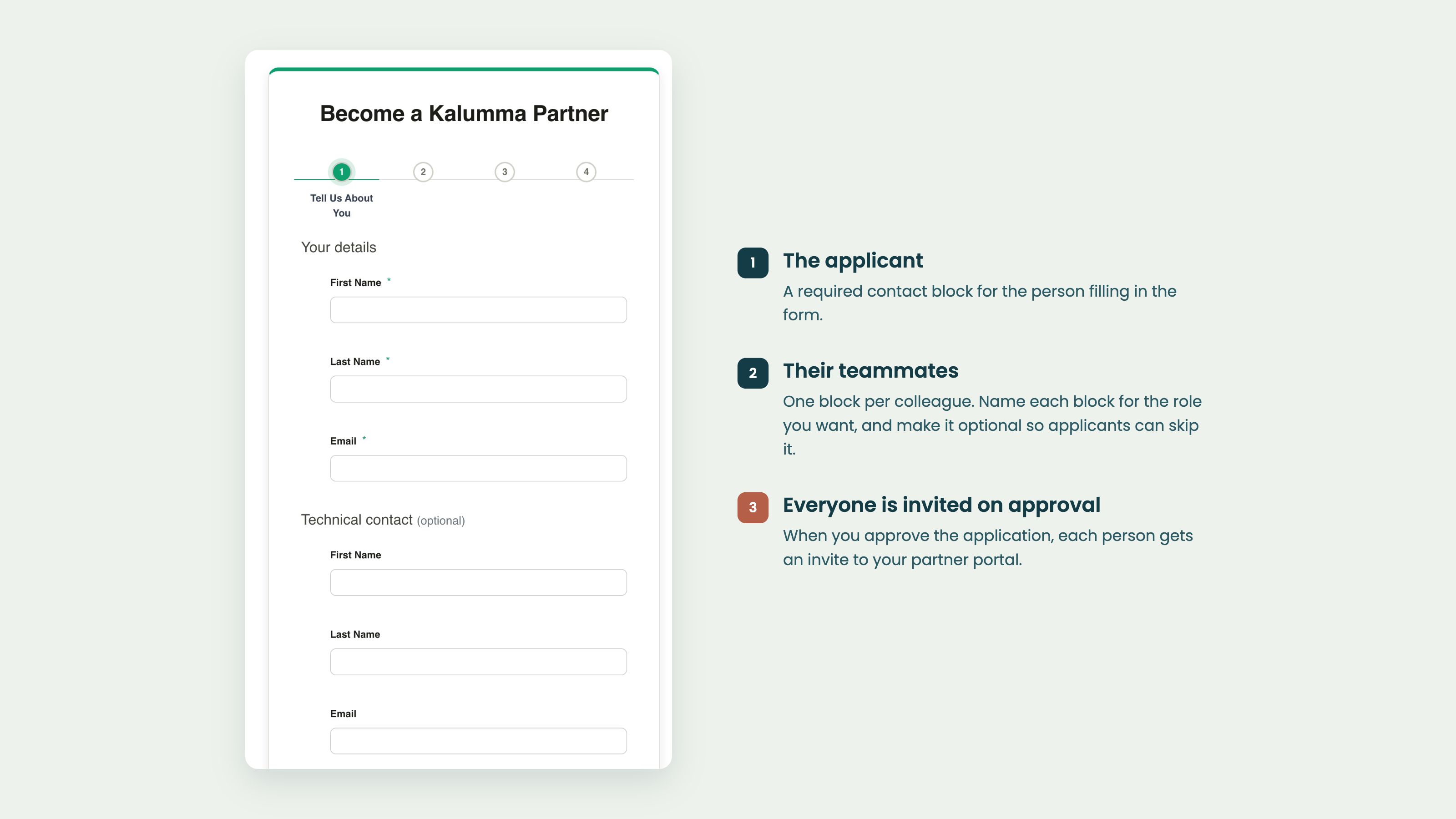
How Contact fields work
Each Contact field is a block for one person. When you add one, it comes with First Name, Last Name and Email fields already inside it. Add one Contact field for every person you want to collect, including the applicant.
- Name each block for the role you want, such as "Your details", "Technical contact" or "Marketing contact". The name is the block's heading on the form.
- Make teammate blocks optional so applicants can skip them. An optional block shows "(optional)" next to its name. If an applicant starts filling one in, they must complete all of its fields.
- Add more questions to a block with + Add field to this contact, for example a job title.
There's no limit on how many Contact fields a form can have, but applicants can't add extra blocks themselves. The form shows exactly the blocks you add.
Before you start
Teammates are invited only when the form creates a partner account and invites. Open the form in Portal → Form Builder and check that these settings are on:
- When approved create a Partner Account with the associated details
- When approved create an invite to the email entered
- Role Access (What roles should the invited user have?), with at least one role chosen. Everyone invited from the form, applicant and teammates alike, gets these roles.
Add Contact fields to your form
- Go to Portal → Form Builder and open your Partner Application or Registration Form.
- In the step where you want the contacts, click Add Field.
- Set Type to Contact, and enter the block's name in Question, for example "Your details".
- Leave Required contact ticked for the applicant's own block. For teammate blocks, untick it so applicants can skip them.
- Repeat for each teammate you want to collect.
- Remove the form's separate User Field questions for first name, last name and email (see the note below).
- Save the form.
Contacts replace the individual user fieldsA form can use Contact fields or the individual User Fields for first name, last name and email, but not both. If you add a Contact field and keep those user fields, the form won't save, and you'll see: "A form can use Contacts or individual user fields, but not both. Remove either the Contact(s) or these user fields: …"
Because of this, add a Contact field for the applicant too, and keep it required. A form that sends invites needs at least one required contact. Otherwise you'll see: "Email is required to be mapped, or add at least one required contact".
What happens when you approve the application
- Everyone gets an invite. Each contact with an email address gets an invite to your partner portal. If the same email is entered twice, only one invite is sent, and blank optional blocks are skipped.
- Teammates get the same access as the applicant. Everyone receives the roles chosen in Role Access. Contact fields never give anyone admin access.
- People who already have an account are linked, not duplicated. They still get an invite, and accepting it connects their existing account to the new partner.
- Applicants set up their account from the invite email. On forms with Contact fields, the applicant doesn't set a password right after submitting. Like their teammates, they accept the emailed invite.
- Nothing is sent if you reject the application.
Turned off invite emails?If Suppress partner invite on form approval is turned on in your marketplace settings, invites are still created when you approve the application, but no invite emails are sent.
Related
Updated 4 days ago