

Resources & Folders
Resources & Folders Overview
Found in Portal -> Resources
Resources provide partners with access to critical materials, often used for enablement and collateral, including partner training, program guidelines, marketing assets, and sales collateral.
Creating Resources
Folders: Organize resources by creating folders, which help group related content for easy access. Assign visibility to specific roles, ensuring that only the appropriate users see each folder. Folders appear on the dashboard and within navigation, keeping resources streamlined and accessible based on user permissions.
This structure supports organized, role-specific access to valuable materials, enhancing partner engagement and alignment.
Resources are what partners will get access to, this is commonly used for partner enablement, program enablement, marketing collateral, and sales collateral.
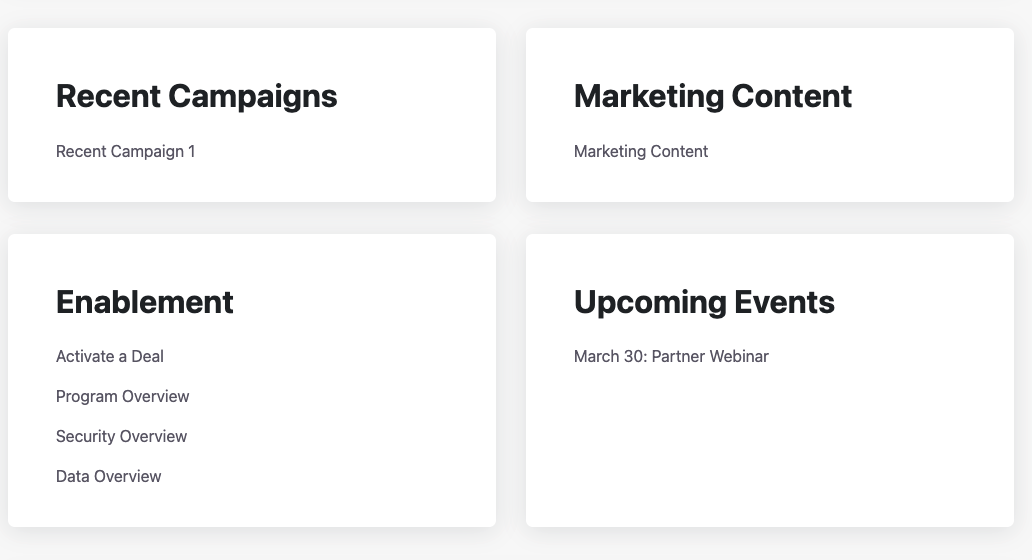
Supported Resource Types in Partner Fleet
Partner Fleet supports multiple resource types, enabling diverse content delivery for partners:
- External Link: Directs partners to outside web content.
- File Uploads: PDF, PPT, images, and Word documents render directly in the portal; other formats will prompt downloads.
- Landing Pages: Create and manage custom, visually-appealing content pages within the portal. Our Drag and Drop Builder lets you create engaging, customized content with ease. Choose from over 100 versatile content blocks, each designed for intuitive customization to fit your branding and messaging needs. This tool empowers you to quickly build visually compelling pages without coding, ensuring your partner resources are both effective and visually cohesive.
- Raw HTML & CSS: Add fully customizable content with HTML and CSS for advanced formatting and styling needs.
These options provide flexible, organized access to essential resources tailored to partner needs.
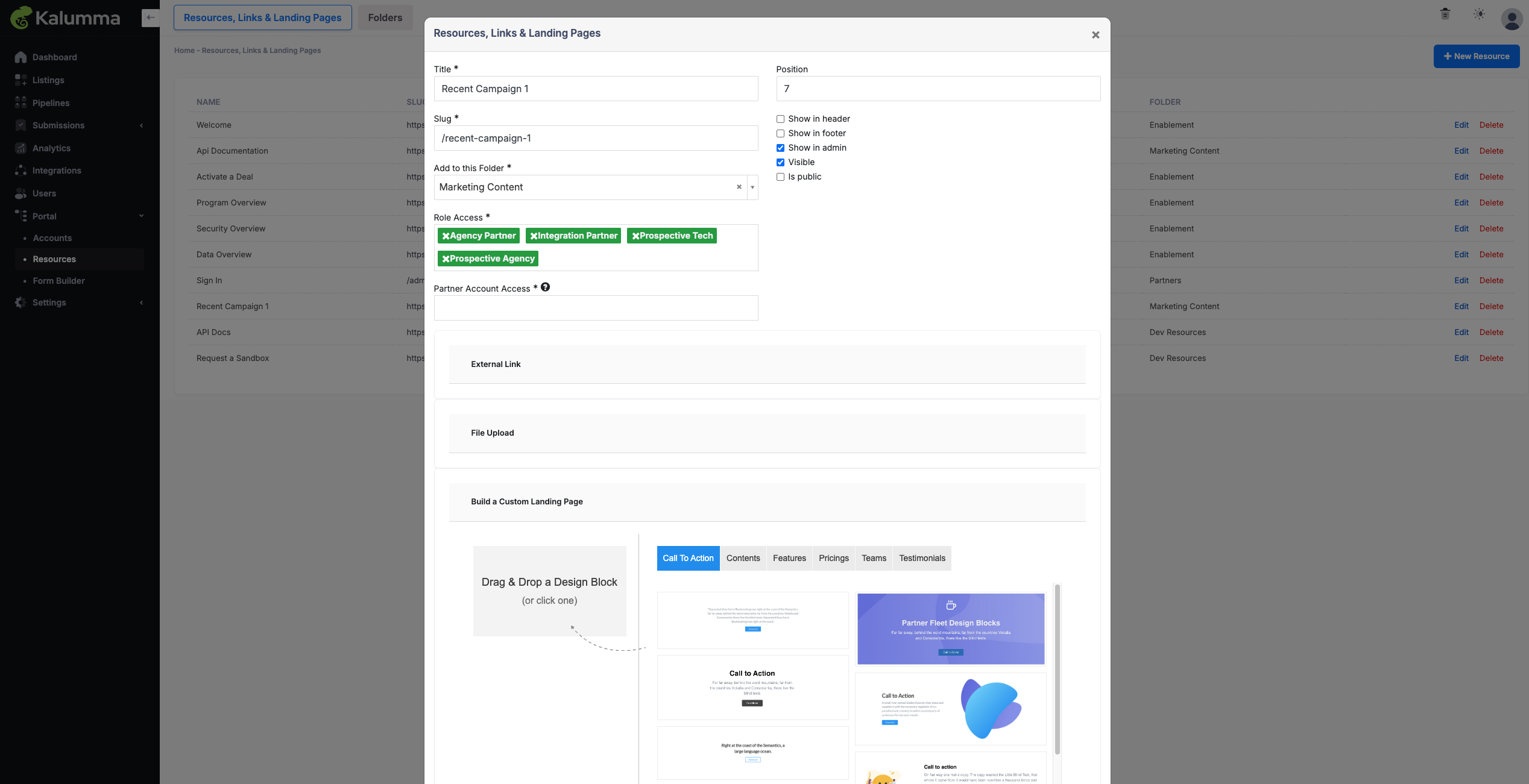
Setting Up Resource Access Controls
To ensure partners have the right access to resources, configure the following controls:
- Folder: Assign the resource to an appropriate folder for organized grouping.
- Roles: Select specific roles for users who should access the resource.
- Visibility Settings:
- Check Show in Admin for admin-level visibility.
- Check Visible to make the resource accessible to partners.
- Specific Partner Access (Optional): For partner-specific resources, assign the resource directly to specific partners instead of a general role.
These settings ensure secure, role-based access to resources.
Updated over 1 year ago