

Partner Application
Use case for the Partner Application
The Partner Application is used as a public facing form that allows prospective partners to apply to your partner program directly from your Marketplace. You can configure the form to include custom fields to qualify a prospect applying to your partner program. After the prospective partner submits their application an admin will need to review, and if approved, the partner is able to create an account and manage their listing in a few easy steps.
Walkthrough of the Partner Application process
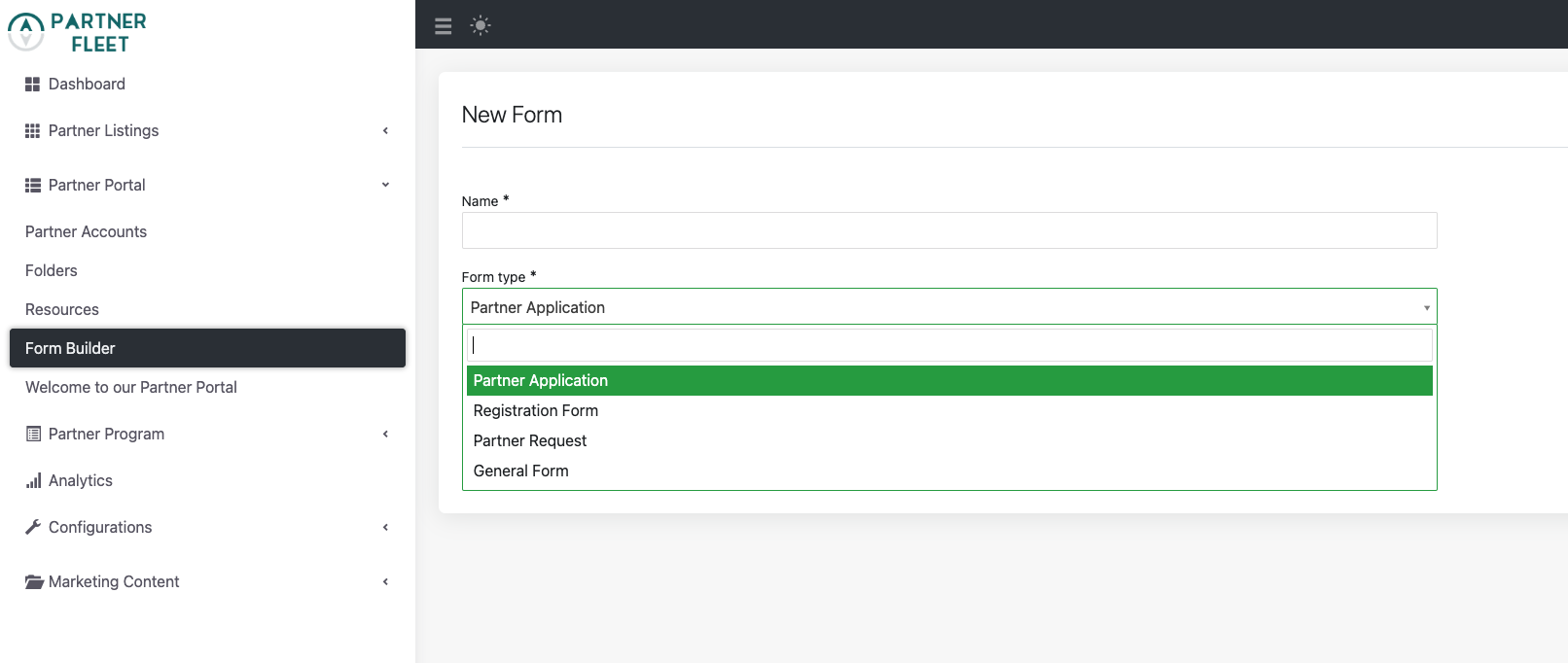
- Go to Partner Portal -> Form Builder and select the Partner Application. Build out your form by adding the required fields, along with any additional fields and save.
See Screenshot
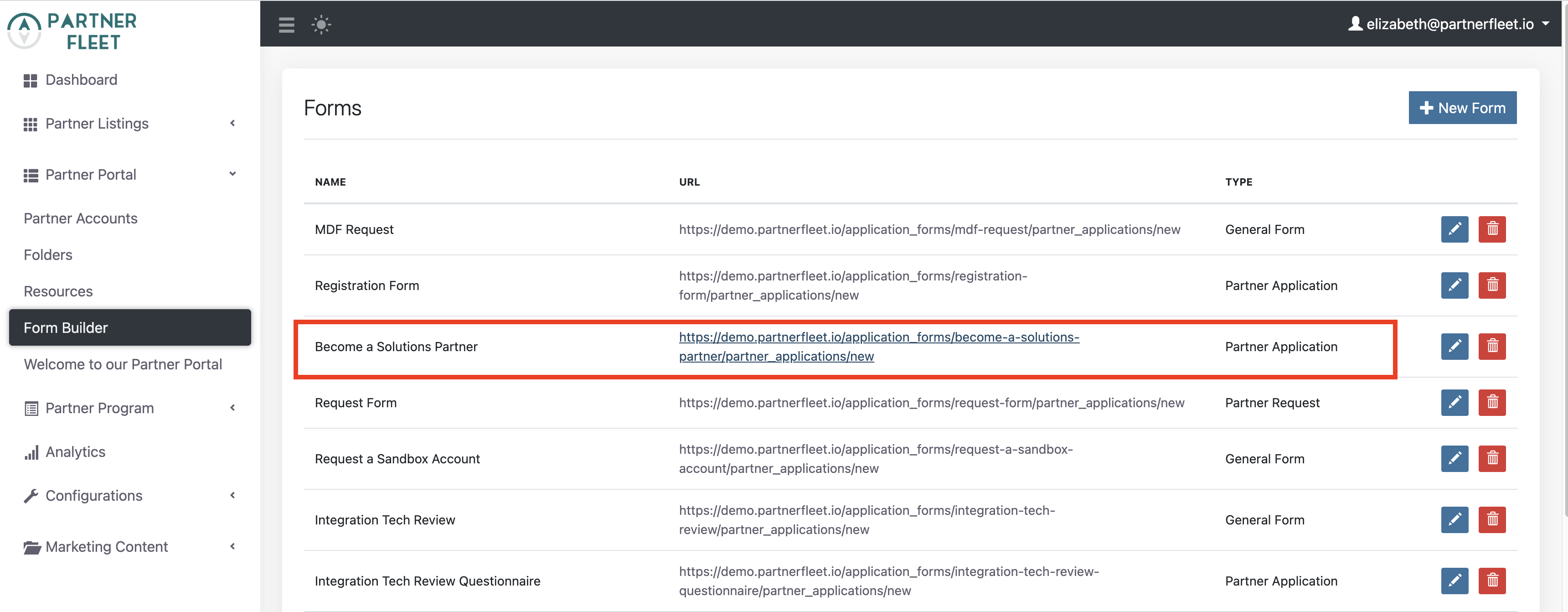
- Once the Partner Application has been saved there will be a url generated for this form.
See Screenshot
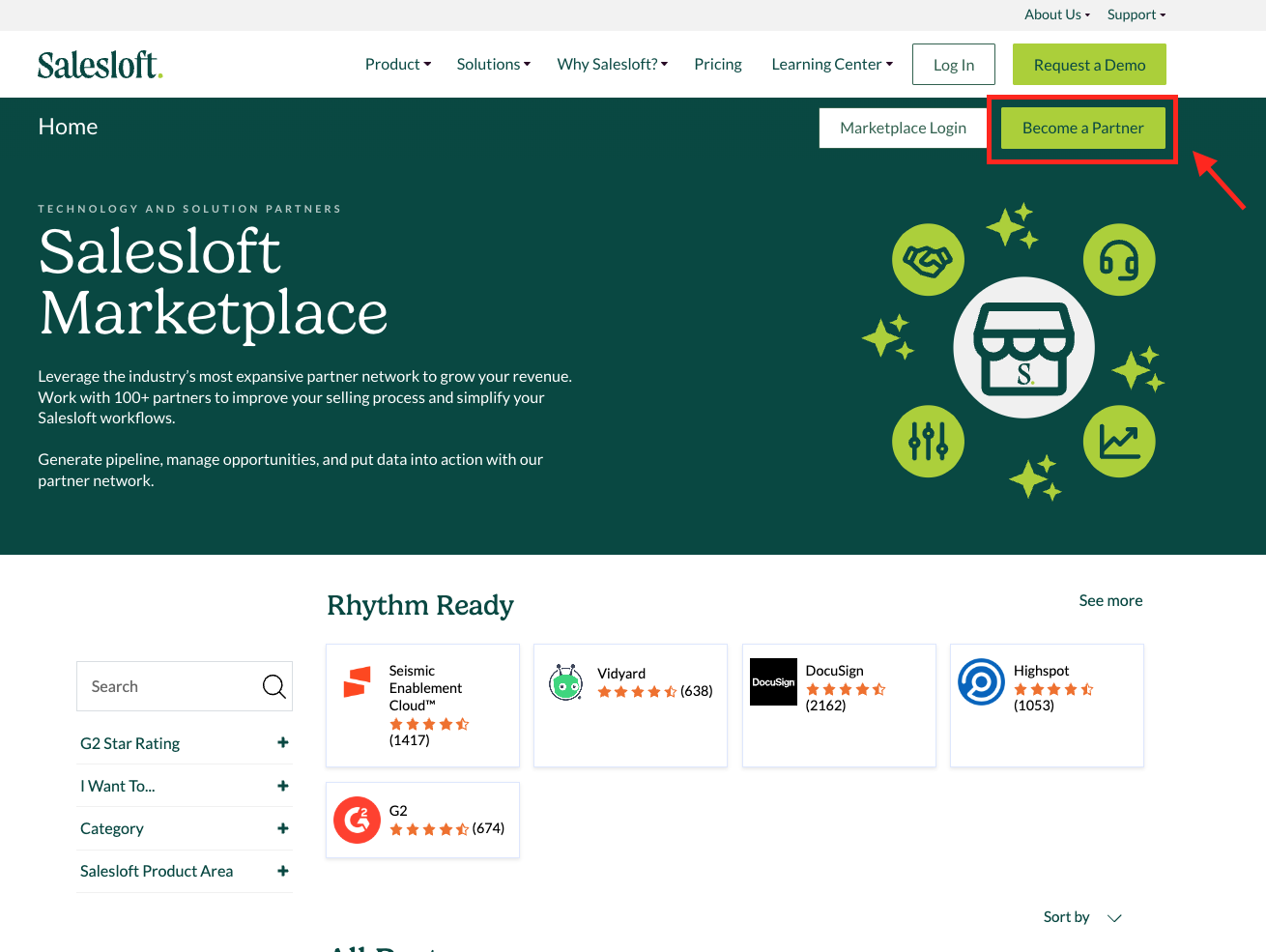
- A couple best practices for getting this form in front of your audience is to have it displayed on your Marketplace, either as a CTA button or having a "Become a Partner" card.
Here's an example from Salesloft. They have their Partner Application behind a "Become a Partner" CTA button in their homepage banner.
See Screenshot
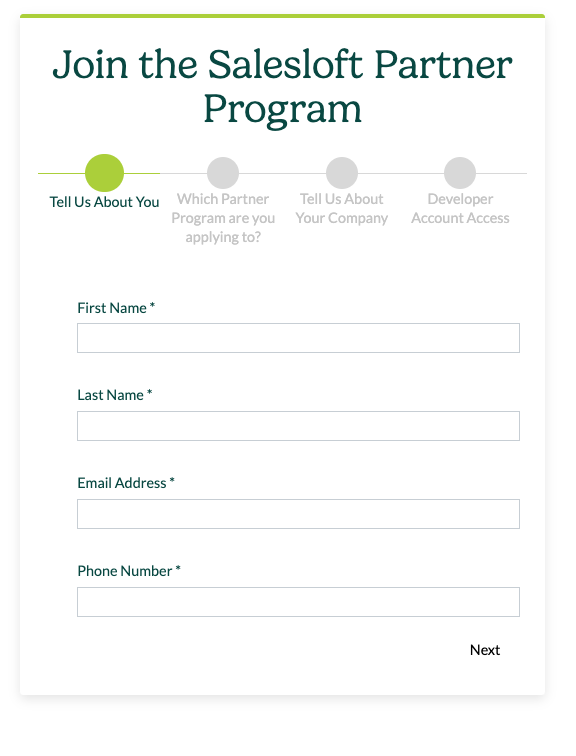
- Once clicked, the prospective partner will be prompted to complete the form.
See Screenshot
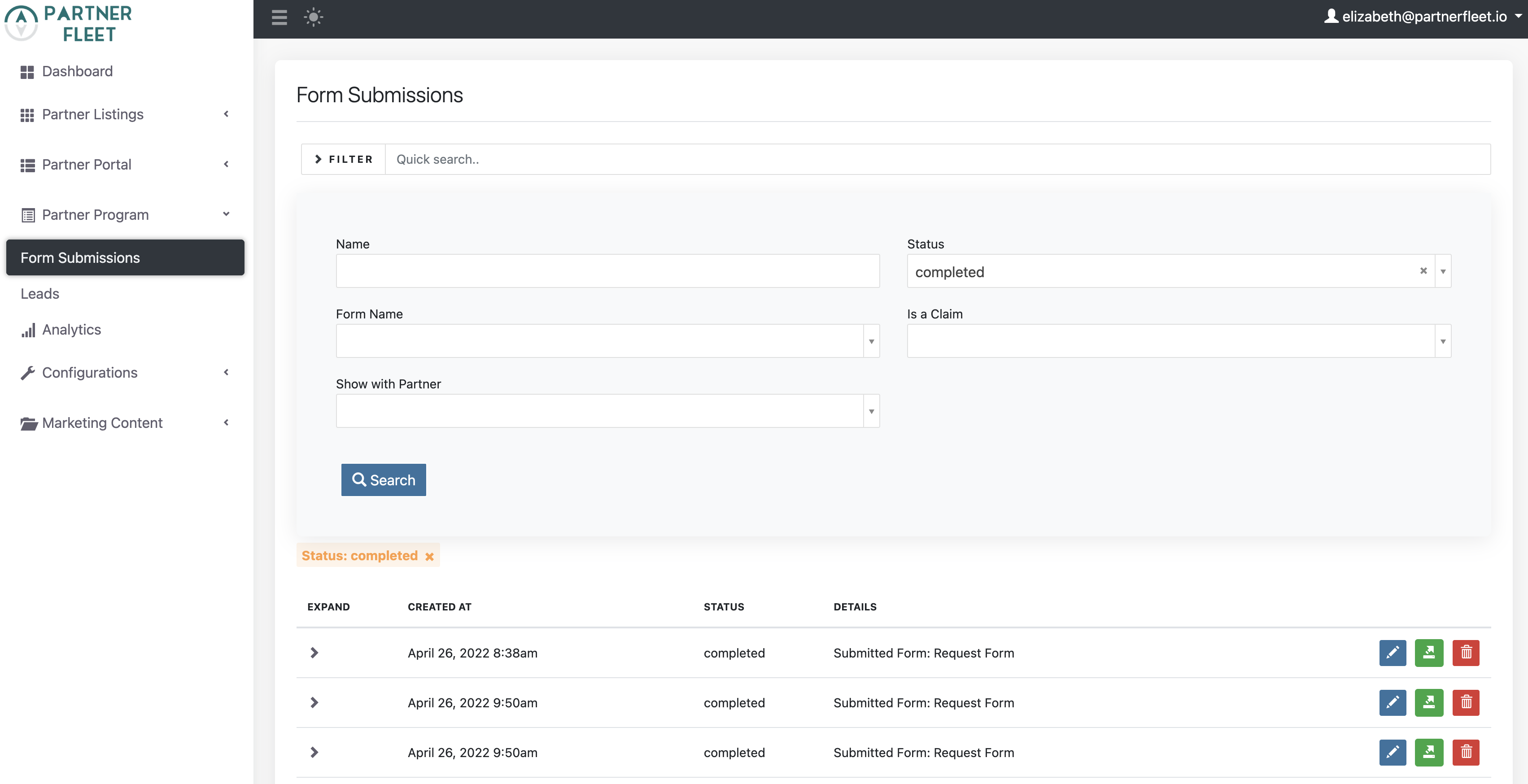
- After the application is submitted a notification email will be sent to the designated admin for review. All form submissions can be found in the Partner Program -> Form Submissions.
See Screenshot
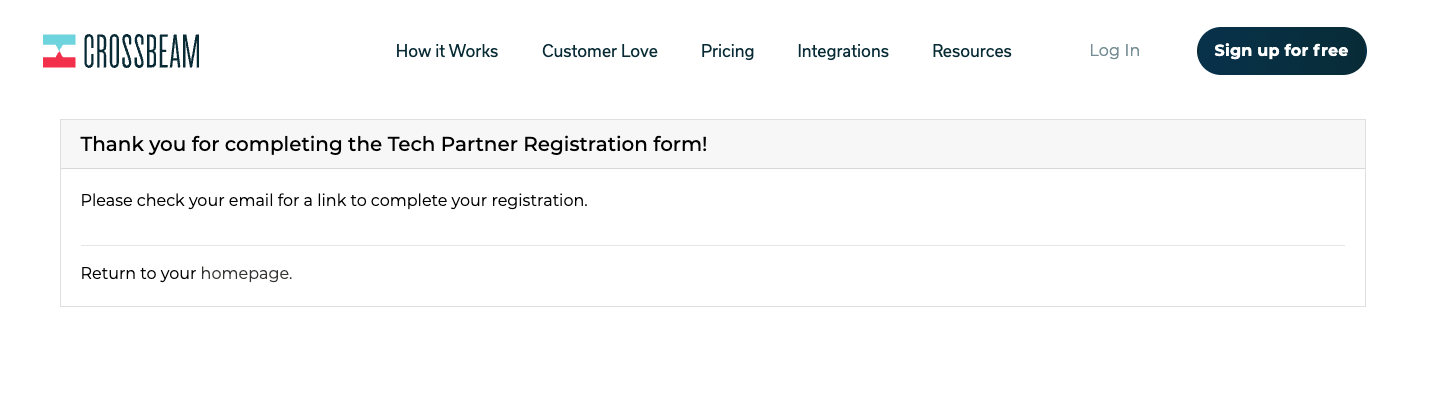
- Once an admin has approved the application the partner will receive a confirmation message letting them know that they need to check their email to complete registration.
See Screenshot
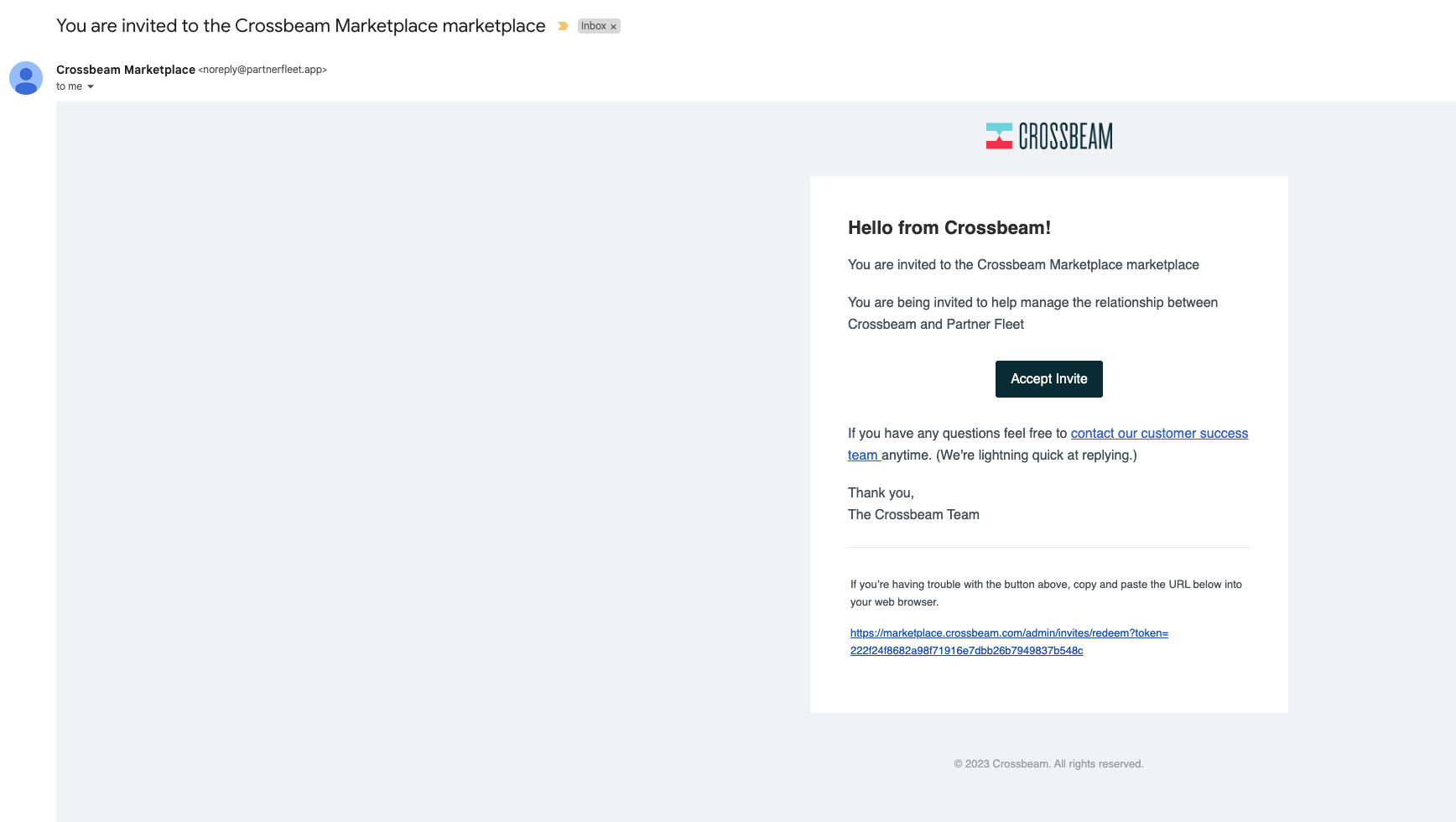
- The email invite is sent out immediately after the form is submitted and once received, click on the Accept Invite button.
See Screenshot
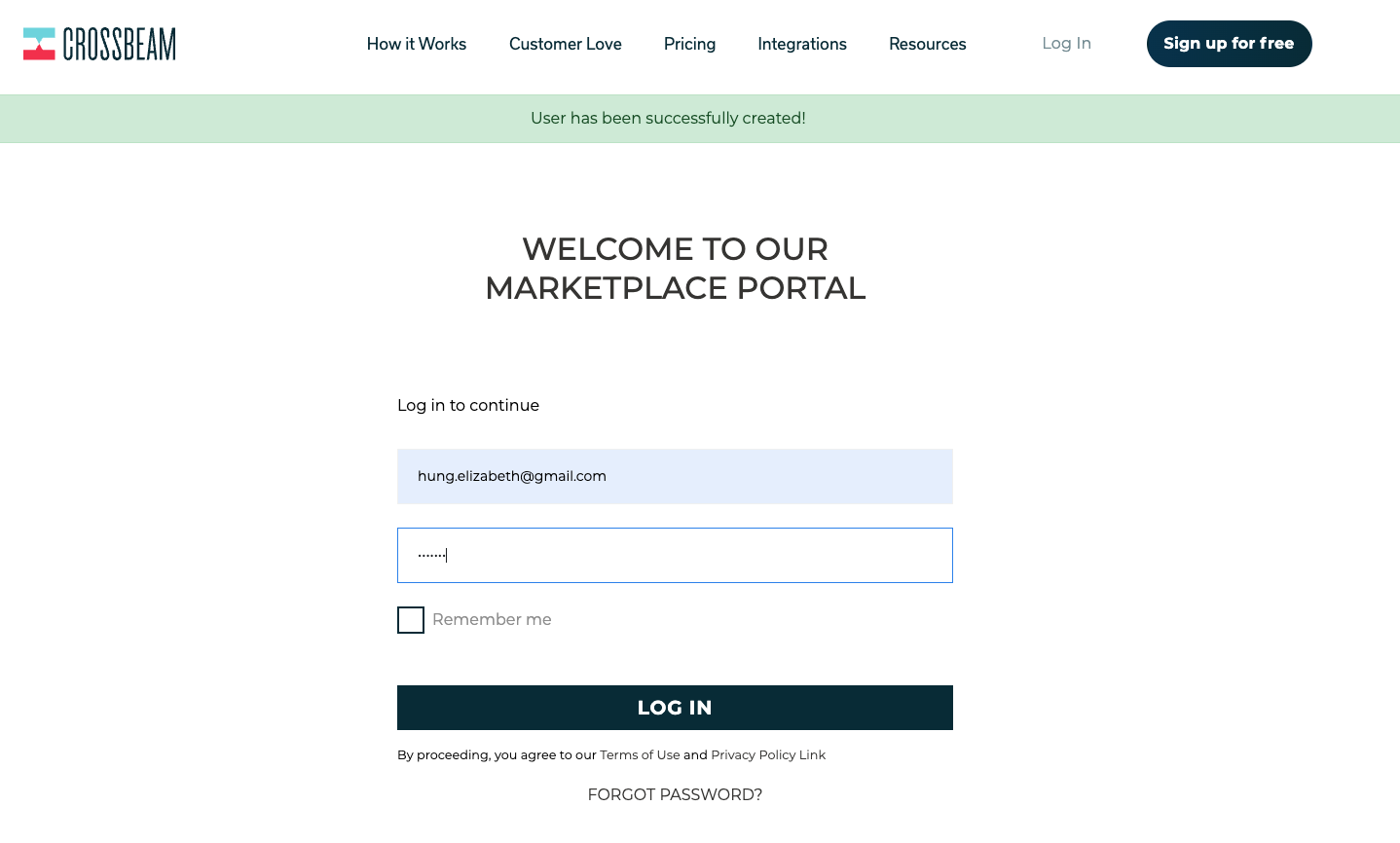
- The partner will be brought to the Marketplace Portal login page and be prompted to log in.
See Screenshot
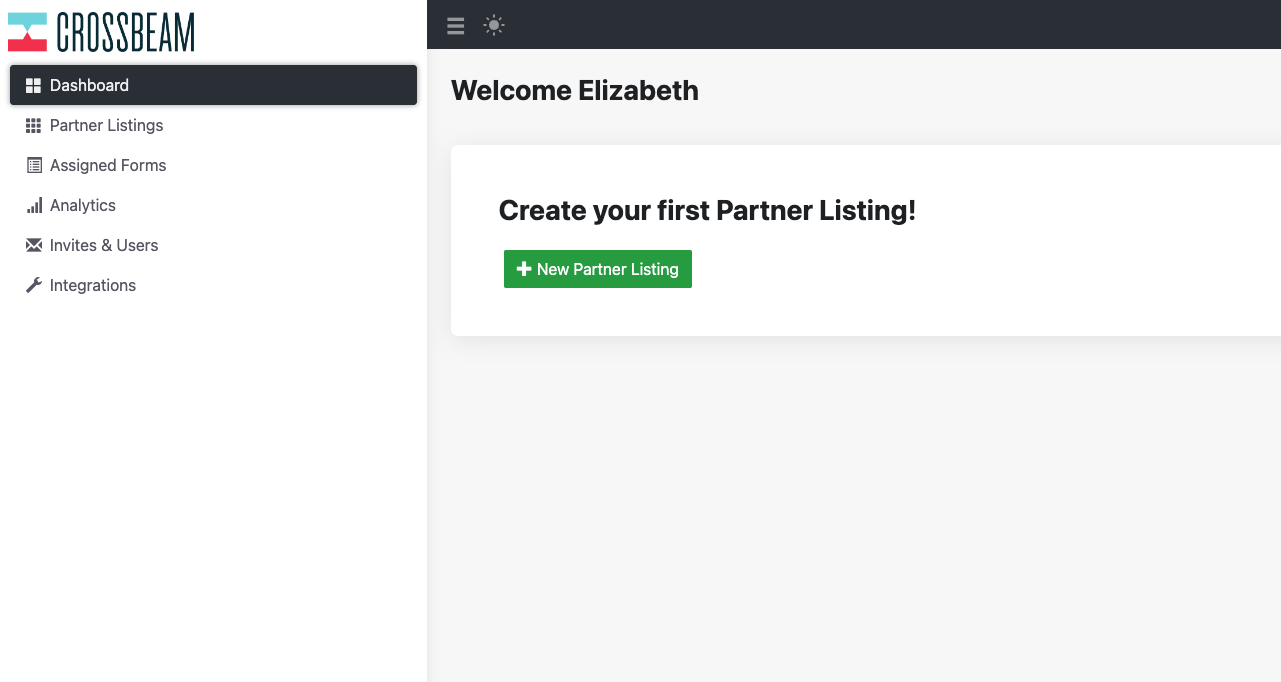
- Once logged in the partner will be brought to their Dashboard and can immediately start creating their partner listing.
See Screenshot
- There is a GuideMe button at the bottom left corner of the Marketplace. When clicked on it will begin a guided walkthrough reviewing the steps needed to update and submit a listing for approval.
See Screenshot

Updated over 1 year ago
Did this page help you?