

Translation Glossaries
Translation Glossaries allow you to control how specific English terms are translated into other supported languages in your marketplace.
This feature ensures consistent translations for product names, brand terminology, and industry-specific language when using Partner Fleet’s AI translation system.
Glossaries act as override rules, meaning they ensure certain words or phrases are always translated exactly the way you define.
When to Use Translation Glossaries
Translation Glossaries are useful when you want more control over specific terms within AI translations.
Common use cases include:
- Ensuring product names remain consistent across languages
- Preventing certain brand terminology from being translated
- Maintaining consistent industry terminology
- Correcting words that AI translation may frequently mistranslate
- Example: If your product name should never be translated, you can define that rule in a glossary so the term remains unchanged across all translated marketplace content.
How Translation Glossaries Work
Translation Glossaries are applied when new translations are generated in Partner Fleet.
Here’s how the process works:
- Upload a glossary for a target language: Each glossary contains a list of English terms and their required translations for a specific language.
- Partner Fleet runs AI translation: When marketplace content is translated, Partner Fleet first generates the translation using AI.
- Glossary rules are applied: After the AI translation runs, Partner Fleet checks the glossary and replaces any matching terms with the glossary-defined translation.
- The final translation is saved: The updated translation (with glossary rules applied) is then stored in Partner Fleet.
Important: Translation glossaries only apply to new translations or content that is re-translated. Existing translated content will remain unchanged unless you manually re-run the translation
Managing Glossaries
Within the Glossaries section, you can:
- View all uploaded glossaries
- See the language pair and number of entries
- Download existing glossary files
- Replace a glossary with an updated file
- Delete a glossary
Each glossary supports:
- English as the source language
- One target language
- One glossary file
Important: If you support multiple languages, you will need to create separate glossaries for each language.
Glossary File Format
Glossaries must be uploaded as a CSV or TSV file with two columns.
A header row is optional.
Example:
| English | French |
|---|---|
| Marketplace | Marketplace |
| Partner | Partenaire |
| Integration | Intégration |
Uploading a Translation Glossary
To upload a glossary:
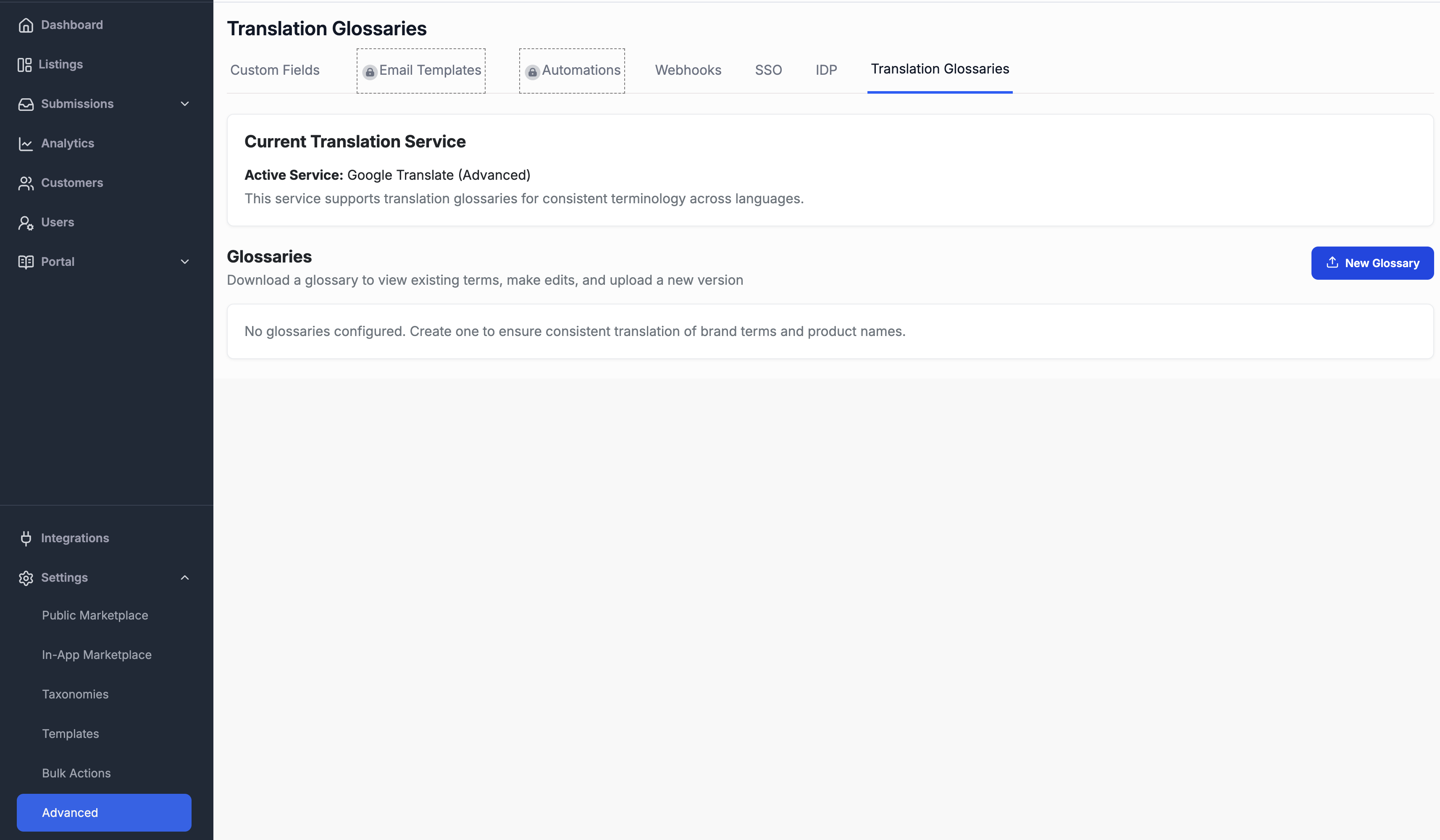
- Navigate to Advanced → Translation Glossaries in Partner Fleet.
- Click New Glossary.
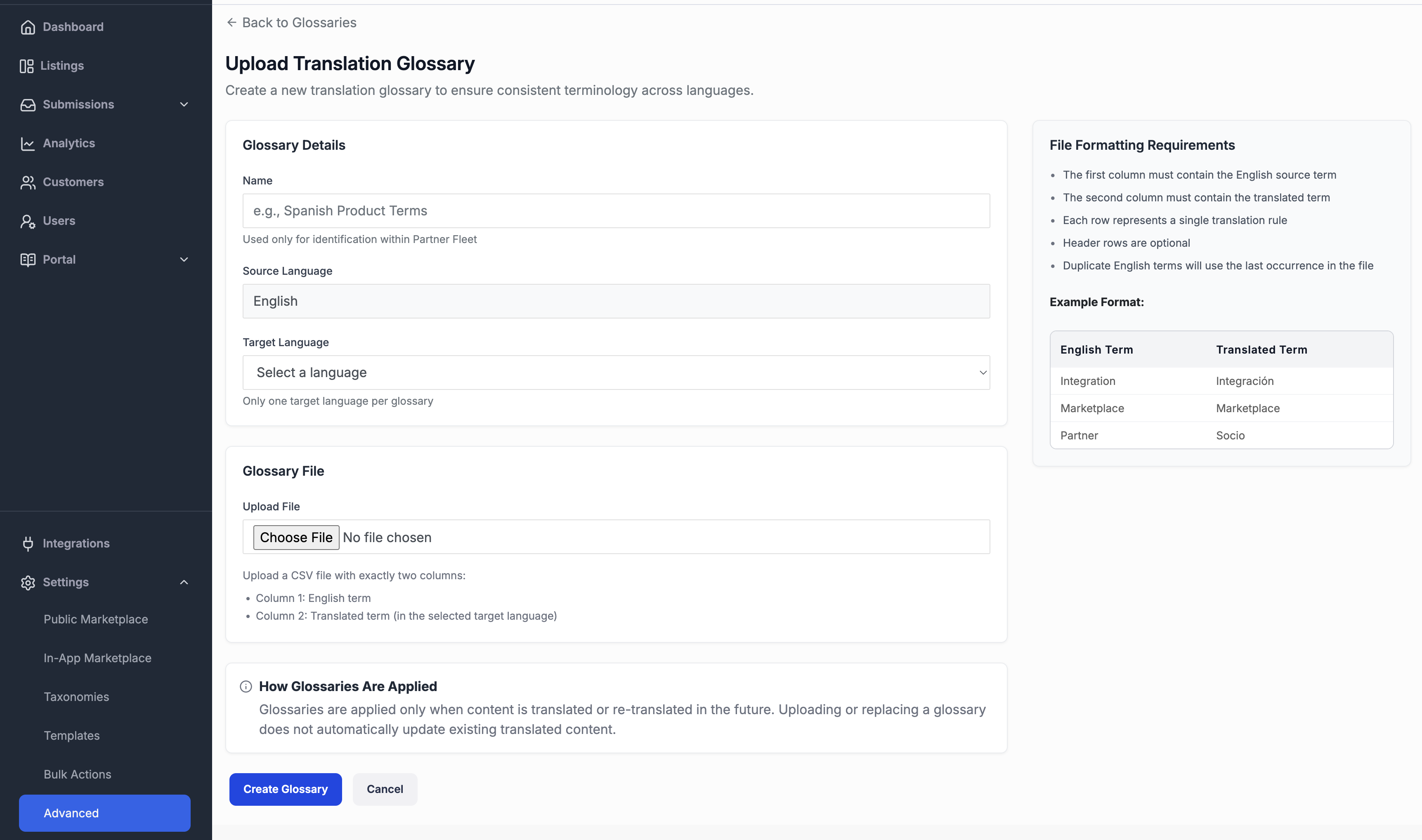
- Select the target language.
- Upload your glossary file.
- Save your changes by clicking on Create Glossary
Once uploaded, the glossary will automatically apply to future translations in that language.
Updating a Glossary
Individual glossary terms cannot currently be edited directly in the UI.
To update terms:
- Download the existing glossary file.
- Edit the terms in the file.
- Upload the updated file to replace the existing glossary.
Updated glossary rules will apply to future translations.
Deleting a Glossary
If a glossary is deleted:
- Future translations will no longer reference those glossary rules.
- Existing translated content will remain unchanged.
Limitations
Translation Glossaries are designed to control specific translation terms, but they are not a full translation management system.
Glossaries:
- Do not automatically update existing translations
- Do not provide inline editing of translated content
- Do not replace professional localization services
- Do not translate entire marketplaces independently
They function as terminology overrides applied during AI translation.
Frequently Asked Questions
Will a glossary update my existing translations?
No. Glossaries only apply to future translations. To update existing content, you must manually re-translate it.
Can I edit glossary terms directly in Partner Fleet?
Not at this time. To update terms, download the glossary file, edit it, and re-upload it.
Can one glossary support multiple languages?
No. Each glossary applies to one target language. Separate glossaries must be uploaded for each language.
What happens if I remove a glossary?
Future translations will no longer reference those glossary rules. Existing translations will remain unchanged.
Learn More
If you're interested in learning more about Translation Glossaries or enabling this feature in your Partner Fleet instance, please reach out to your Customer Success Manager. They can help guide you through setup and answer any questions about how to best use glossaries for your marketplace translations.
Updated 8 months ago