
Update Partner Accounts with a General Form
Map General Form questions to partner account fields, so your partners' answers keep their account up to date on submit or when you approve.
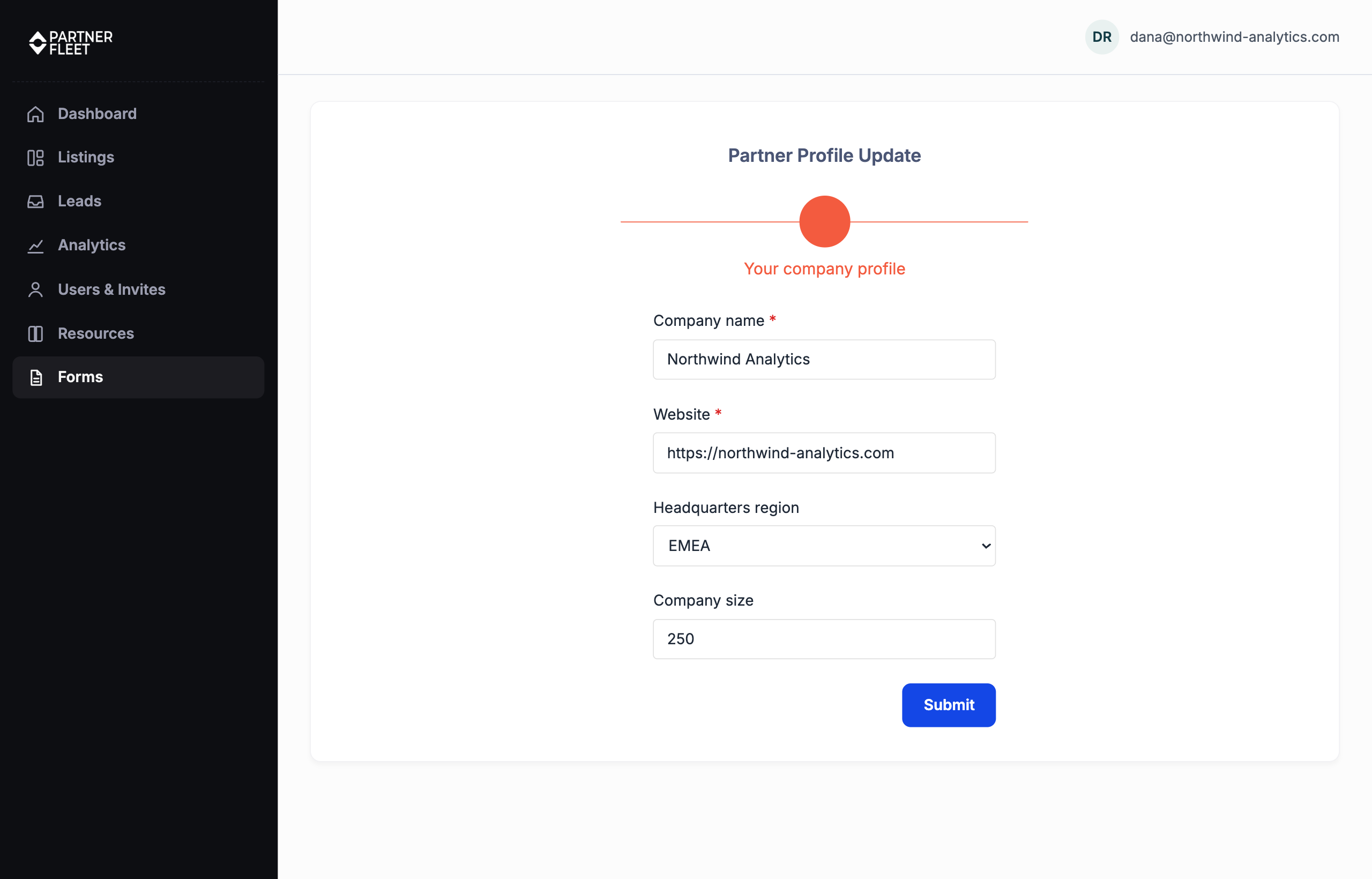
Use a General Form to collect or refresh your partners' account details, such as their region, tier or headquarters, without copying answers into each account by hand. Each question you map to a partner account field opens with the value the account already holds. When the partner changes an answer, the change is written to their account, either as soon as they submit or when you approve the response.
Before you start
- The questions write to partner account fields: the standard name, website and about_us, plus the Partner Account custom fields you've created under Settings → Advanced → Custom Fields.
- Partners fill in General Forms inside your partner portal, so the form only updates the account of the partner who submits it.
Set up the form
- Go to Portal → Form Builder and open your General Form, or create one.
- In What roles should have access to this form?, choose the partner roles that should see it.
- Under Update partner account, choose when answers are written to the account:
- On approval (the default): when you approve the response.
- On submit: as soon as the partner submits. Rejecting the response later does not undo the change.
- For each question that should update the account, click Add Field, set Type to Partner Field, and in Vendor field map choose the account field it writes to.
- Save the form.
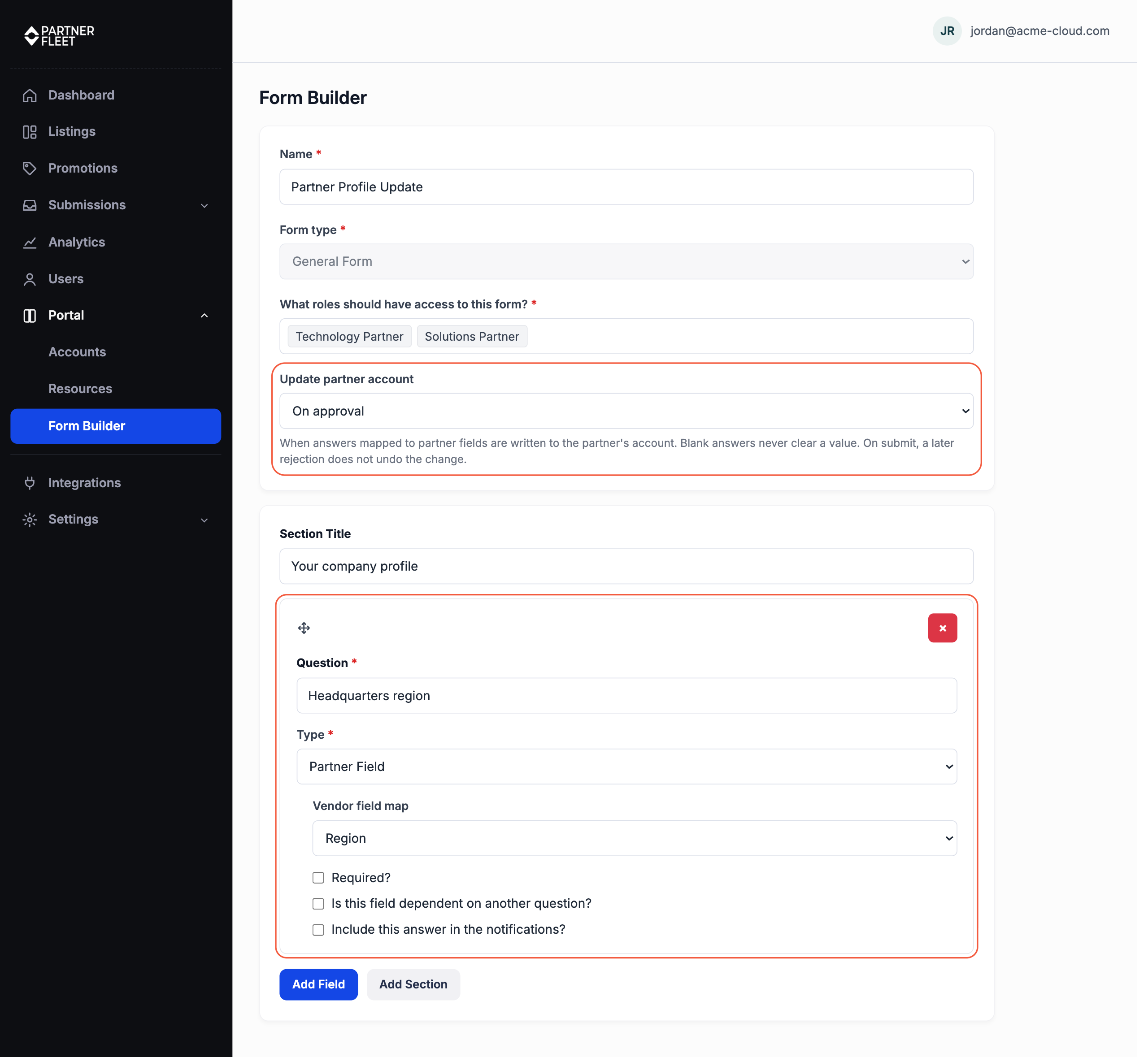
Each Partner Field question shows an input that suits its account field: a dropdown for a menu field, a checkbox for a yes/no field, a date picker for a date field, and so on.
Sharing the formOn the Forms page, a General Form's link is shown with a Copy button instead of as a clickable link, because opening it starts a response. Send the link to your partners, or let them start the form from their portal.
What your partners see
When a partner opens the form, each Partner Field question is pre-filled with the value their account holds now. They change only what's out of date and submit.
A question mapped to a field that's hidden from partners is not pre-filled. It shows as an empty box.
What gets written to the account
- Only answers the partner changed. An answer is compared with the value the form showed when it opened. Answers left as they were are never written, so they can't overwrite an account edit that you or the partner made in the meantime.
- Blank answers never clear a value. If a partner empties an answer, the account keeps its current value.
- Each response writes once. Approving a response that was already written on submit doesn't write it again. If you switch the form's Update partner account setting, nothing is skipped or written twice: responses that weren't written on submit are written when you approve them.
- If the account can't be updated, nothing changes.
- On submit, the partner's answers are saved but the form isn't submitted. They see "Your answers were saved, but the partner account could not be updated, so the form was not submitted. Try again or contact the marketplace team."
- On approval, the response stays unapproved and you see "The partner account could not be updated, so the submission was not approved." The Admin API's approve endpoint returns the same message with a
422status.
Control what partners can see and edit
Partner Account custom fields have two settings, found on each field under Settings → Advanced → Custom Fields:
- Visible to Partner Users? When this is off, the field isn't shown on the partner's account page, and General Form questions mapped to it aren't pre-filled.
- Editable by Partner Users? When this is off, partners see the field's value as plain text on their account page and can't change it there.
Both are on by default.
A form question can change any field it's mapped toThese settings control the partner's account page. They don't lock a field against a form you've put it on. If you map a question to a read-only field, partners can change that field through the form. If you map one to a hidden field, the question shows as an empty box, and anything the partner types into it is written to the account.
The only exception is a hidden yes/no field: it's never written from a partner's form.
Only add a question for a field you want partners to be able to set.
Record click-through agreements on the account
A Click-Through Agreement question can also record the acceptance on the partner's account. This works on General Forms, Partner Applications and Registration Forms.
- On the Click-Through Agreement question, tick Sync to account.
- Choose a partner account field for each item you want to record. Each list only offers fields of a matching type:
| Item | What's written | Field types offered |
|---|---|---|
| Agreed | Yes (a ticked box on a yes/no field) | Boolean, String |
| Agreed on | The date the partner accepted | Date |
| Agreement version | The version set on the question, if any | String |
| Agreement URL | The link to the agreement document | Website, String |
| Agreed by | The person who accepted, as Name <email> | String |
On a General Form, these values follow the form's Update partner account setting. On a Partner Application or Registration Form, they're written when the new partner account is created on approval.
Related
Updated 1 day ago