

How Marketplace Filters Work
How filters and categories combine when visitors browse your marketplace, what the counts beside each option mean, and the settings that control them.
Overview
Filters and categories in the marketplace sidebar help visitors narrow down your listings. When a visitor ticks options, the results update in place, without reloading the page.
The rules are simple:
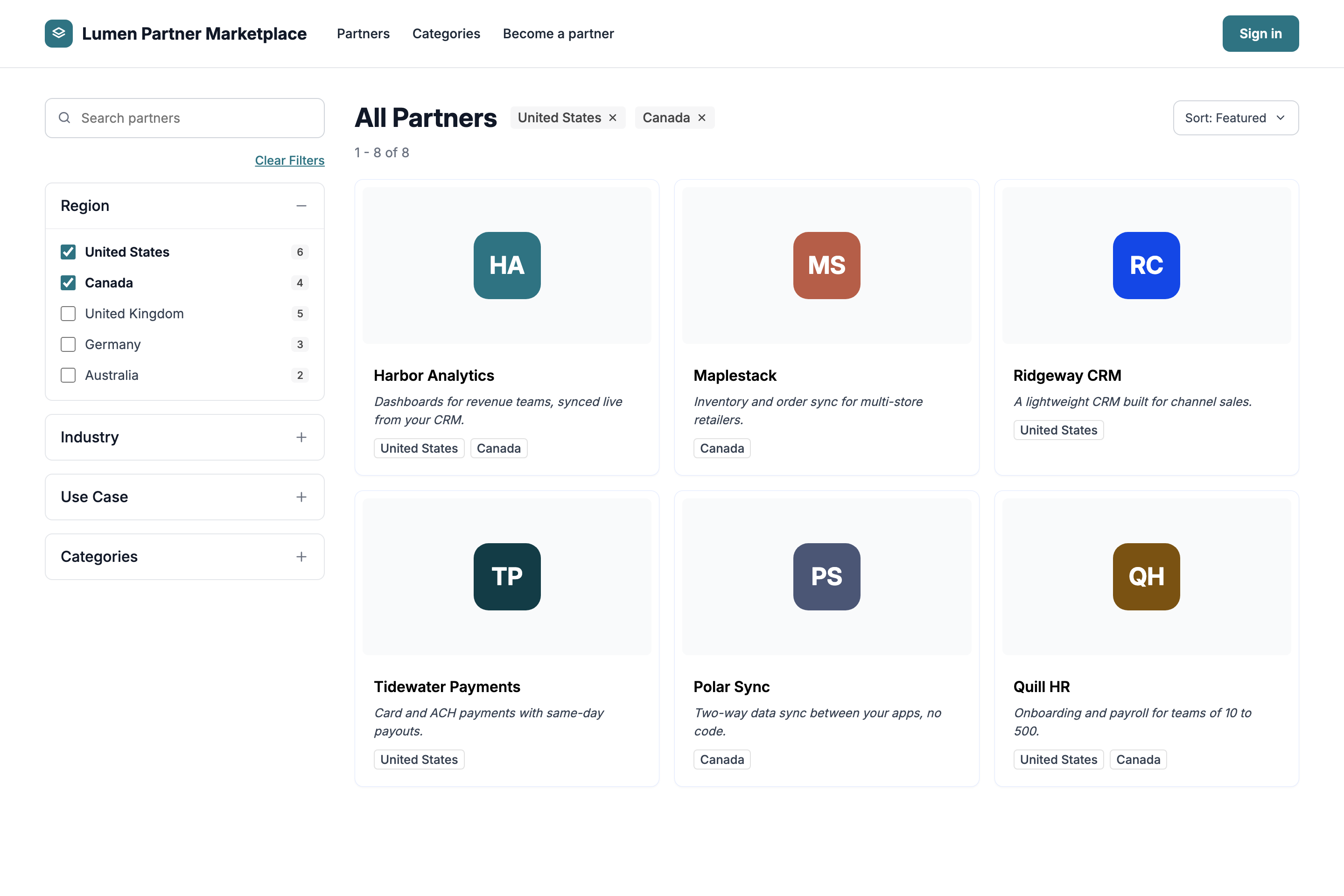
- Options in the same filter widen the results. Picking United States and Canada under Region shows listings tagged with either one.
- Options in different filters narrow the results. Adding Healthcare under Industry keeps only the listings from those regions that are also tagged Healthcare.
- The count beside an option tells the visitor how many results they'll see if they click it.
These rules apply to your Public Marketplace and to your In-App Marketplace.
How selections combine
| What the visitor picks | What they see |
|---|---|
| Two or more options in the same filter, for example US and Canada under Region | Listings tagged with any of those options |
| Options in different filters, for example US under Region and Healthcare under Industry | Listings that match every filter, for example listings in the US that are also tagged Healthcare |
| Two or more options in the same filter and an option in another filter | Listings tagged with any of the first filter's options and with the other filter's option |
| A category | Listings in that category, combined with any filters picked |
| Star ratings, for example 4 and 5 stars | Listings rated anywhere from the lowest star picked to the highest. Picking 2 and 5 stars also shows 3 and 4 star listings. Only listings that have reviews appear. |
Categories. By default, a visitor browses one category at a time. Clicking a category opens that category's page and keeps the filters they've picked. Clicking another category switches to it.
If your marketplace has multi-select categories turned on, visitors can tick several categories instead. Categories in the same category group work like options in one filter (any of them), and categories in different groups narrow the results (all of them).
Subcategories. A parent category shows the listings assigned to that parent. Whether it also shows the listings in its subcategories depends on your marketplace's configuration. Ask [email protected] if you're not sure how yours is set up.
What visitors see when they filter
Results update in place. Each click updates the results and scrolls to the results heading, so the visitor doesn't land back at the top of the page. The page address updates too, so a visitor can bookmark or share a filtered view, and the browser's Back button returns to the previous selection.
Selected filter badges. If Show Filter Badges is on, each selected option appears as a badge beside the results heading, for example United States ×. Clicking × removes just that option.
Clear Filters. Once a visitor has picked a filter option or a star rating, a Clear Filters link appears under the search box at the top of the sidebar. It removes every filter option and star rating in one click. The visitor stays on the same category page, and their sort order is kept.
Result range. Above the listings, a line such as 1 - 12 of 48 shows which results are on the page and how many match in total.
On phones. The sidebar is replaced by a Filter by button that opens a full-screen filter panel. Each tap applies immediately, and the panel stays open so the visitor can keep choosing. Done closes the panel, and Clear Filters removes all filters.
Search. The search box at the top of the sidebar searches the whole marketplace. Filters the visitor has picked aren't applied to search results.
What the counts mean
If Show count on side of Filters and Categories? is on, a number appears beside each option. It's the number of results the visitor will see if they click that option, given everything else they've already picked.
That means the counts behave differently depending on where the option is:
| Where the option is | What its count shows | Example (US already picked under Region) |
|---|---|---|
| The filter the visitor is picking from | The same number it showed before anything in that filter was picked, so the counts stay put as they tick more options | Canada 4 still reads 4, because clicking it adds Canada's listings to the US ones |
| Any other filter | Only the listings that also match the current selection | Industry: Healthcare now counts only US listings tagged Healthcare |
| Categories | Listings in that category that match the visitor's filter selection |
A few things to know about counts:
- Counts don't add up to the total. A listing tagged with two regions is counted under both, and a listing with no region isn't counted under any. That's expected.
- An option with no matching listings shows 0. It stays in the list, and it can still be clicked.
- A parent category's count includes only the listings assigned directly to it, not the listings in its subcategories.
Set up filters
Which filters appear, and how they look, is set in two places.
Choose the filters for a marketplace
A filter appears in the sidebar only when both of these are true:
- It's turned on for sidebar navigation. Go to Settings → Taxonomies → Filters, click Edit on the filter and check Use in Sidebar Navigation?.
- It's added to the marketplace. It's listed in the Filters field of the marketplace's appearance settings (below).
To make a filter's options available on listings, add the filter to the listing template too. For the full setup, see Filters.
Choose how filters look
Go to Settings → Public Marketplace → Appearance. For your In-App Marketplace, go to In-App Marketplace → Manage → Appearance. The Filter & Categories section has these settings:
| Setting | What it does |
|---|---|
| Filters | The filters offered in this marketplace's sidebar |
| Categories | The category groups offered in this marketplace's sidebar |
| Filters and Categories expanded by default? | Opens every filter and category group when the page loads. A group with something picked in it is always open. |
| Show count on side of Filters and Categories? | Shows the count beside each option |
| Show Filter Badges | Shows each selected option as a removable badge beside the results heading |
| Filter type | How options look: Checkbox, Pills or Links |
| Filter position | Where the filters sit: Left, Top or Right of the listings |
If you don't see Show count on side of Filters and Categories? or Show Filter Badges, contact [email protected].
Special cases
| Situation | What happens |
|---|---|
| Two filters with the same display name | They act as one filter, so their options combine as "any of". They still appear as two headings in the sidebar. To keep them separate, give them different display names. |
| You rename a filter's display name | The filter's name in the page address changes, so links that visitors saved or shared before the rename no longer apply that filter. |
| A filtered view has no results | The results heading and the selected filter badges stay, so the visitor can remove an option and try again. |
FAQ
Do I need to change anything for the new behavior?
No. It works with your existing filters, options and listing tags. Your filter headings, options and the tags on each listing stay exactly as you set them up.
What changed in September 2026?
Before, picking two options in one filter showed only listings tagged with both, and each click reloaded the page and jumped back to the top. Now, options in the same filter show listings tagged with any of them, and the results update in place. Options in different filters still narrow the results, as before.
Why does the count beside an option I've already picked not match the total?
The count beside each option in a filter shows that option's own listings, not the combined total. If a visitor picks US (6) and Canada (4), the total is at most 10. It's lower when some listings are tagged with both.
Why do two options add up to more than the total?
A listing can carry several options in the same filter, for example both US and Canada. It's counted under each option but appears only once in the results.
Can a visitor share a filtered view?
Yes. The page address includes the visitor's filters, so they can copy it, bookmark it or send it to someone else.
Does this work in the In-App Marketplace?
Yes. Filters and counts work the same way in your In-App Marketplace, and visitors only see the listings they have access to.
Updated 1 day ago