

Audience Filtering
Learn how to control which App Marketplace listings each audience sees by tagging listings with account property values.
App Marketplace setup
What this tab does
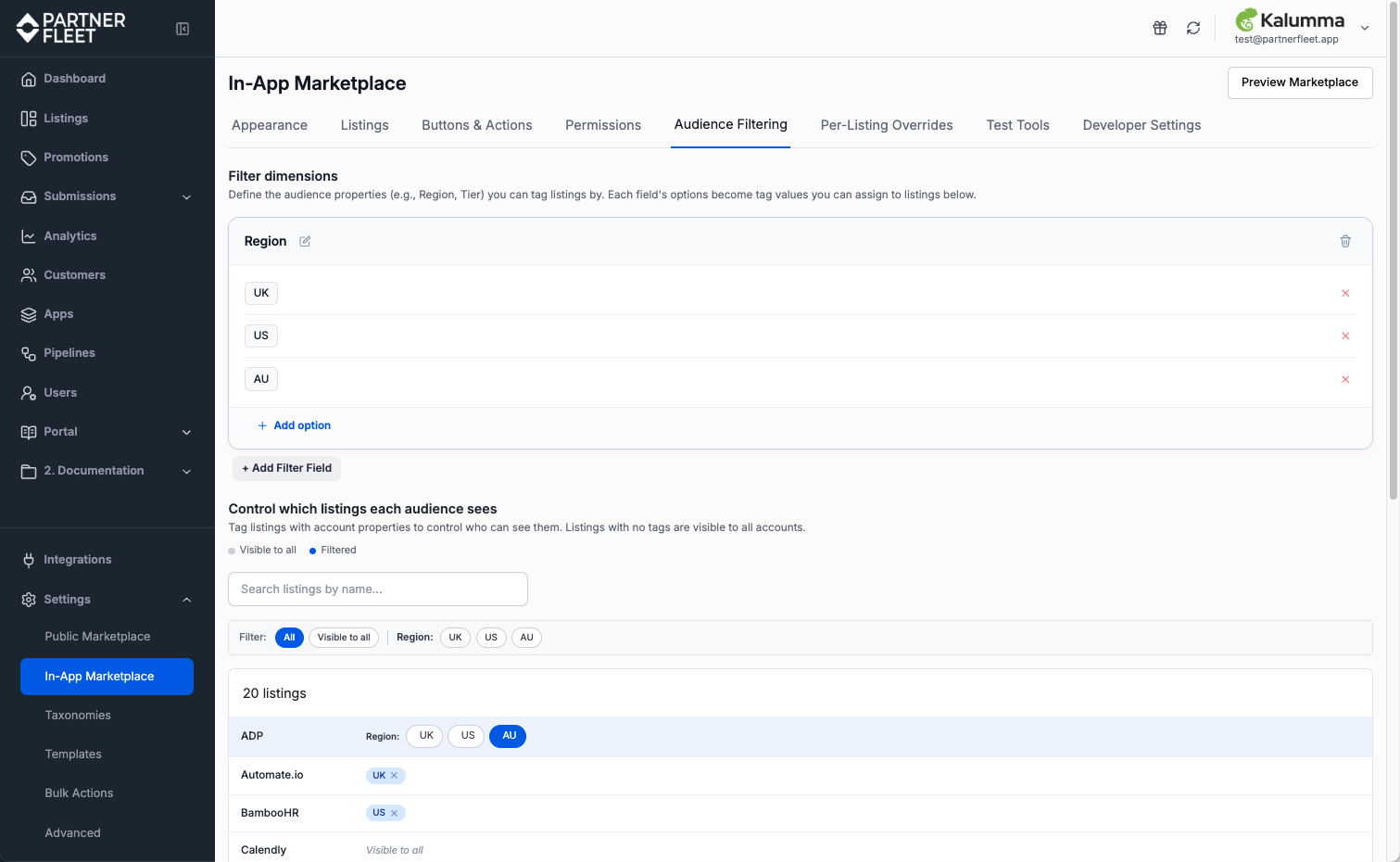
Audience Filtering lets you control which listings each audience sees in the App Marketplace. You tag listings with account property values, such as region or tier, and Partner Fleet only shows each listing to users whose account matches one of those tags. All accounts can see listings with no tags.
Common use cases:
- Regional integrations: a set of integrations that should only appear for end users whose accounts operate in Europe, not in the US.
- Tier-specific catalogs: a curated set of premium integrations that only Enterprise-tier accounts can see.
- Beta programs: integrations that only beta participant accounts can see.
How it differs from Permissions
Audience Filtering and Permissions are both about controlling what users can access, but they work differently:
- Audience Filtering controls visibility. Listings filtered out by audience filtering do not appear in the marketplace for those users. They do not see the listing at all.
- Permissions controls install access. All users see the listing in the marketplace, but when they click an action button, Partner Fleet routes restricted users to a fallback, such as an upgrade message, instead of the normal install flow.
Use Audience Filtering when a listing is irrelevant for an audience, such as a region-specific integration. Use Permissions when a listing is relevant but gated, such as an integration available on upgrade.
Setting up an audience filter
Step 1: Define what you want to filter by
Audience filters use account properties that your application passes via JWT/SSO. Common examples are Tier, Region, Plan, and Beta. You manage the properties you can use as audience filters on this tab. See Managing audience filter fields below.
Step 2: Tag listings
In the listings table, click on a listing row to add or remove tags. Each tag corresponds to a value of one of your filter fields, such as "Asia Pacific" for the Region field.
- Only accounts whose account property matches one of the field values can see a listing tagged with one or more values for that field.
- Partner Fleet treats a listing with no tags for a field as unrestricted on that dimension. Every account sees it regardless of their property value.
- The listings table marks a listing with no tags at all as Visible to all, and every account can see it.
Step 3: Use the legend to scan visibility at a glance
At the top of the page, the legend shows two states:
- Visible to all — gray dot. The listing has no audience filter tags, and every account can see it.
- Filtered — blue dot. The listing has at least one audience filter tag, and audience rules control who can see it.
Each row in the listings table shows the corresponding state so you can scan your full catalog quickly.
Filter and search controls
Use the search field to find a specific listing by name. Use the filter buttons, such as All, Visible to all, and per-dimension filter buttons, to scope the listings shown:
- All shows every listing in your App Marketplace.
- Visible to all shows only listings with no audience filter tags applied.
- Per-dimension buttons such as Tier, Region, or Beta show listings tagged for that dimension.
Managing audience filter fields
You manage audience filter fields, such as Tier, Region, and Beta, inline on this tab. Each field appears as a card with its name and the list of available options below it. You can:
- Edit the field name.
- Edit individual option labels.
- Add a new option to a field.
- Remove a field or any of its options.
- Add a brand new audience filter field.
Custom field naming:
Field names and option values must match what your application passes in the JWT. If your app sends
region: "NA"but you've named the option "North America", filtering won't work. Coordinate field names and option labels with your engineering team.
Once you set up audience filter fields here, they appear automatically in the listings table for tagging.
How filtering applies at runtime
When a user loads the App Marketplace:
- Partner Fleet reads their account properties from the JWT, such as
region: "NA"ortier: "Enterprise". - For each listing, Partner Fleet checks whether the listing's audience filter tags match the user's properties.
- Partner Fleet excludes listings that don't match from the response. The user never sees them.
Audience filtering happens server-side. Listings filtered out by audience never reach the user's browser, so there's no way for them to inspect or access the hidden content.
Common patterns
Regional catalog
A team with a global product wants to show different integrations to different regions. Tag each region-specific listing with the appropriate region tags, such as "North America," "Europe," or "Asia Pacific." Listings with no region tags appear globally.
Premium-only listings
A team offers some integrations only to Enterprise-tier accounts. Tag each premium-only listing with the "Enterprise" tier value. Lower tiers don't see those listings at all.
Beta integrations
A team is rolling out new integrations to a small group of beta end-user accounts. Tag each beta listing with the "Beta Access" beta value. Only accounts that participate in the beta see them in the marketplace.
Updated about 13 hours ago