

AI Translations
How to Set Up AI Translations in Your Marketplace
Overview
AI translations make it easy to offer your marketplace in multiple languages without manually rewriting every listing, category, and filter. By enabling this feature, you can:
- Expand your reach – Attract and engage partners and customers in their preferred language.
- Improve user experience – Make navigation, listings, and categories more accessible for international audiences.
- Save time – Automate translation for large amounts of content in just a few clicks.
- Maintain consistency – Ensure categories, filters, and listings are translated uniformly across your marketplace.
If you don’t see AI translation configuration options in your admin view, contact your Account Manager or Customer Success Manager to have the feature enabled.
Step 1 – Enable Translations for Your Marketplace
- Log in as an Admin.
- Go to Settings → Marketplaces.
- Select the marketplace you want to configure and click Edit. Use the same steps if you’re enabling it for your In-App marketplace.
- In the Marketplace Internationalization section, select all the languages you’d like to enable.
- Click Save.

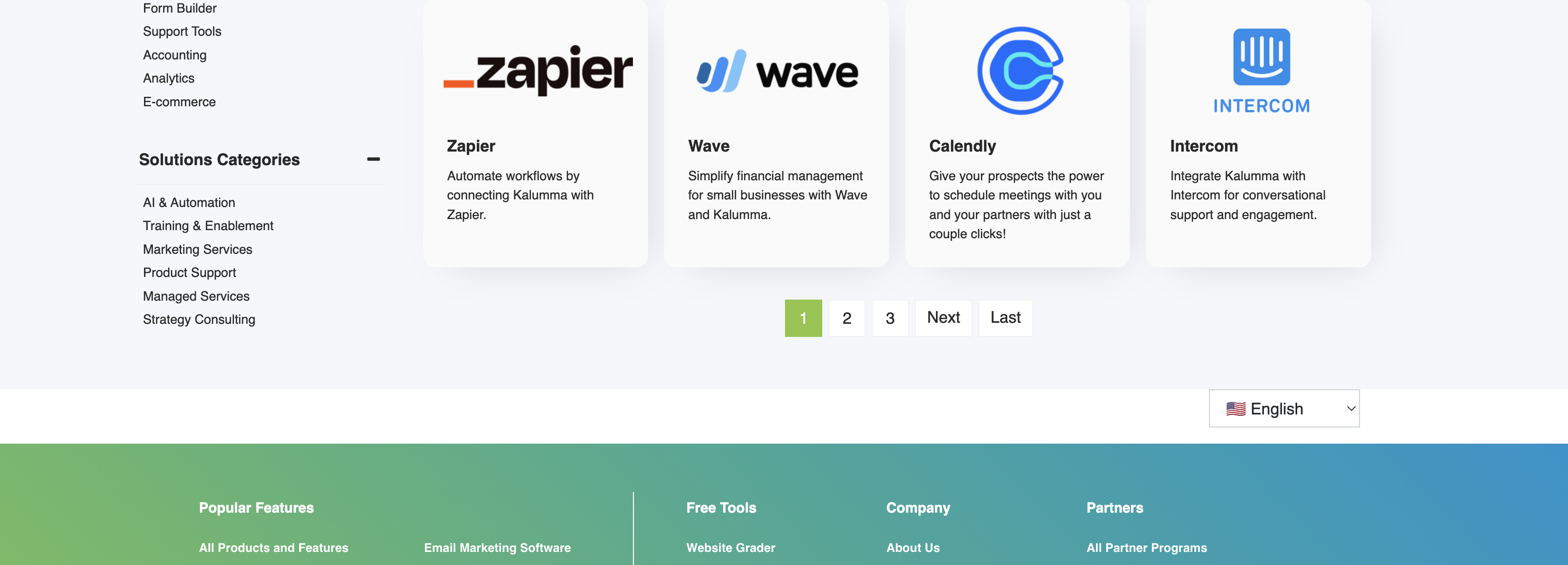
Once saved, you’ll now see a language selection dropdown on your marketplace homepage.
Step 2 – Translate Categories & Filters
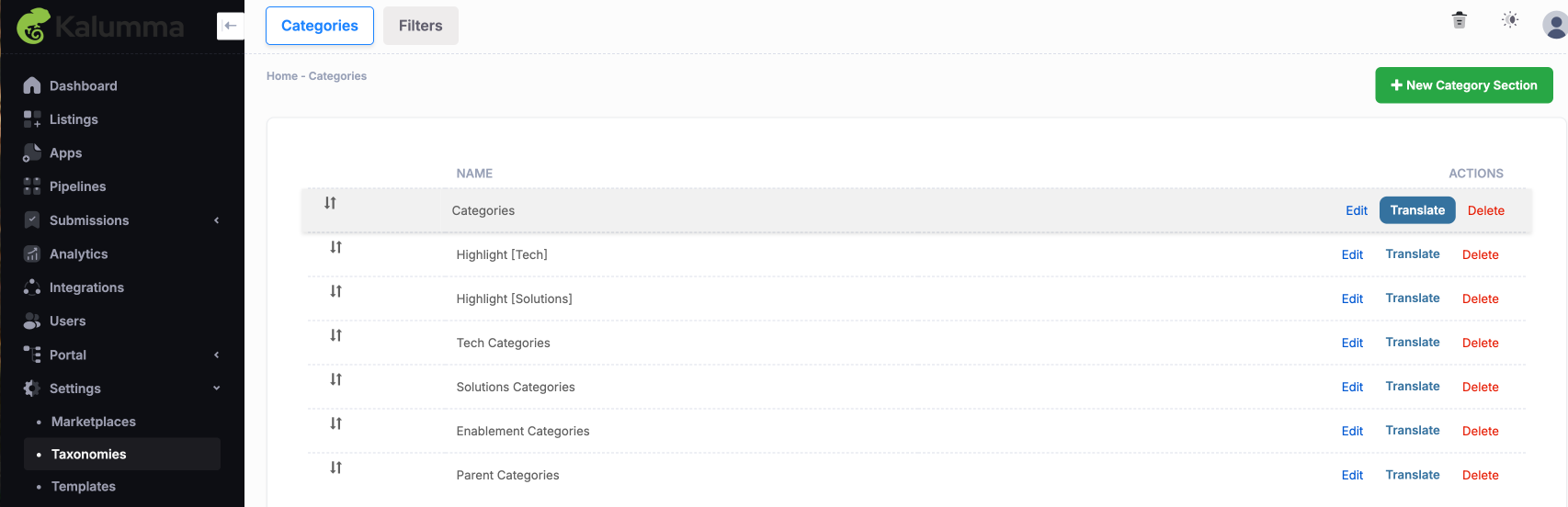
- Navigate to Settings → Taxonomies.
- Find the category or filter you want to translate.
- Click the Translate button under the Actions column.
- A pop-up will confirm that translations are queued for the selected category and its subcategories. Click OK.
Tip:
- To translate individual categories, click Edit on the category, select the desired language from the Language toggle at the top, and click Save.
- Repeat this process for each language you want to translate.
Step 3 – Translate Listings
You can translate entire listings or specific sections.
Some listing sections are not currently supported by AI translations. These include:
- Media
- Images
- Reviews
- Related Partners
- Associated Partners
- In-App CTA Setup
These sections will need to be updated manually or left untranslated depending on your use case.
Translate an Entire Listing
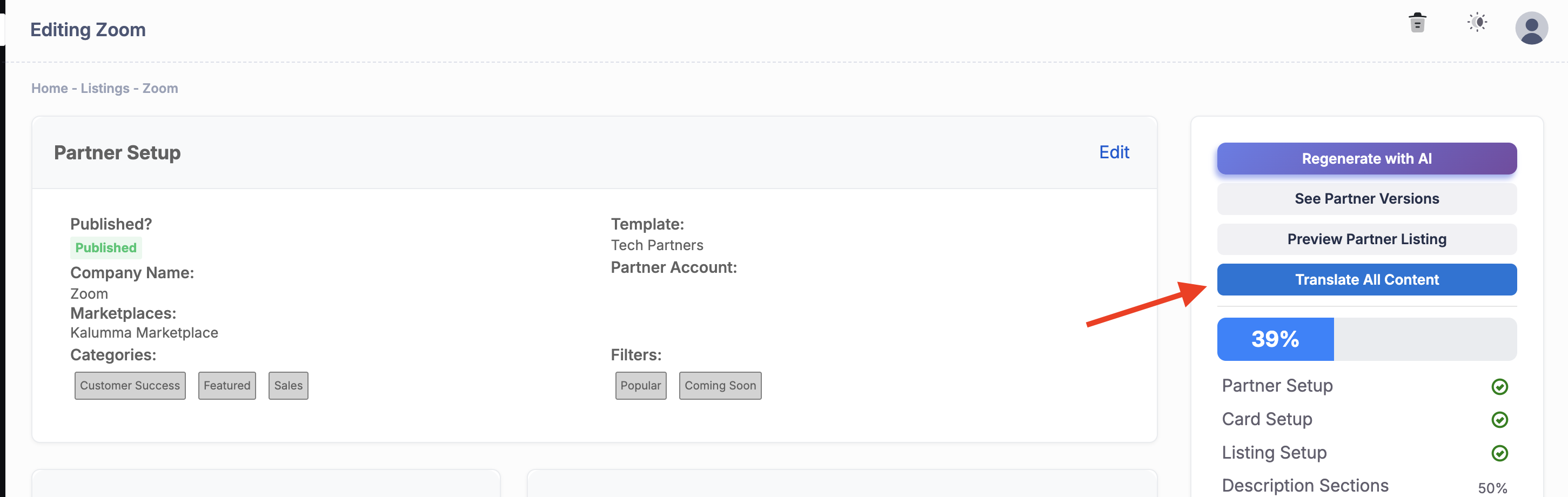
- Open the listing and click Edit.
- In the right-hand navigation, click the blue Translate All Content button.
- All content will be translated into the languages enabled in your marketplace settings.
Translate Specific Listing Sections
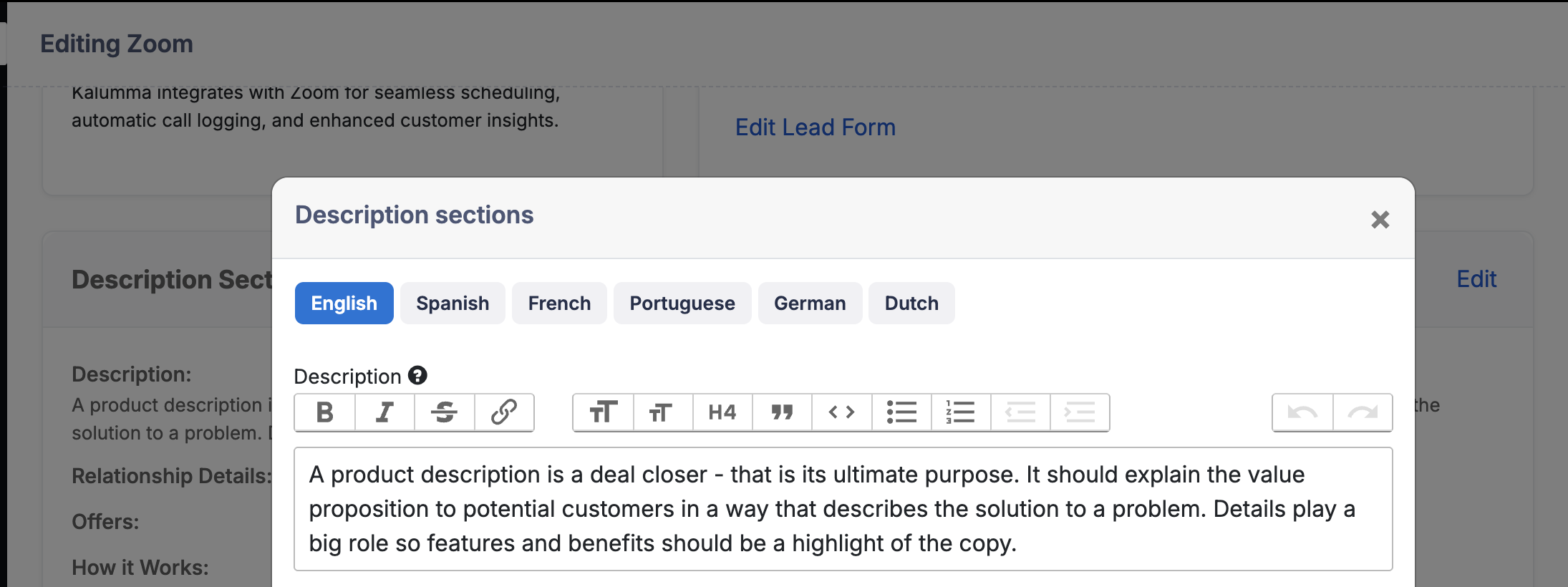
- Open the listing and click Edit.
- Go to the section you want to translate and click Edit for that section.
- Select the language you want, then click Save & Translate.
Step 4 – Manually Update Banner & Header Images
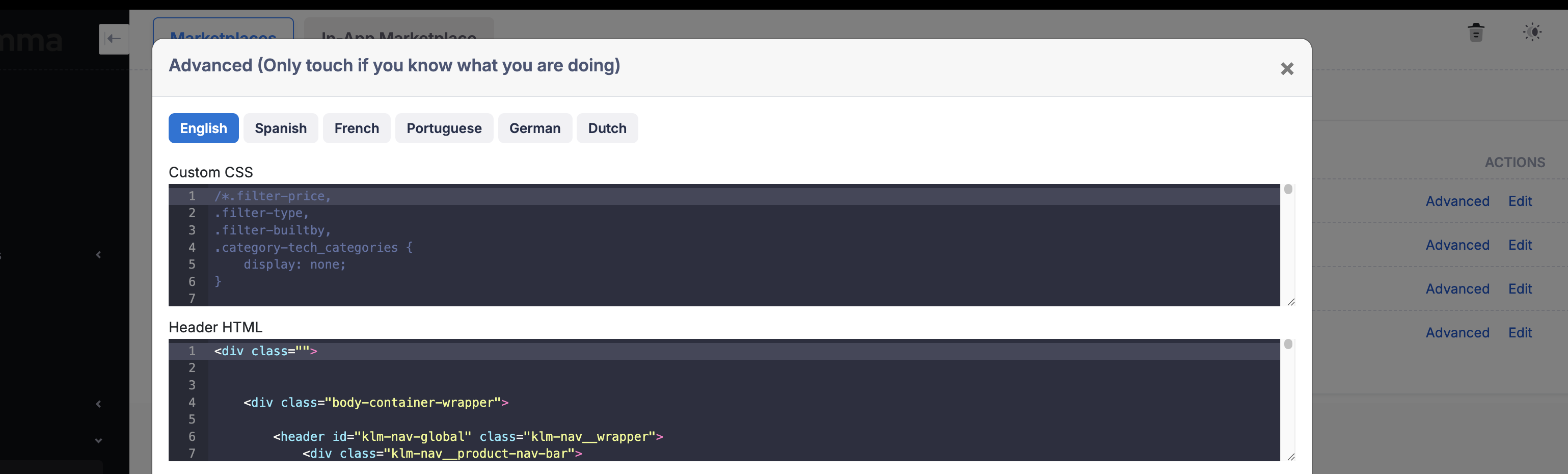
AI translations do not automatically update banner or header images. To update these:
- Go to Settings → Marketplace → Advanced.
- Update the HTML/CSS to include translated text or replace images with localized versions.
Pro Tips
- Always clear your cache after significant front-end changes to ensure updates appear quickly.
- Verify that translated categories and filters are assigned to your marketplace in Settings → Marketplaces.
Frontend Language Selection
Visitors can select their preferred language in two ways:
- Dropdown menu – users manually choose their language from the selector in the marketplace interface.
- URL detection – if the URL contains a language code (e.g., /es for Spanish), the system automatically applies that language.
If a translation exists, we display it. If not, the content defaults back to English.
System Connection
The dropdown and URL routing connect directly to Partner Fleet’s backend. This ensures:
- The correct language is always displayed.
- Language selection remains consistent across pages.
- Content is synced with available translations in real time.
About Translation Quality
Partner Fleet uses GPT-3.5 Turbo to power AI translations. According to independent benchmarks, this model delivers:
- High quality for common languages such as Spanish, French, and German.
- Comparable results to Google Translate in most everyday cases.
- Better handling of full paragraphs than traditional tools, since it maintains context across sentences.
While it may occasionally struggle with niche or highly technical terminology, for marketplace content it provides a translation that is robust, fluent, and reliable.
Need Help?
If you want to enable AI translations or run into any issues, please contact your Customer Success Manager.
Wrap-Up
Once configured, AI translations can transform your marketplace into a multilingual, globally accessible platform in just a few clicks. By enabling the right languages, translating categories, filters, and listings, and making small manual updates where needed, you’ll create a seamless browsing experience for users around the world. Taking the time to configure translations thoroughly at the start will save hours of manual editing while keeping your content consistent and accessible for every audience you serve.
Updated about 1 year ago