

Salesforce Integration Guide
Enable the Salesforce integration with Partner Fleet and configure mapping for Accounts, Users, Leads, and Opportunities. Last updated September 2025
Partner Fleet integrates directly with Salesforce so you can sync accounts, contacts, leads, and opportunities between the two systems. This guide walks you through setup, field mapping, and testing your connection.
🔑 Connection Options
You can connect Partner Fleet to Salesforce in two ways:
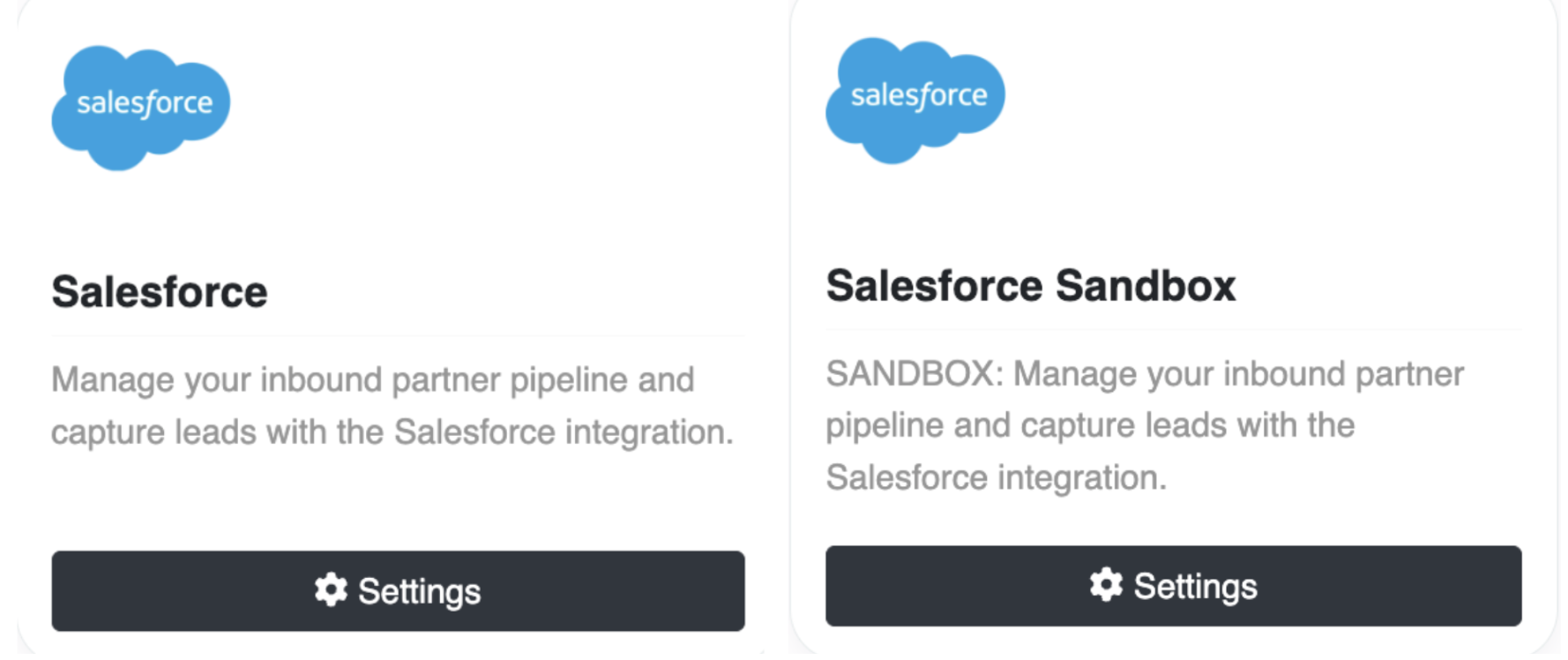
- Salesforce: Connect directly to your live Salesforce environment via OAuth.
- Salesforce Sandbox (recommended for testing): Connect to your Salesforce Sandbox via OAuth to safely test before going live.
⚙️ Setup Steps
-
Enable the Integration
Go to Admin → Integrations → Salesforce → Enable → OAuth → Configure.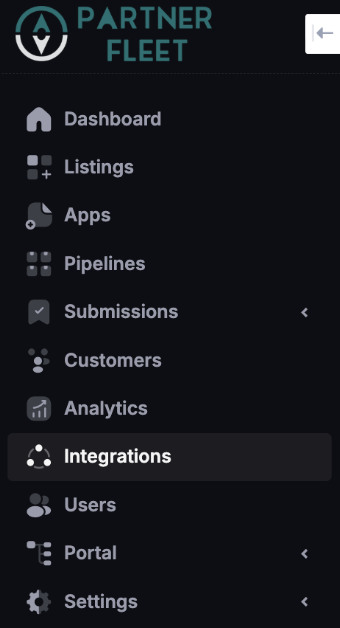
-
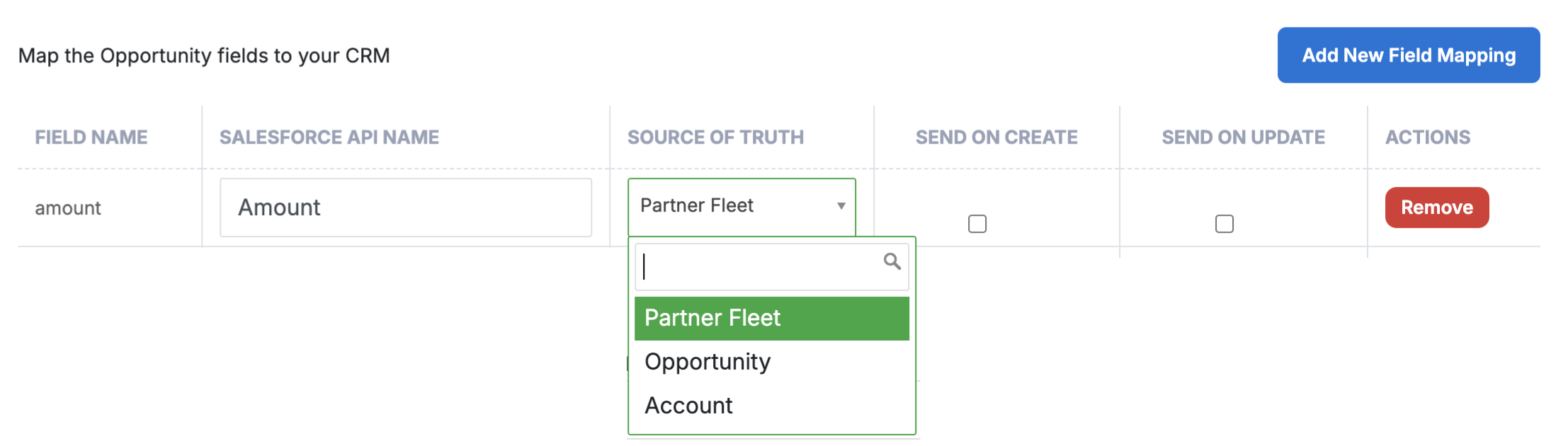
Map Fields
After OAuth is complete navigate back to Admin -> Configuration -> Integrations -> Salesforce
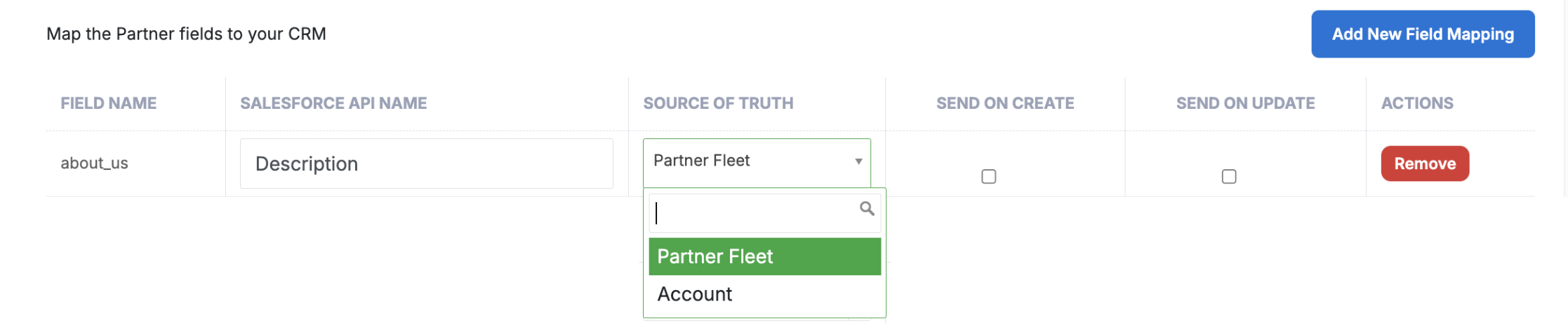
Define how Partner Fleet fields map to Salesforce fields.- See below for Field Mapping Reference
- Find the API name of a field in SFDC
- See below for How to Create Custom Fields
- Set Deduplication Logic
Default settings:
- Users deduped by email
- Accounts deduped by domain (website)
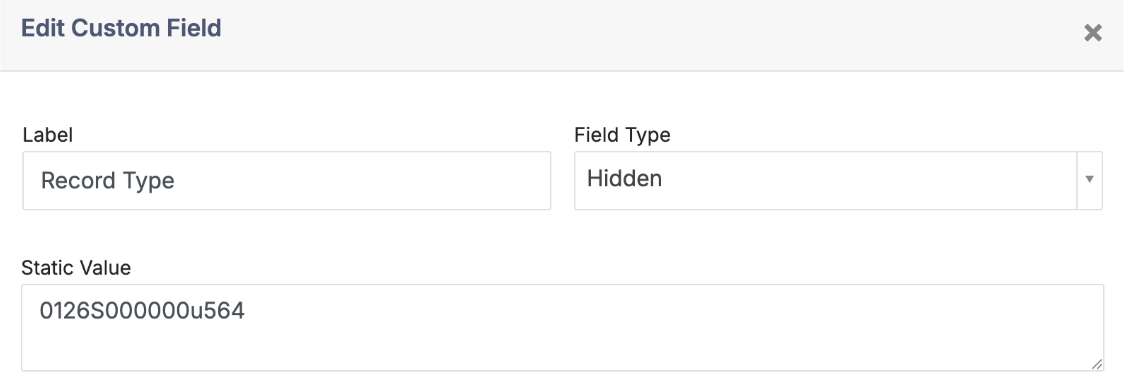
- Optional: add additional deduplication logic by creating Custom Fields
- Most common is Record Type which is a hidden field with a static value
- Configure Leads & Opportunities (advanced)
- Work with Partner Fleet support for custom lead/opportunity use cases.
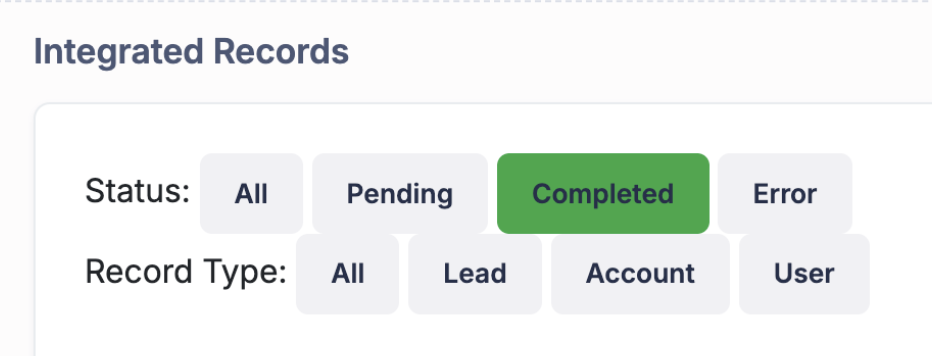
- Test Your Integration
Go to:
yourcompany.partnerfleet.app/admin/integrated_records
📋 Field Mapping Reference
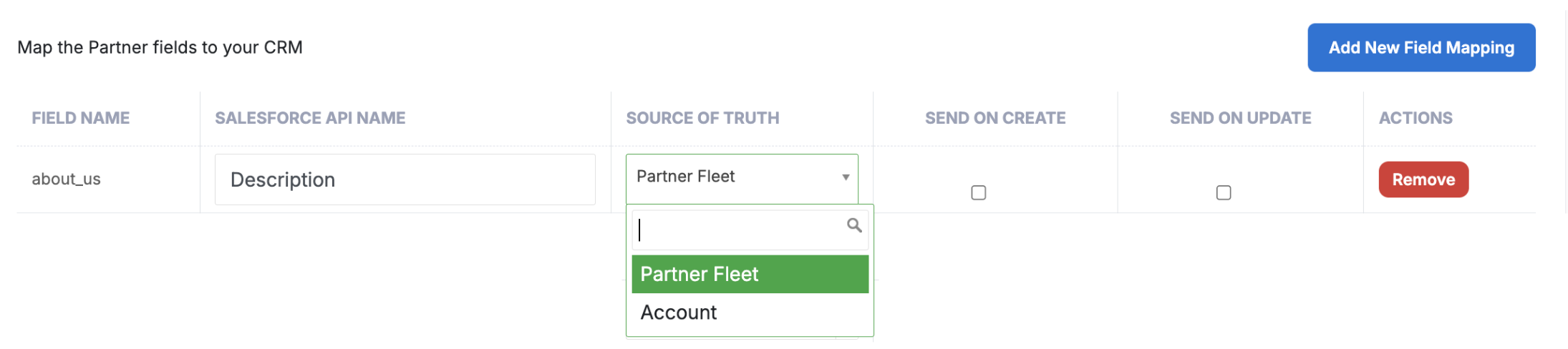
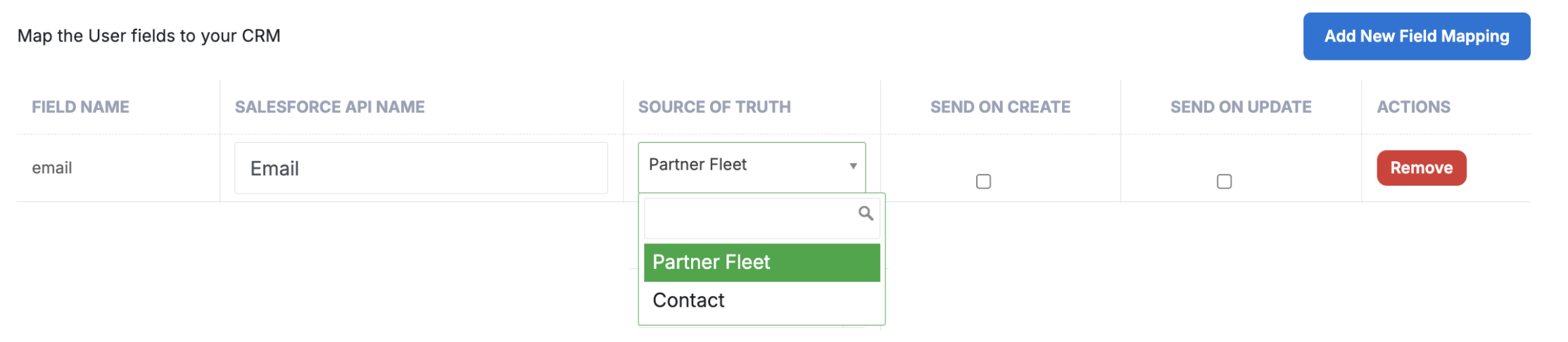
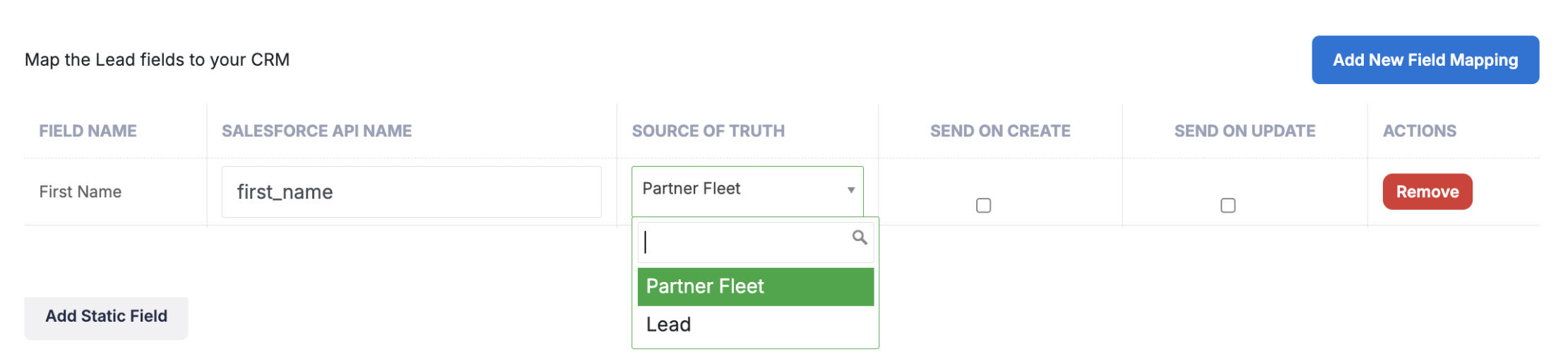
When setting up field mapping, you’ll define:
- Field Name: Partner Fleet field
- Salesforce API Name: matching Salesforce field
- Source of Truth: Partner Fleet (
pf) or Salesforce (sf) - Send on Create/Update: control when sync occurs

Some fields already available to configure after you enable the integration. These can be deleted or excluded if not needed. Those fields include:
Accounts
Accounts Partner Fields: id, name, website, created_at, updated_at, state, about_us
Contacts User Fields: id, email, first_name, last_name, created_at, updated_at
Leads (examples): First Name, Last Name, Email, Phone, Company Name, Website, Job Title, Country, Location
Opportunities: name, stage_name, close_date, amount, is_closed, is_won, owner_name, owner_email
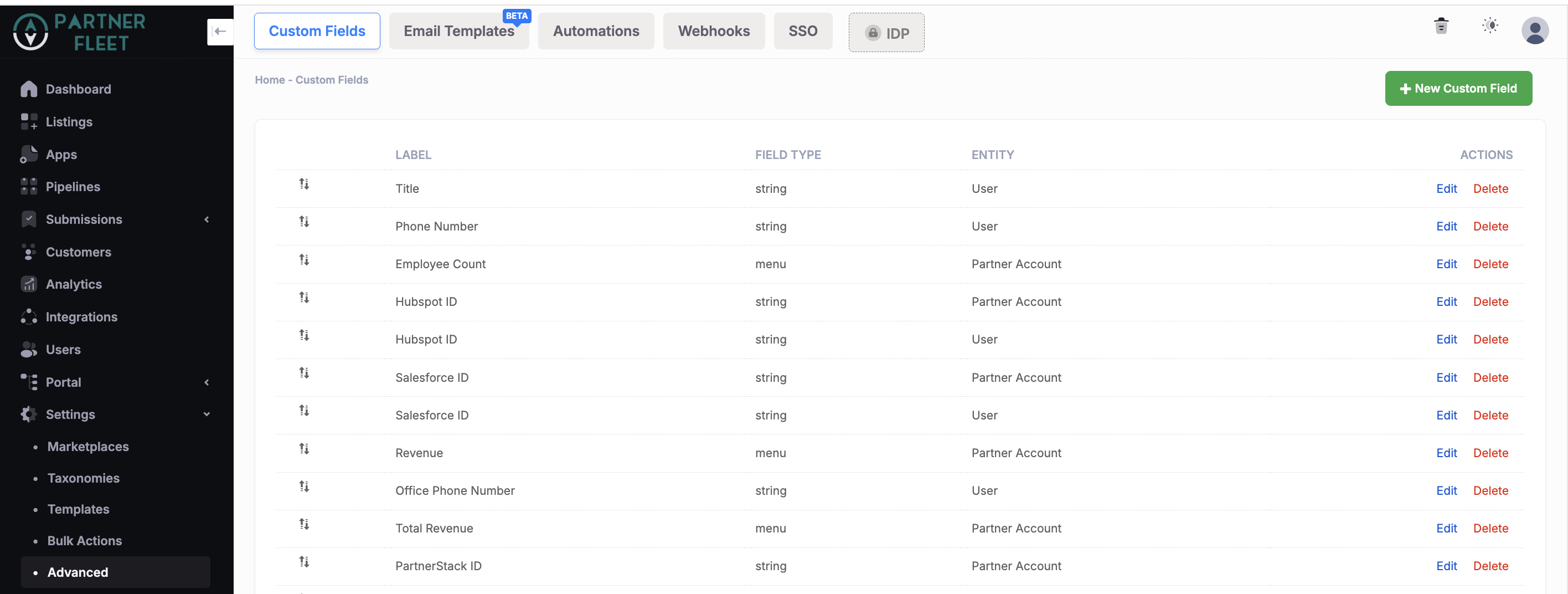
📋 Create Custom Fields
Custom Fields can be added by going to Settings > Advanced > Custom Fields > + New Custom Field
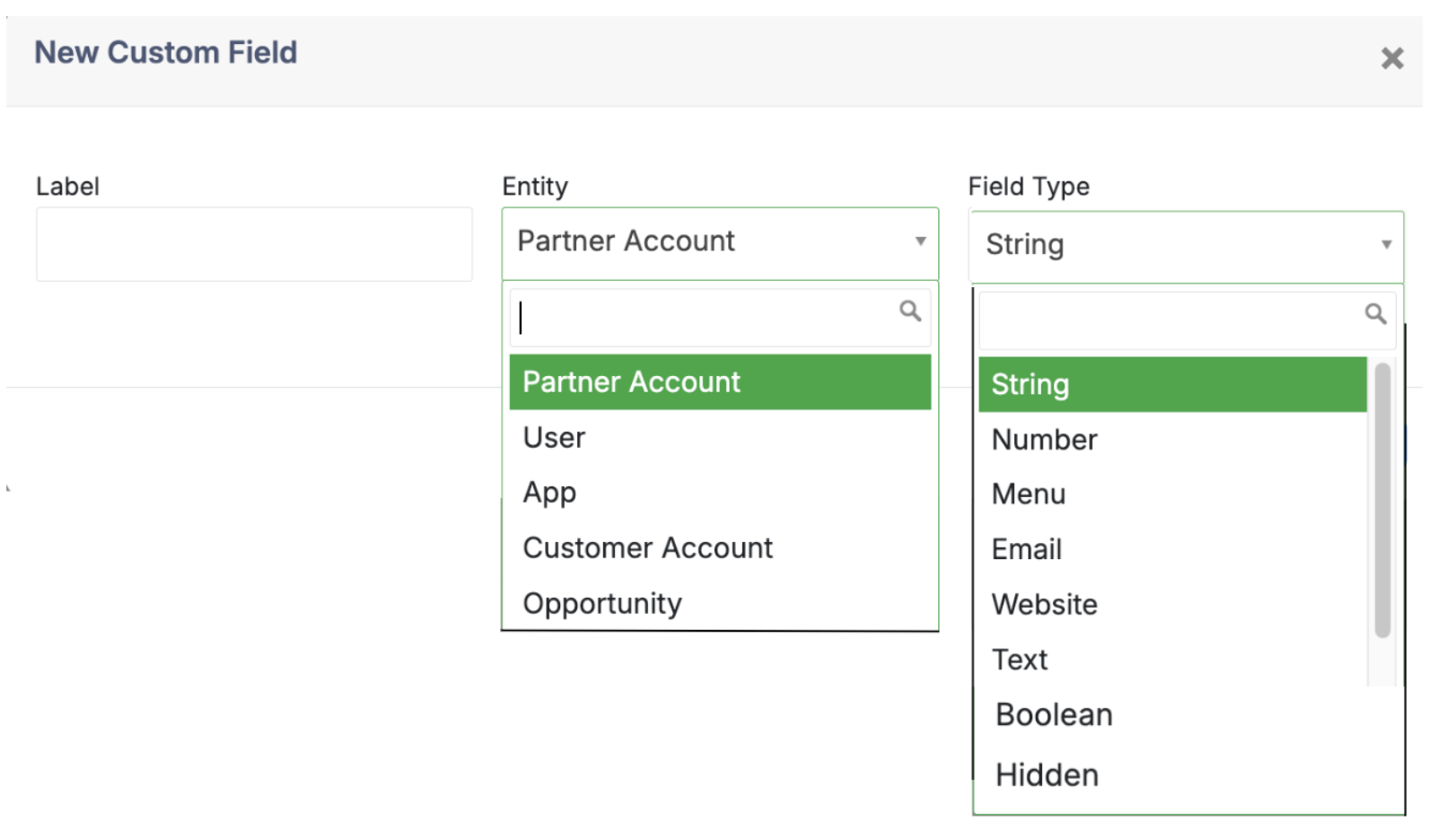
Configure your Custom Field and hit Save
❓ Frequently Asked Questions
How frequently does the sync happen?
The sync happens transactionally, in near real time — data is pushed to Salesforce as soon as it’s created or updated in Partner Fleet, with a slight delay of about 30 to 90 seconds
Do I need to start in Sandbox?
This is recommended but not required, testing in a Sandbox ensures your mappings are correct before impacting live data.
Where do I find Salesforce API names?
Check Salesforce documentation.
Can I sync only certain leads?
Yes — the recommended approach is configuring targeted lead flows, not syncing all leads. Contact Partner Fleet support for next steps.
Updated about 1 year ago