

Slack Webhook Setup
How to Set Up Slack Webhooks for Partner Fleet Lead Notifications
This guide will walk you through creating a Slack App, generating a webhook URL, and adding it to your Partner Fleet partner listing so that you get real-time lead notifications in Slack.
Step 1: Create Your Slack App
- Go to https://api.slack.com/apps
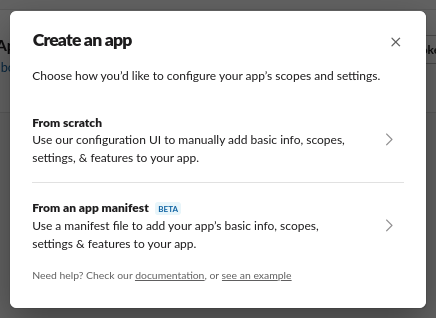
- Click “Create New App”

- In the popup, choose “From Scratch”
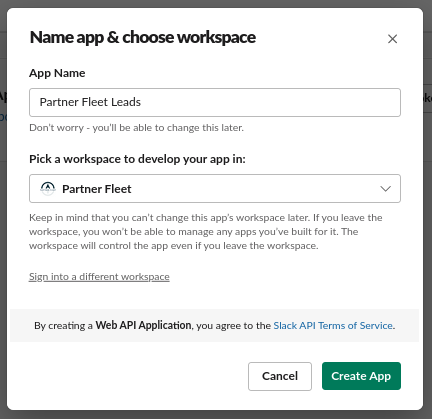
- Give your app a name, select your workspace, and click “Create App”
Step 2: Enable and Configure Incoming Webhooks
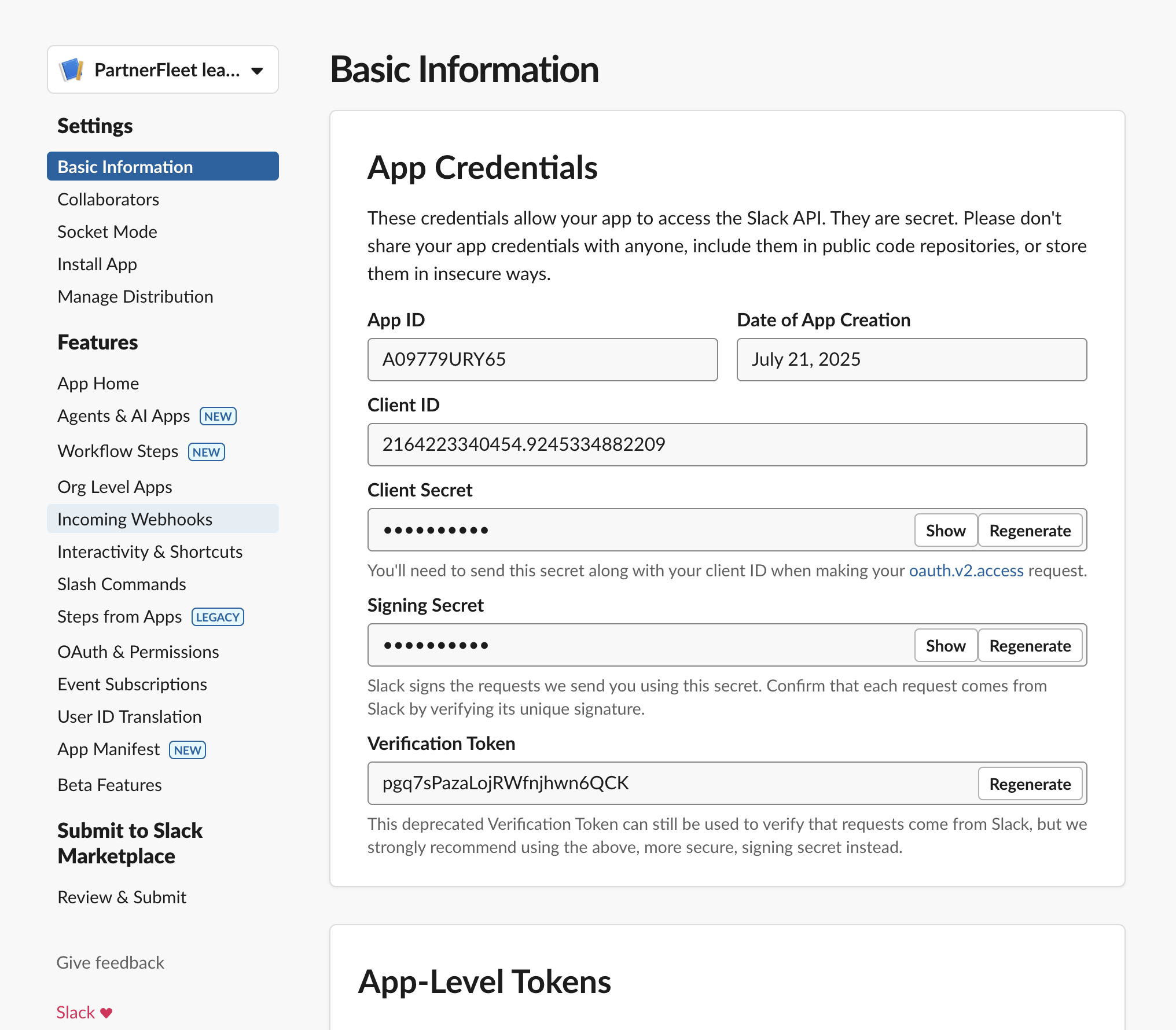
- On the app settings page, click “Incoming Webhooks” from the left sidebar
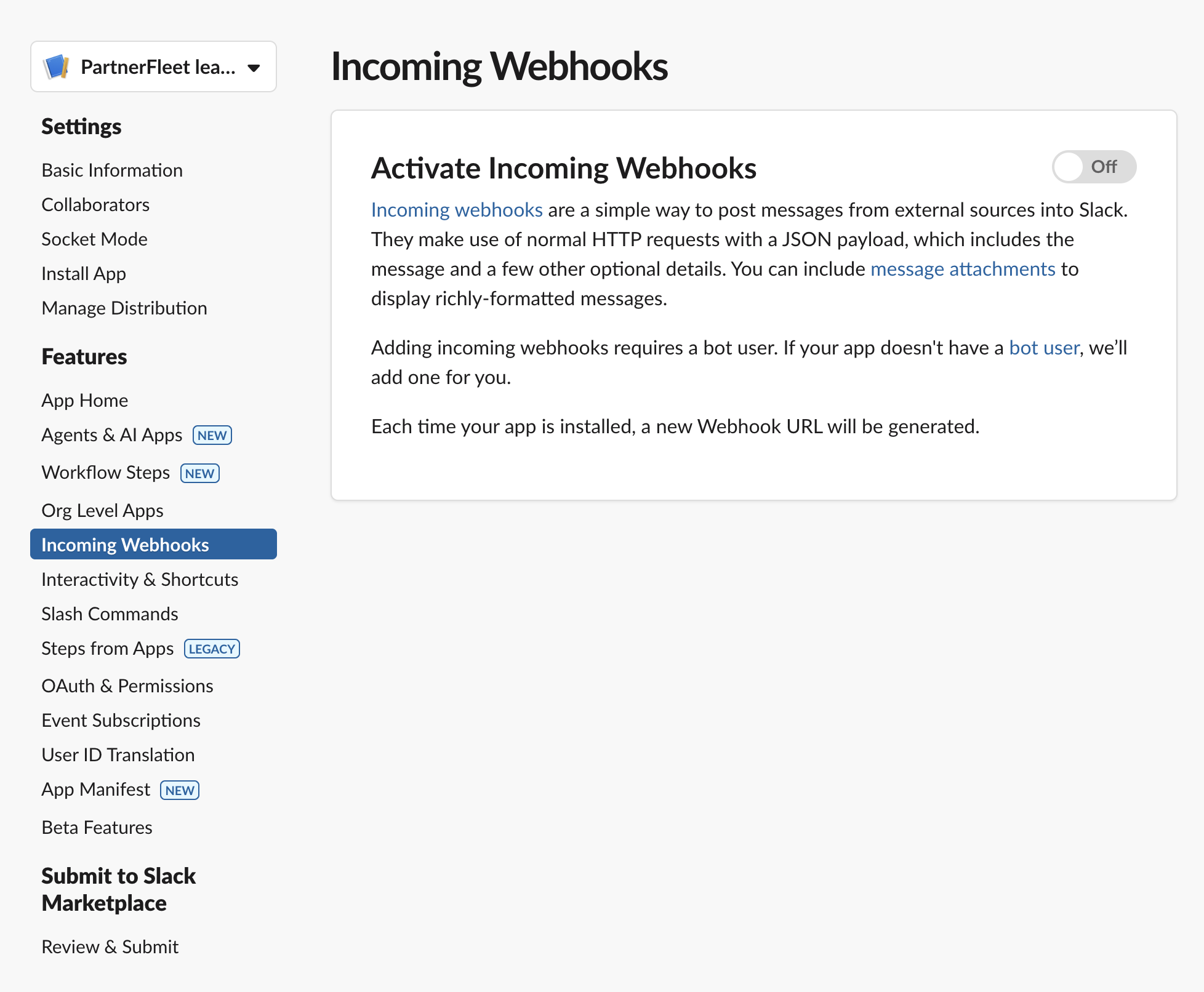
- Toggle the switch to On to activate webhooks
- Click “Add New Webhook to Workspace”
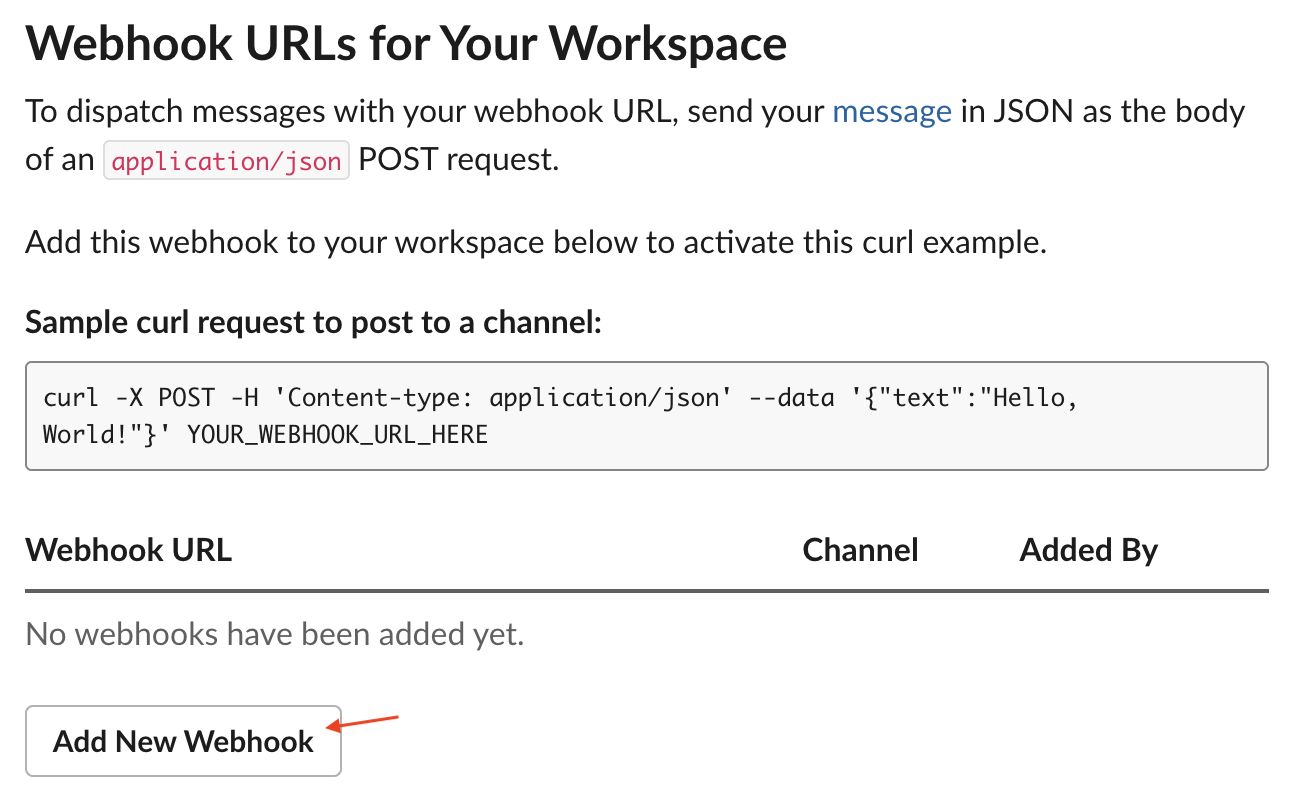
Step 3: Choose the Slack Channel
- In the popup window, search for the Slack channel you want to receive notifications in
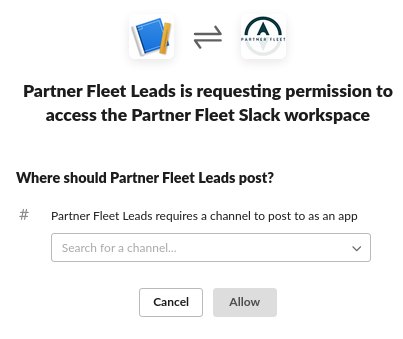
- Click “Allow” to authorize

- You’ll be redirected to the webhook list. Click “Copy” next to your new webhook URL

Step 4: Add the Webhook to Your Lead Form
You have two options for where to apply the Slack webhook:
- Partner Listing Lead Form – used when you want the webhook to apply only to a specific listing
- Template Lead Form – used when you want the webhook to apply to all listings using that template
👉 Want help deciding which to use? Watch this quick overview video on the use case for each option.
To access the Partner Listing Lead Form:
- Click “Partner Listings” from the sidebar
- Click “Edit” on the listing you'd like to update
- In the “Listing Setup” section, click “Edit Lead Form”
To access the Template Lead Form:
- Go to Settings → Templates
- Click on the Lead Form you’d like to update
- Once you're in the appropriate lead form scroll to the Webhook Configuration section set Webhook Type to Slack
- Paste the Webhook URL you copied in Step 3
- Set Form Type to JSON
- Click Save
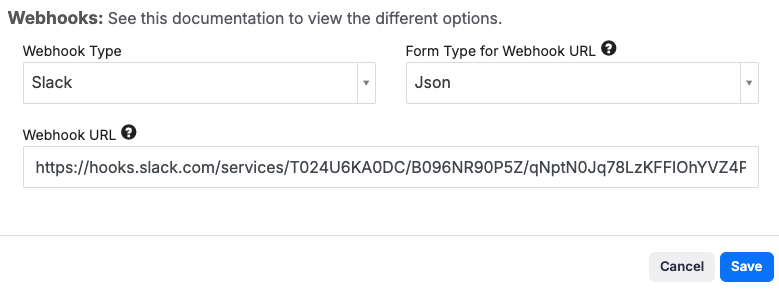
The webhook setup steps are the same whether you’re editing a partner listing lead form or a template lead form.
Optional: Customize Your Slack App Appearance
- Go back to the Slack App > Basic Information section
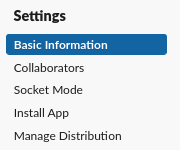
- Scroll to the Display Information section
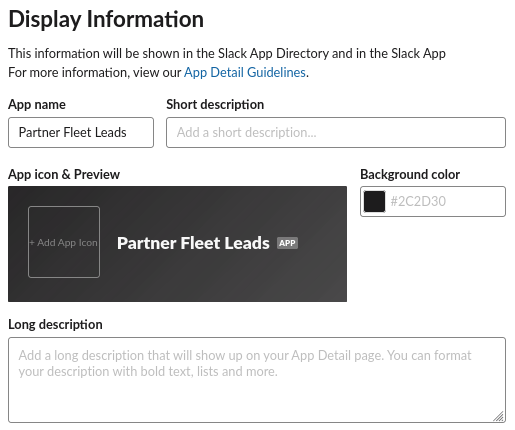
- Customize your app:
- Add a Short Description
- Change the Background Color to Partner Fleet blue (#133c46) or your brand color
- Upload a logo (You can use Partner Fleet's logo)
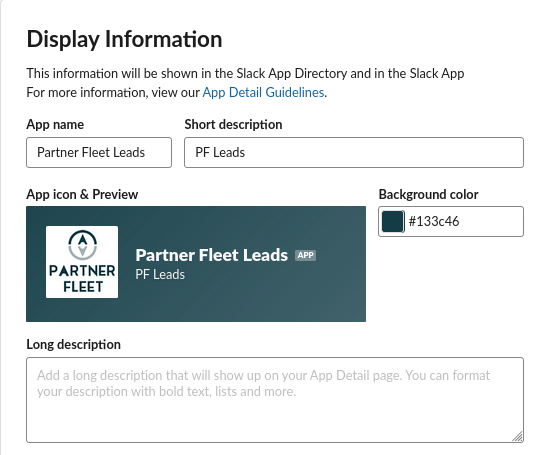
Here is ours!

✅ You’re All Set!
Once saved, anytime someone submits a lead via your Partner Listing, your Slack channel will receive a notification.
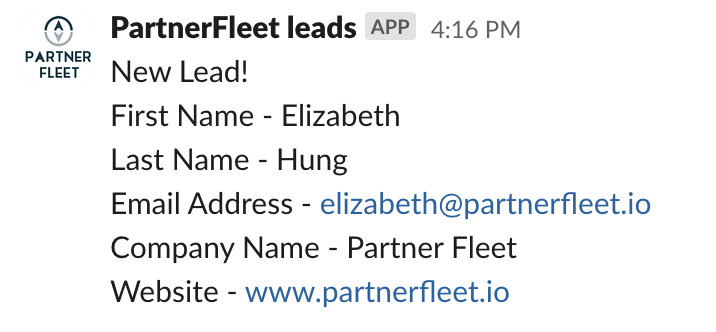
Enjoy your new Slack integration! 🎉
Updated over 1 year ago