

Reviewing Partner Listing Updates
See exactly what a partner changed in a listing update, compare it with the live listing, and approve or reject it from one screen.
Overview
When a partner updates a published listing and sends it for approval, the review screen shows you exactly what they changed, then lets you approve or reject without leaving the page.
The review screen has two tabs and a decision panel:
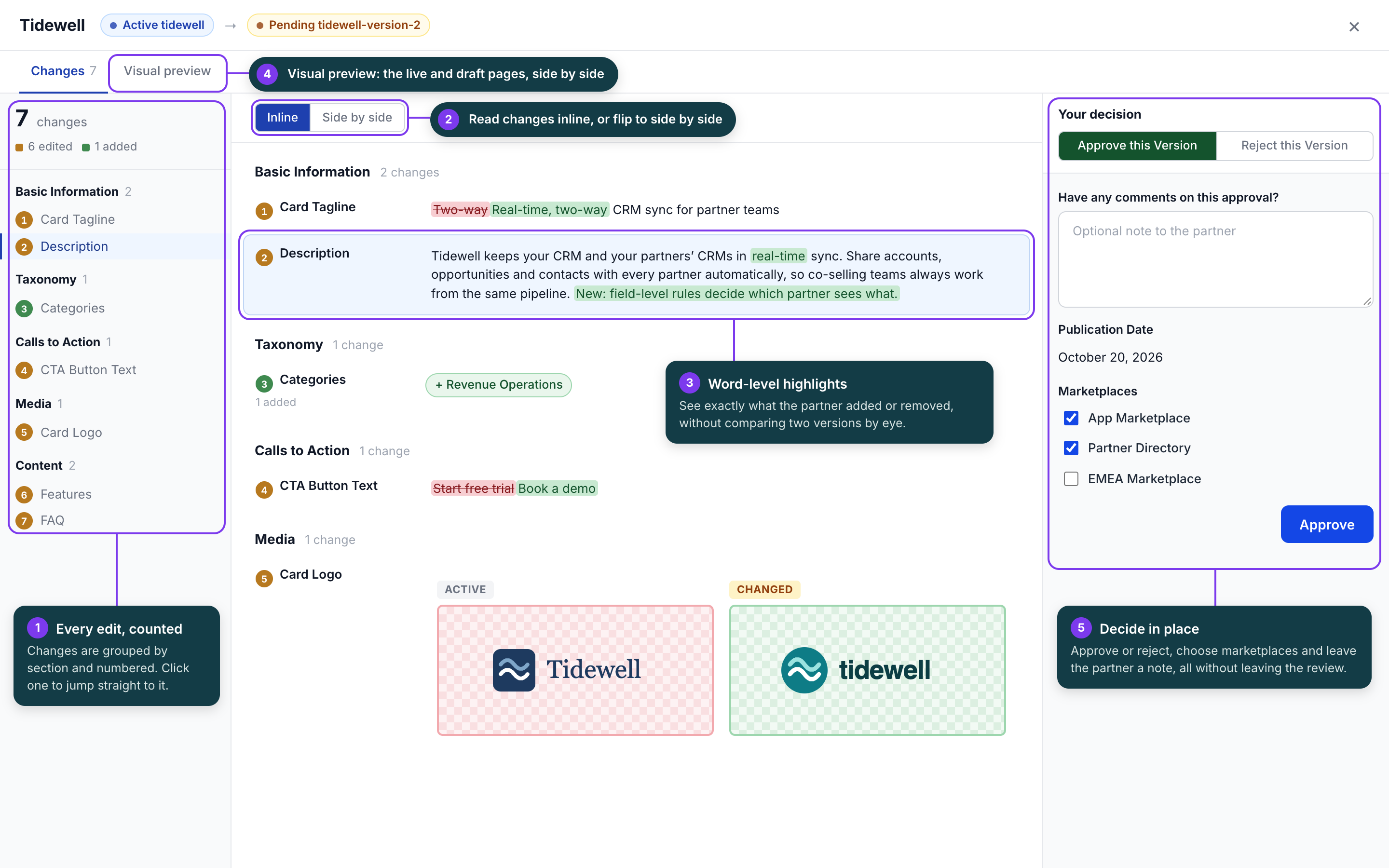
- Changes lists every edit, grouped by section and numbered, with the changed words highlighted.
- Visual preview shows the live listing page and the submitted version next to each other, with the same numbered markers.
- Your decision is a panel beside the changes where you approve or reject, add a note for the partner, and choose marketplaces.
Before you start
You can review a listing update when all three of these are true:
- You're a marketplace admin. Partners can't see the Review button or approve their own changes.
- The version is Pending. A partner has sent it for approval, and it hasn't been returned to draft.
- The partner has a published version. The review compares the submitted version against the active listing. For a partner's first listing, see Special cases.
Open a review
- In the admin sidebar, go to Partner Listings.
- Click Edit on the partner's row to open their listing versions. From a listing's editor, See Partner Versions opens the same page. The page lists the partner's current listing versions, most recently updated first.
- Find the version with the Pending status and click Review.
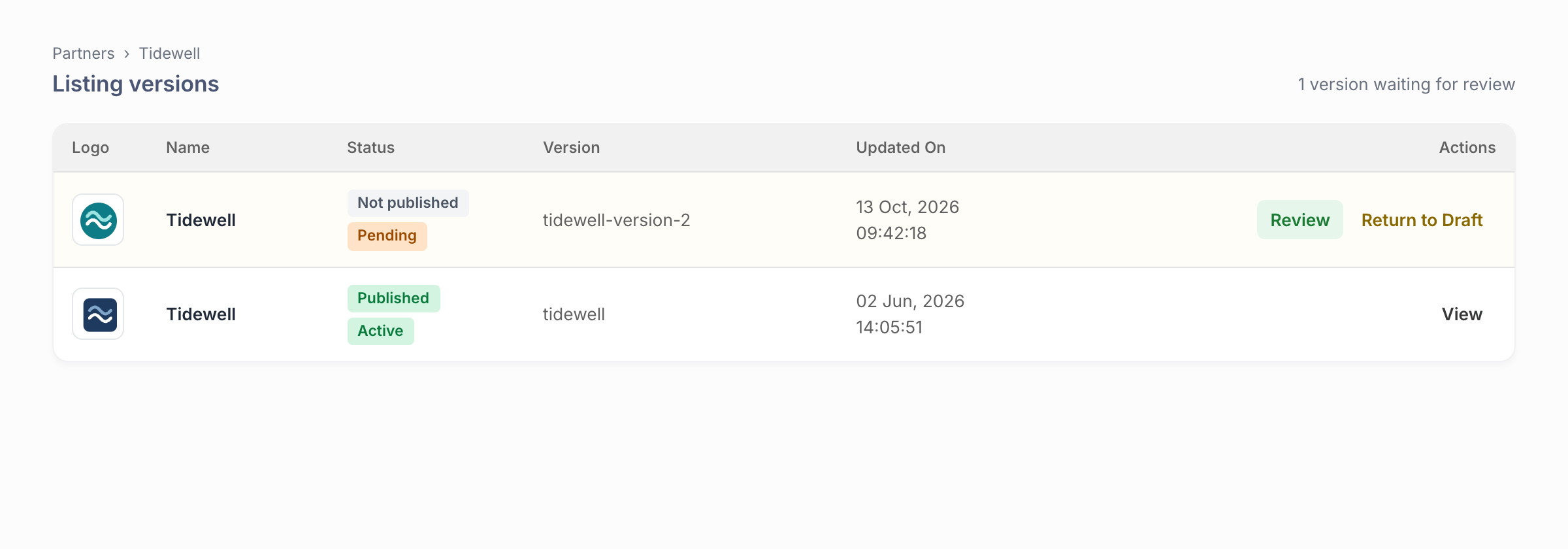
The review opens full screen over the page. To leave without deciding, click × in the top-right corner or press Esc. Esc does nothing once you've typed a note, so you don't lose it by accident.
If the partner asks to keep editing before you decide, click Return to Draft instead of rejecting. The version leaves the approval queue and becomes editable again, and no rejection is recorded.
Read the Changes tab
The Changes tab opens first and lists only what the partner changed. Fields they left alone don't appear.
The change list. The left column shows the total number of changes and how many were edited, added or removed. Below that, changes are grouped by section (for example Basic Information, Calls to Action, Media and Content) and numbered in order. Click any change to jump to it.
Inline or side by side. Use the toggle at the top of the list to choose a layout:
- Inline shows one version of the text, with removed words struck through in red and added words highlighted in green.
- Side by side shows the published text (Active) on the left and the submitted text (Draft) on the right, with the changed words highlighted on each side.
How each kind of field appears:
| Field type | What you see |
|---|---|
| Text and rich text (tagline, description, CTA text, SEO fields) | The changed words highlighted. A field that was blank or was cleared shows Empty. |
| Categories, filters and layout | Pills marked + for added and − for removed. |
| Images (logo, banner, screenshots) | The published and submitted images next to each other, labelled Added, Removed or Changed. Re-uploading the same image doesn't count as a change. |
| Section items (features, benefits, FAQs, testimonials, team members, pricing and more) | A card for each item that changed, showing the published version and the new one. A count beside the field name summarizes them, for example “2 edited · 1 added”. |
Section item labels:
| Label | Meaning |
|---|---|
| Edited (position N) | The item stayed in place and some of its fields changed. |
| Added | A new item. Its “before” card reads “Not in the published version”. |
| Removed | The item was deleted in this version. |
| Replaced (position N) | The item in that position was swapped for a different one. |
| Moved from position X to Y | The item was reordered but not edited. |
Use the visual preview
Click the Visual preview tab to see the listing page as marketplace visitors would, before and after the update.
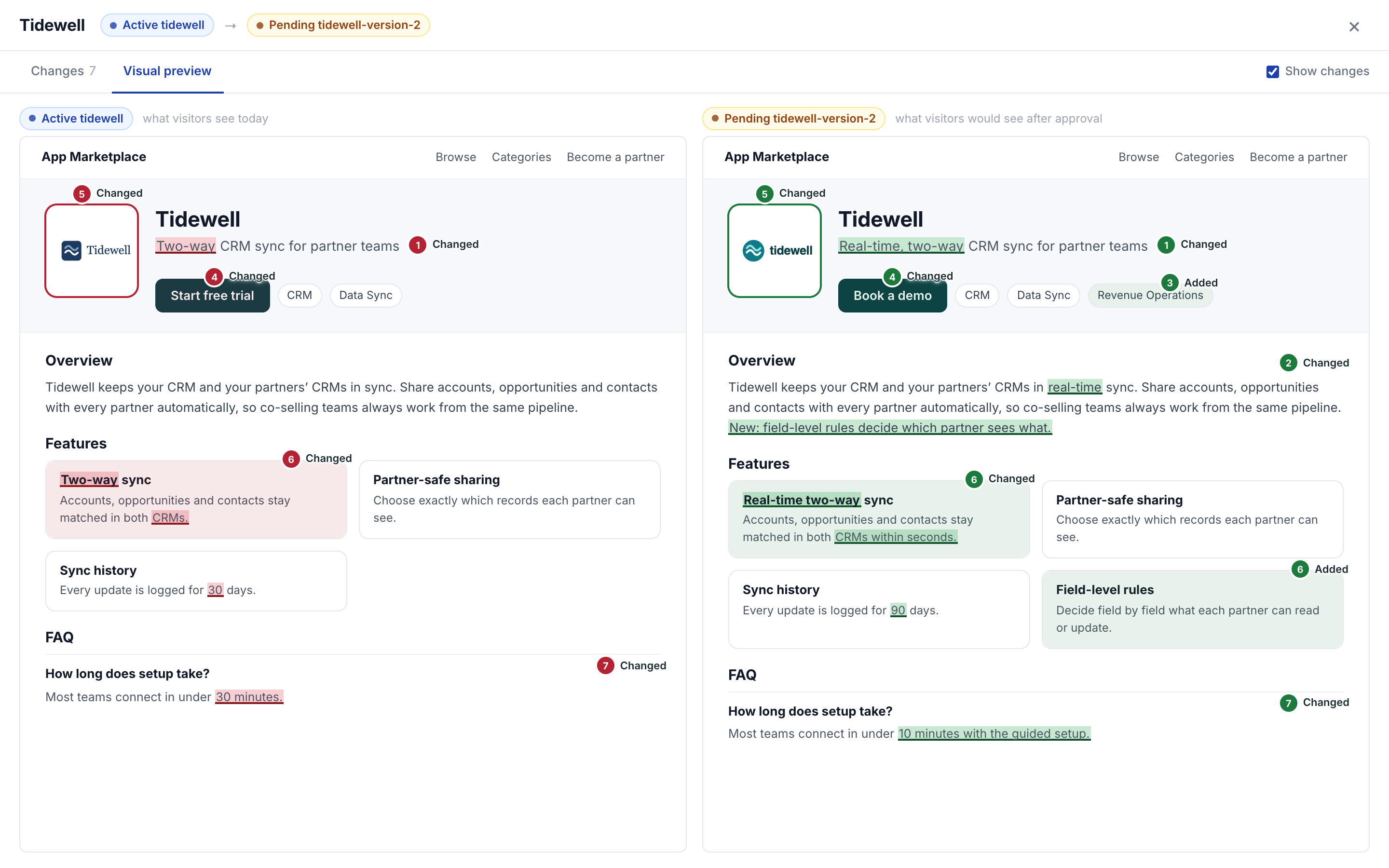
- Left pane, Active: what visitors see today. If the published version isn't live yet (for example, its publication date is in the future), the label says so.
- Right pane, Draft: what visitors would see after you approve.
On both pages, changed words are highlighted (red on the live page, green on the draft), changed images are outlined, and changed cards and sections are shaded. Each change carries a numbered marker that matches its number in the Changes tab, so you can move between the two tabs.
To see the pages without any markings, clear the Show changes checkbox at the top right.
Some changes can't appear on the page, such as SEO fields and lead form settings. When that happens, a note above the panes tells you how many changes aren't shown, and you can review them in the Changes tab.
The preview is for viewing only. Forms inside the panes don't submit, and nothing you do there changes the listing.
Approve or reject
The Your decision panel on the right of the Changes tab stays in view while you scroll, so you can decide as soon as you've seen enough.
To approve:
- Leave Approve this Version selected (it's the default).
- Optionally, add a note for the partner under Have any comments on this approval?
- Check the Publication Date. If the listing doesn't have one yet, you must pick one.
- If your account has more than one marketplace, tick each marketplace the listing should appear in under Marketplaces.
- Click Approve.
To reject:
- Click Reject this Version.
- Under Have any comments on this reject?, tell the partner what to change.
- Click Reject.
Either way, you return to the partner's page.
What happens next:
| After you approve | After you reject | |
|---|---|---|
| Live listing | Replaced by the submitted version, at the same URL. The previous version is archived. | Unchanged. |
| Submitted version | Becomes the Active listing. Ratings and reviews carry over. | Marked Rejected. The partner can edit it and send it again. |
| Partner | Sees the approval, with your note. | Sees the rejection, with your note. |
| Automations | Any Listing approved automations run. | Any Listing rejected automations run. |
Special cases
| Situation | What you see |
|---|---|
| A partner's first listing | Review still appears, but there's nothing to compare yet. The Changes tab says “Nothing to compare against”, and the decision panel works as usual. |
| A resubmission identical to the live listing | The Changes tab says “No differences”. You can still approve or reject it. |
| A draft the partner hasn't submitted | See the Differences opens the visual preview only. There's no change list or decision panel, because nothing has been sent for approval. |
| A rejected version | See the Differences opens both tabs so you can see what was submitted. There's no decision panel. |
FAQ
Can I edit the partner's changes before approving?
No. The review is for deciding on the version as submitted. To ask for changes, reject it with a note, or click Return to Draft if the partner wants to keep editing.
Can I approve only some of the changes?
No. You approve or reject the whole version. If one change needs fixing, reject it and say which one in your note. The change numbers make that easy to reference, for example “please revisit change 4”.
Does approving change the listing's URL?
No. The approved version takes over the published listing's URL, so existing links keep working.
Will the partner see my comments?
Yes. Your note appears with the approval or rejection notice the partner receives.
Why doesn't a change show in the visual preview?
Some fields, like SEO settings and lead forms, aren't visible on the listing page. The note above the preview counts them, and the Changes tab lists them all.
Can partners use the review screen?
No. Only marketplace admins can review and decide on a submitted version.
Updated about 2 hours ago