

AI Listing Builder
The AI Listing Builder instantly converts a blank partner page into a polished, content‑rich listing. It scrapes up to three URLs, applies your template‑level prompts, and returns ready‑to‑publish copy—saving hours of manual writing and accelerating marketplace launches.
Quick Setup Checklist
- Configure the Template – In Settings ›Templates, open each section’s ⚙︎ settings and check Generate with AI; refine the section‑level prompt.
- Locate Prompts & Checkbox – The Generate with AI checkbox and prompt field live inside each section’s settings panel.
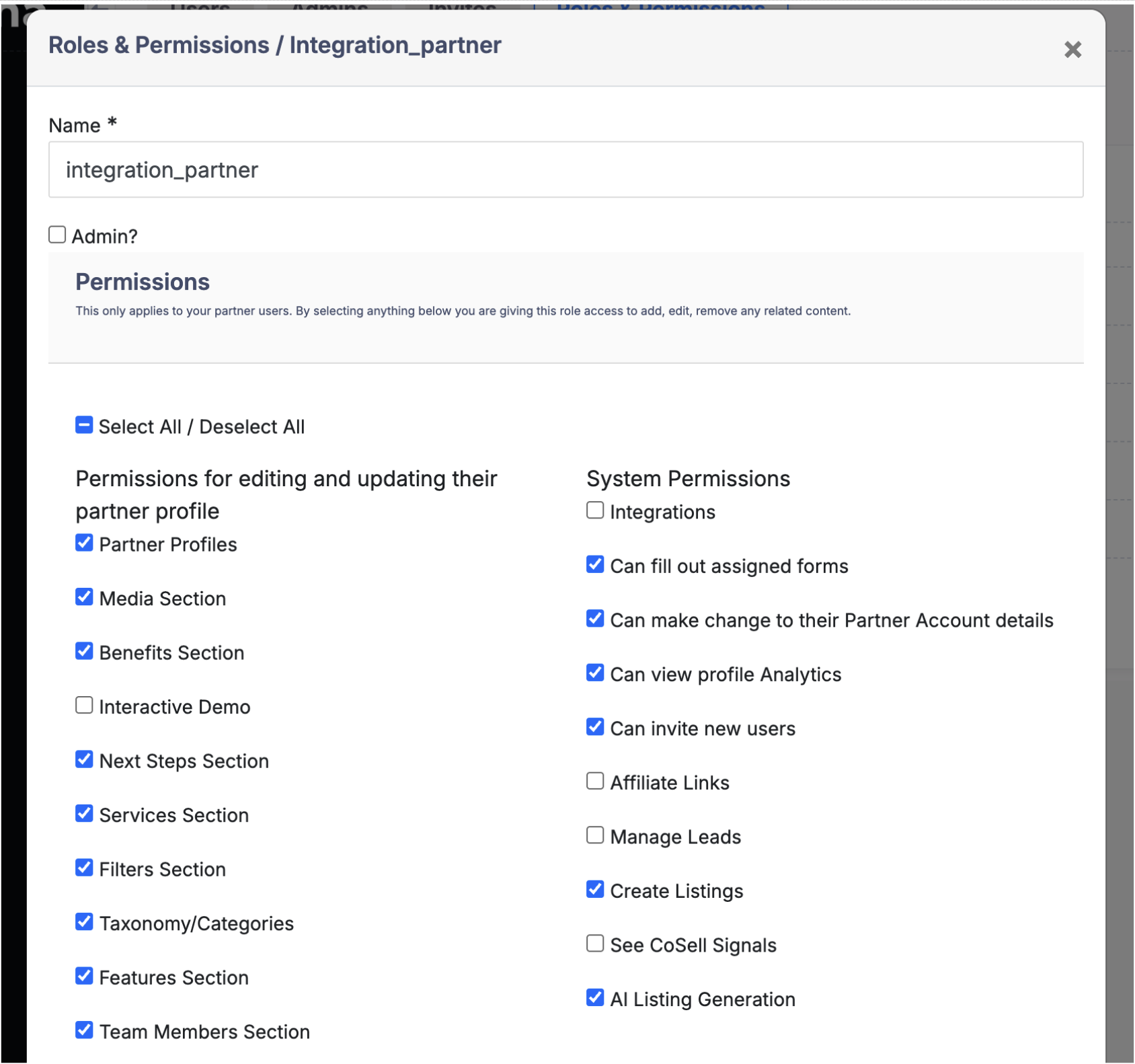
- Grant Partner Access (optional) – Add the AI Listing Generation permission to any partner‑facing role so partners can use AI themselves.
- Create or Regenerate Listings – Use your AI‑ready template to build new listings or open an existing one and click New Draft with AI to refresh content.
Part 1: Configure AI Prompts at the Template Level
-
In Partner Fleet go to Settings › Templates and click + New Template or edit an existing one.
-
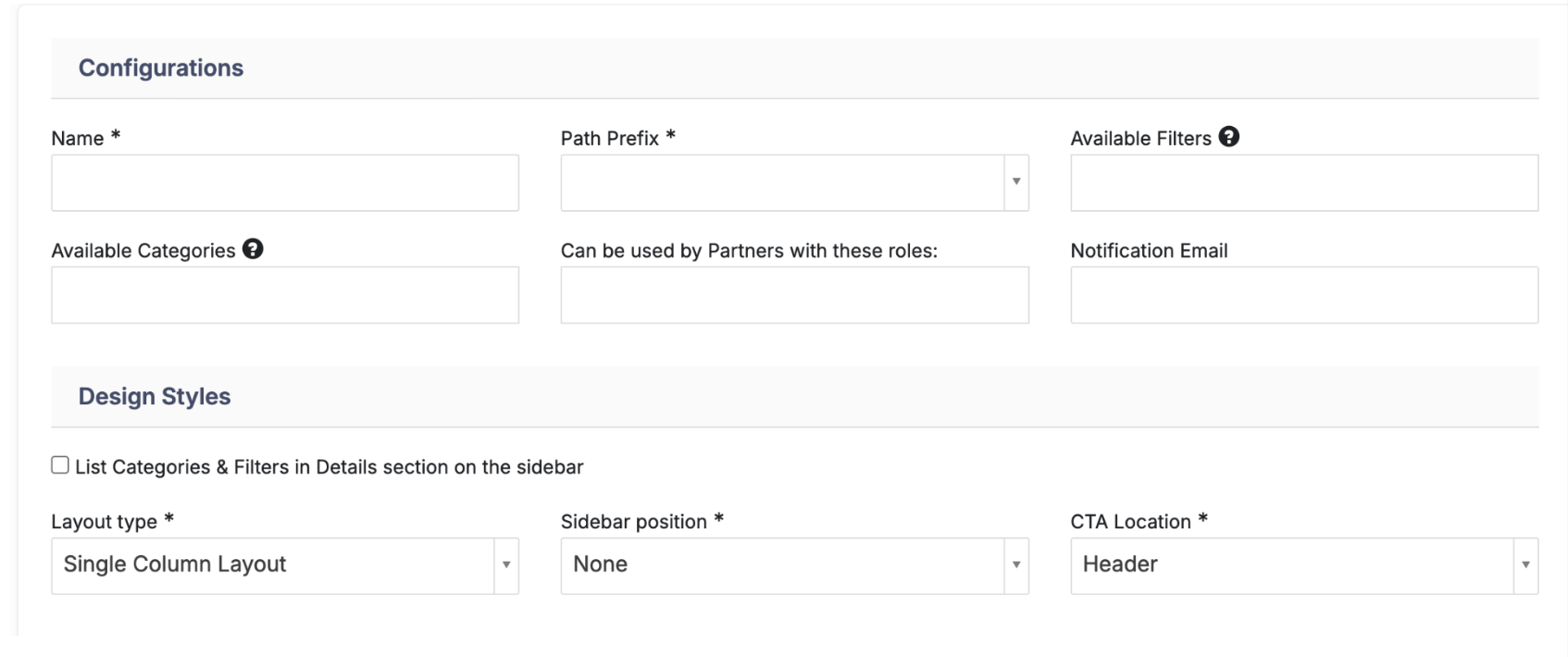
Complete Configuration and Design Styles as usual.
-
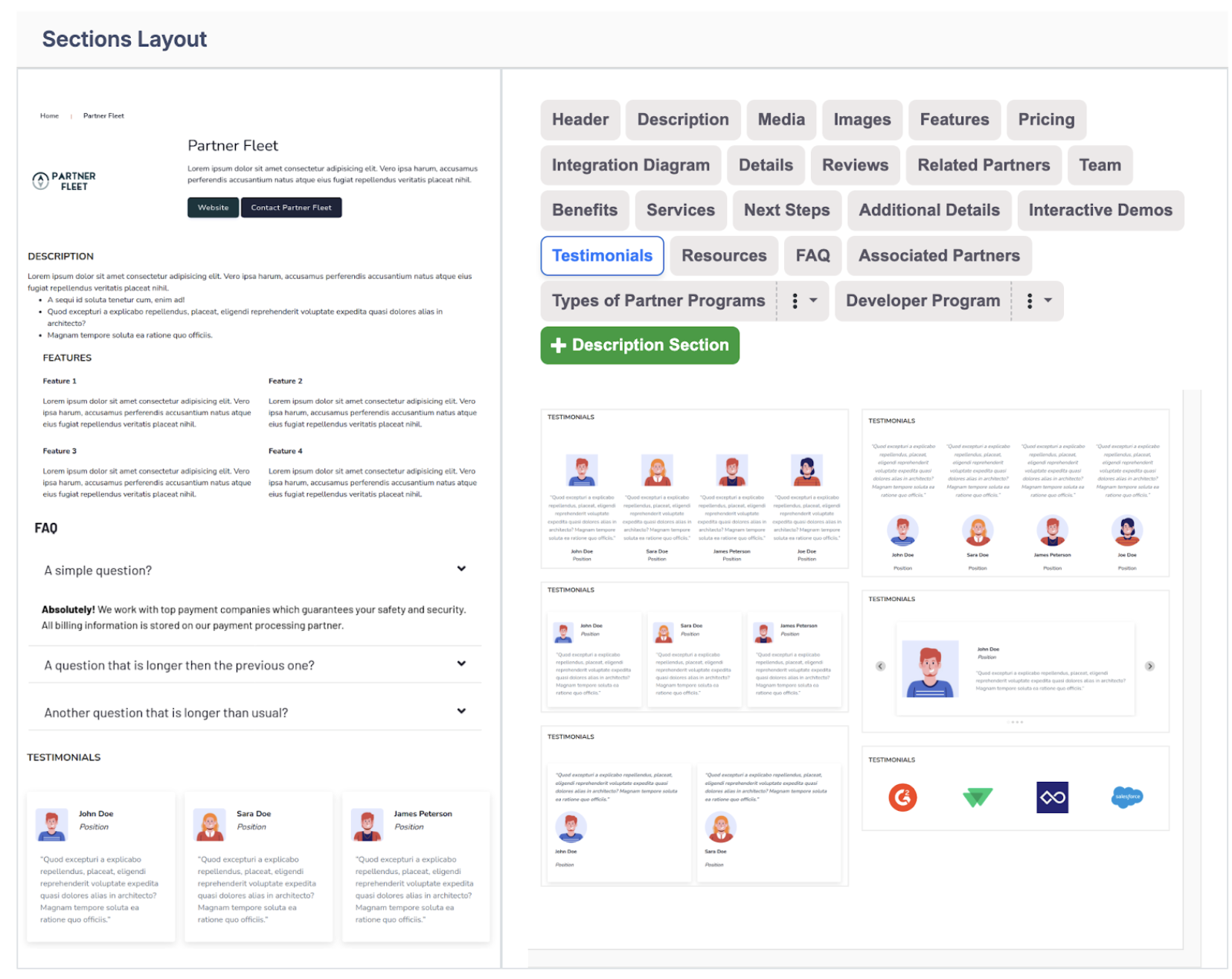
In Sections Layout, drag each section (e.g., Header, Description, Features, FAQ, Testimonials) into the page.
-
For every section you want AI to fill:
-
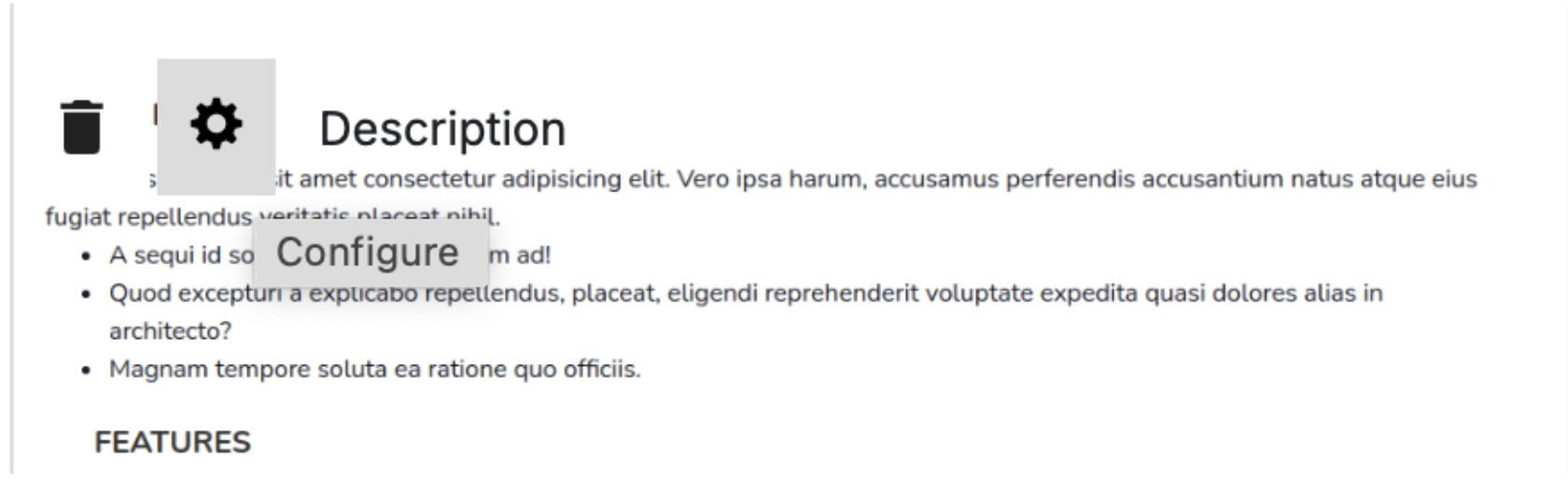
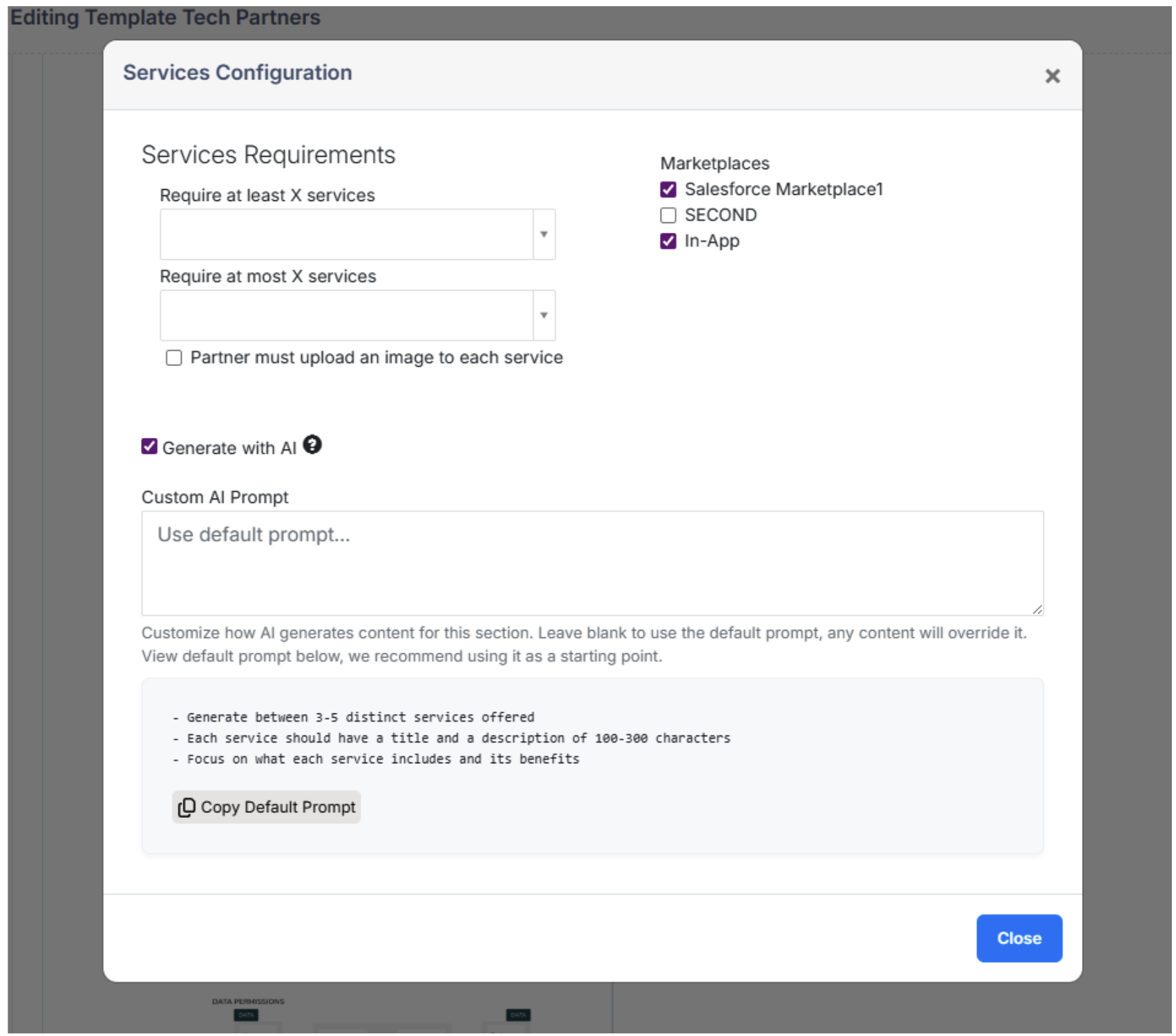
Click the ⚙︎ (cog) icon ➜ check Generate with AI.
-
Decide whether to use the Default Prompt or paste it into the Custom AI Prompt field and edit.
-
Best practice, if not using the default prompt, is to copy and paste the default prompt into the Custom AI Prompt and make edits there.
-
-
-
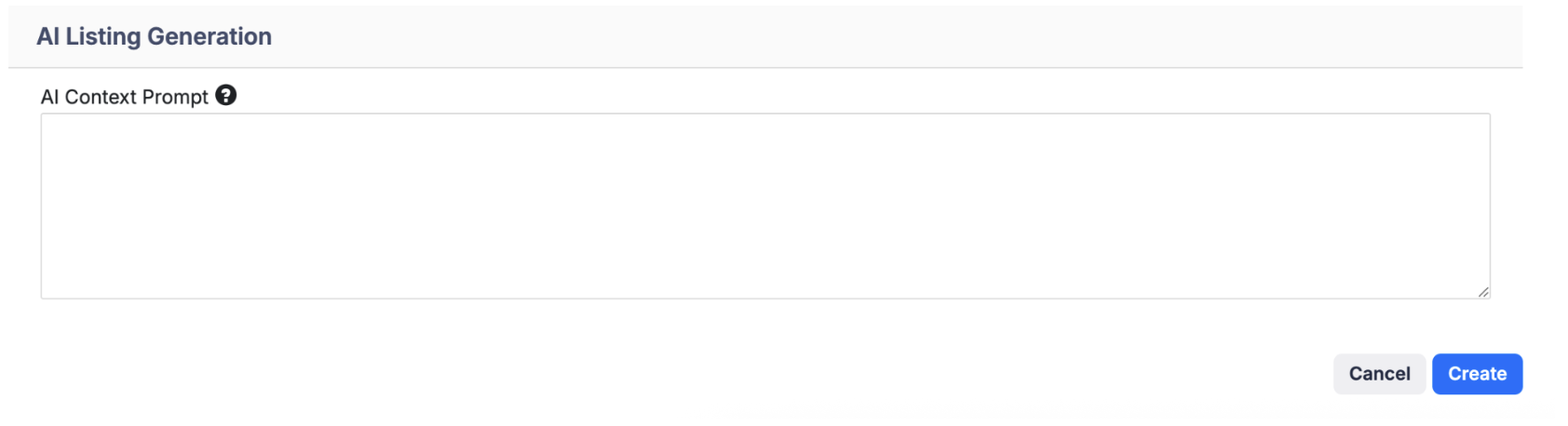
Scroll to AI Context Prompt at the bottom of the template and add overarching guidance (brand voice, tone, objectives, HTML tags, character limits, etc.). This will influence how the AI creates descriptions, features, and other text elements. Click Create.
-
Click Save.
Part 2: Generate AI Listing Content at the Listing Level
-
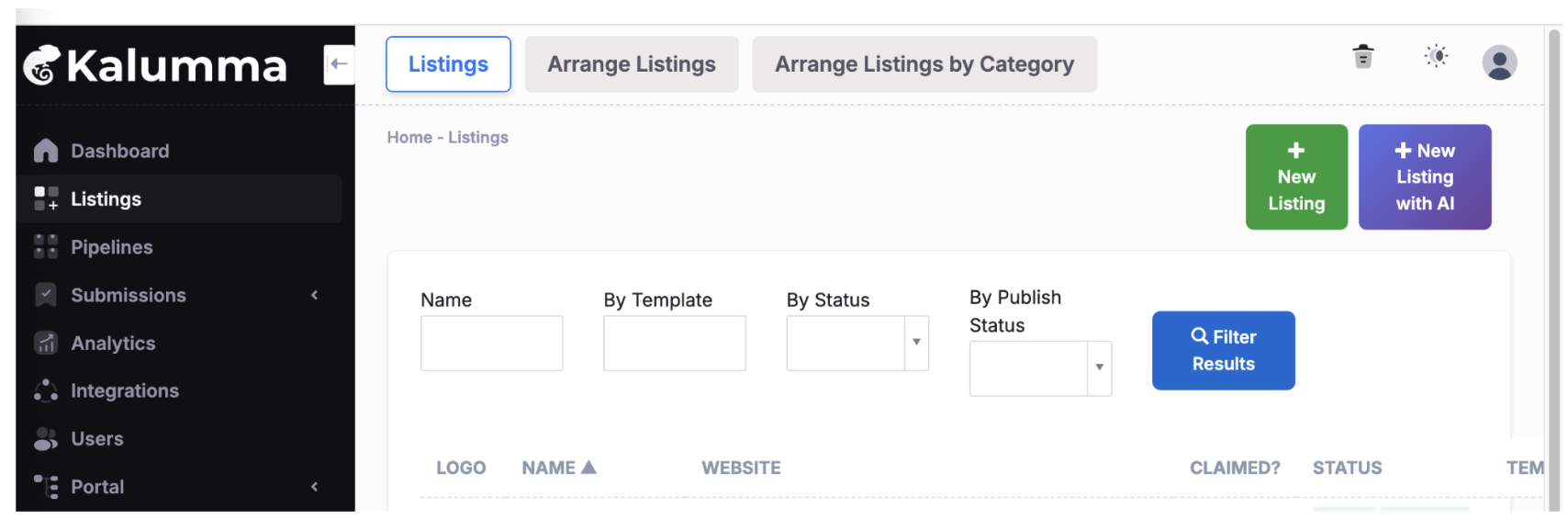
Navigate to Listings and open the New Listing tab.
-
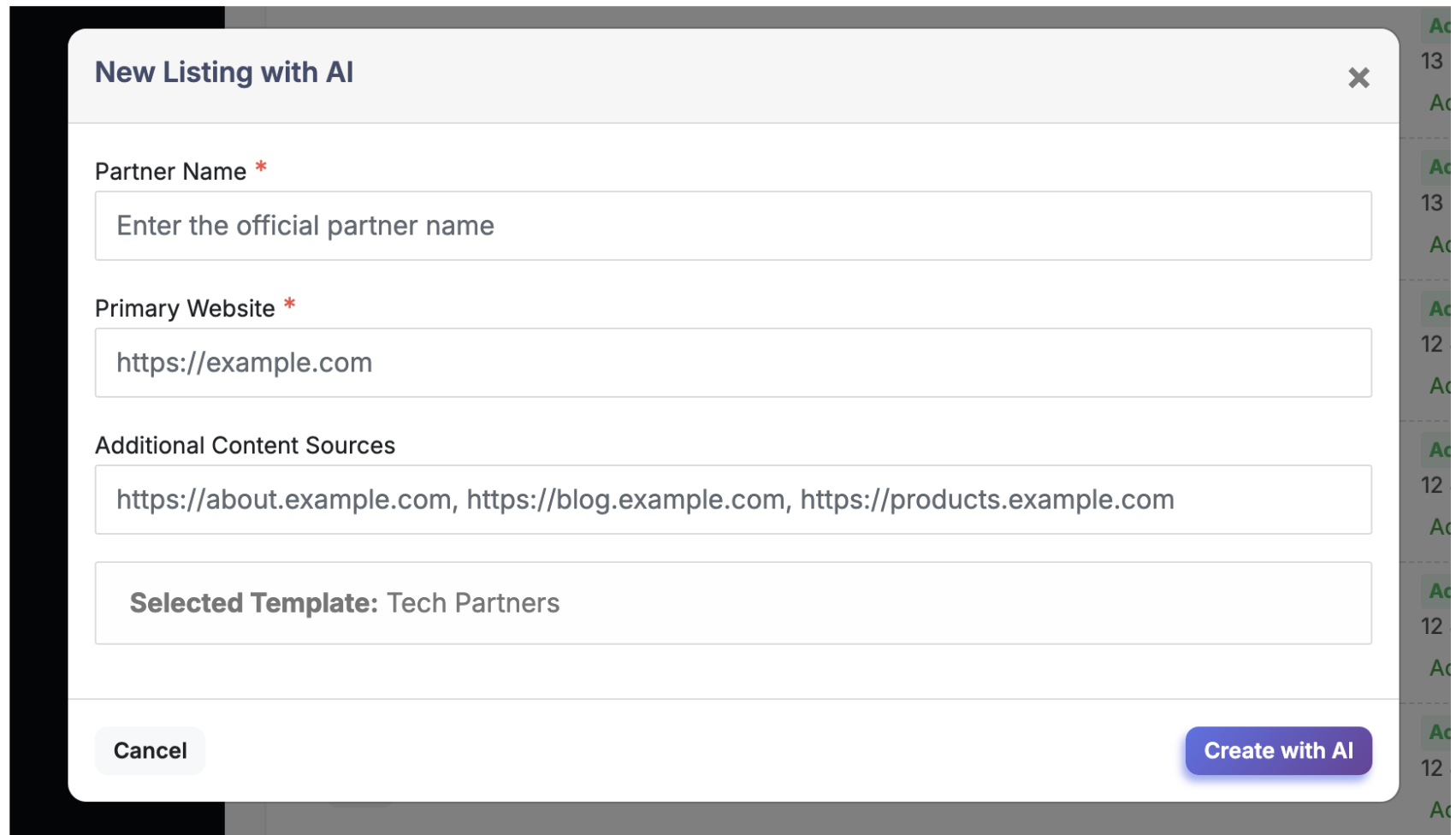
Enter the partner’s Name and Primary Website(plus up to three additional links). Select the Template you want to use.
-
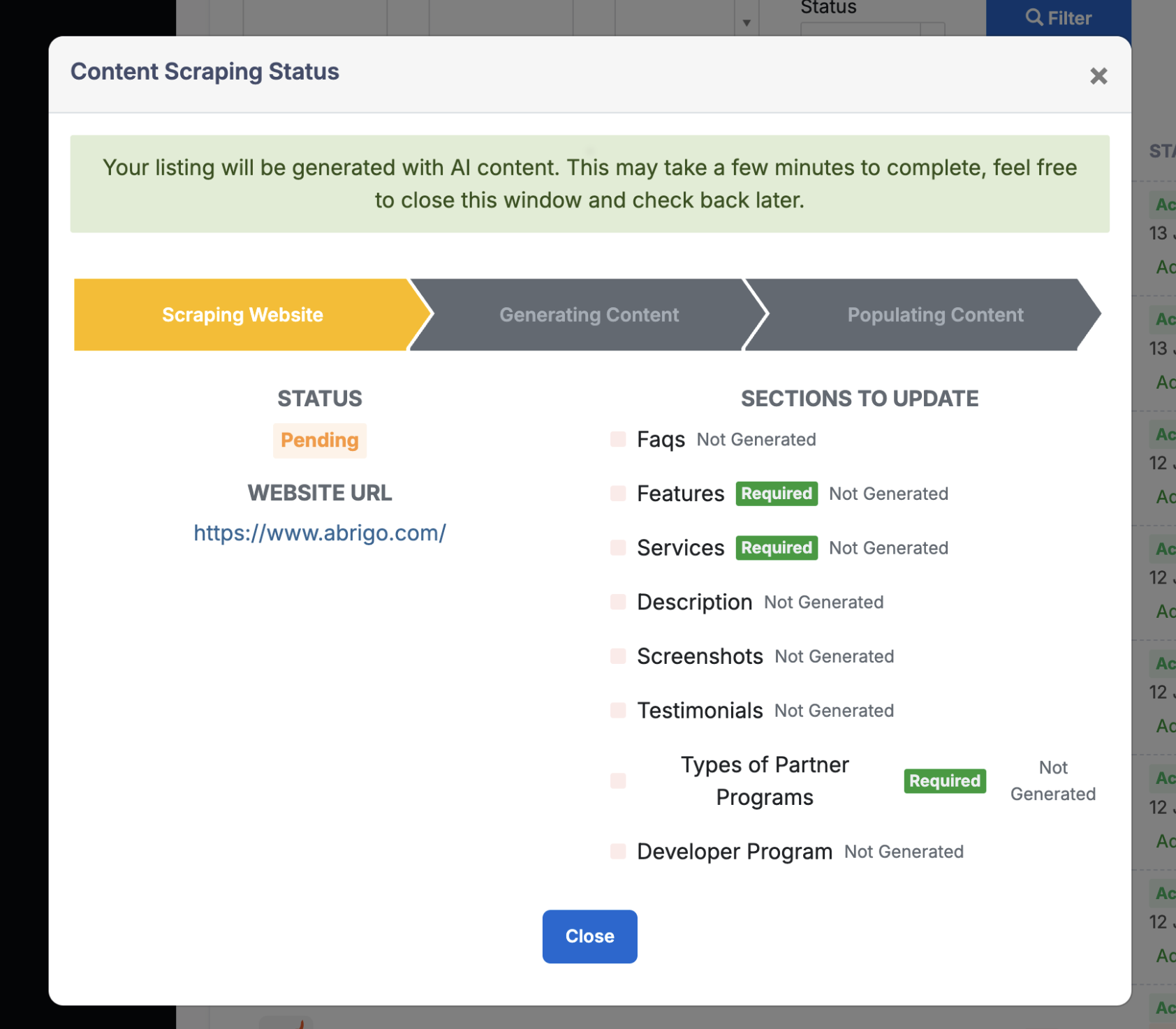
Click Create. AI scrapes the URLs and populates each enabled section.
-
Note: Some sites are unable to be scraped by the AI, so on occasion you may run into a failed AI generation.
-
-
Review, edit if needed, then Publish.
Regenerating an Existing Listing
-
From Listings, click Edit next to the desired listing.
-
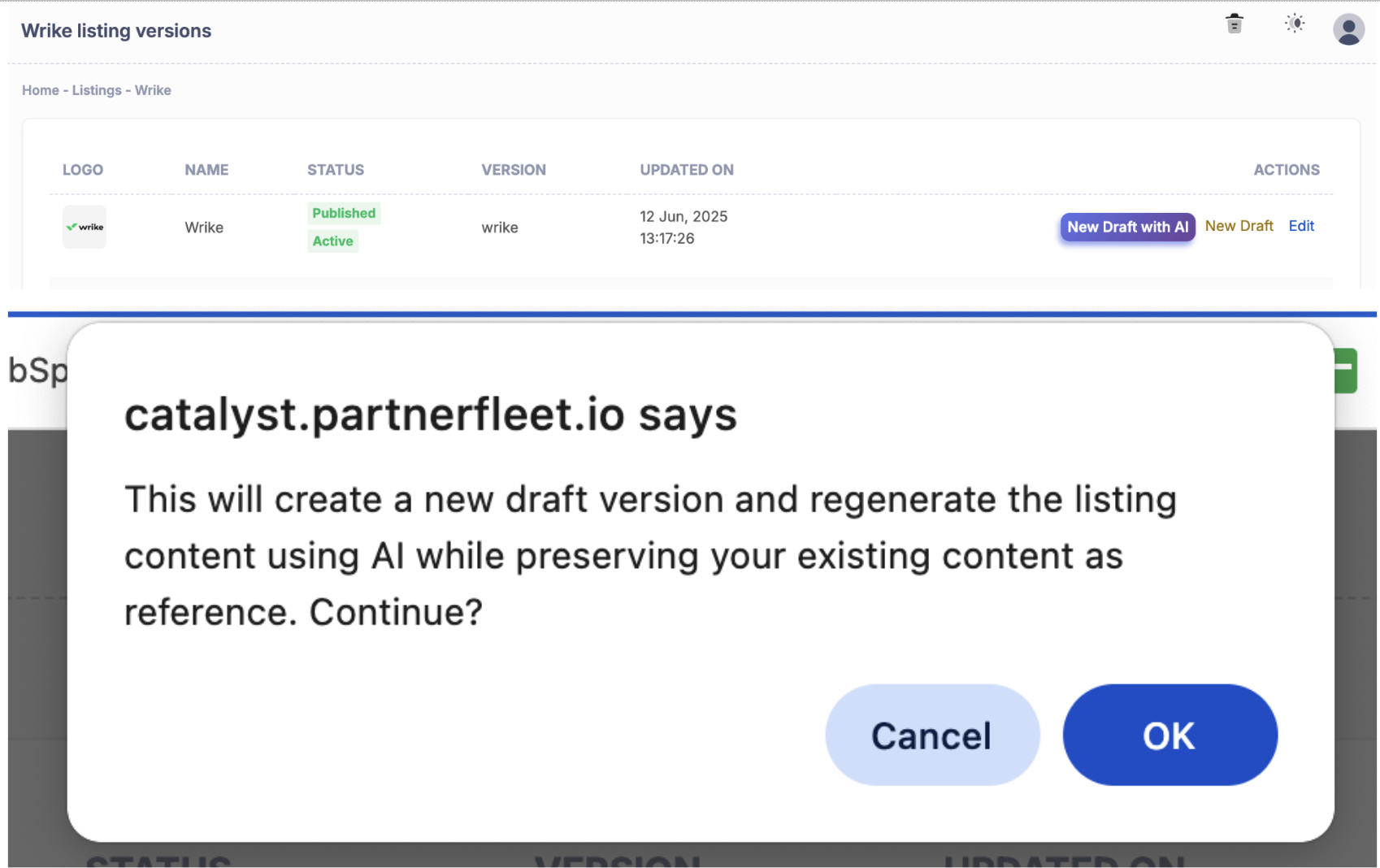
Select New Draft with AI ➜ OK. AI re‑scrapes the URLs and generates a fresh draft without overwriting your published version.
-
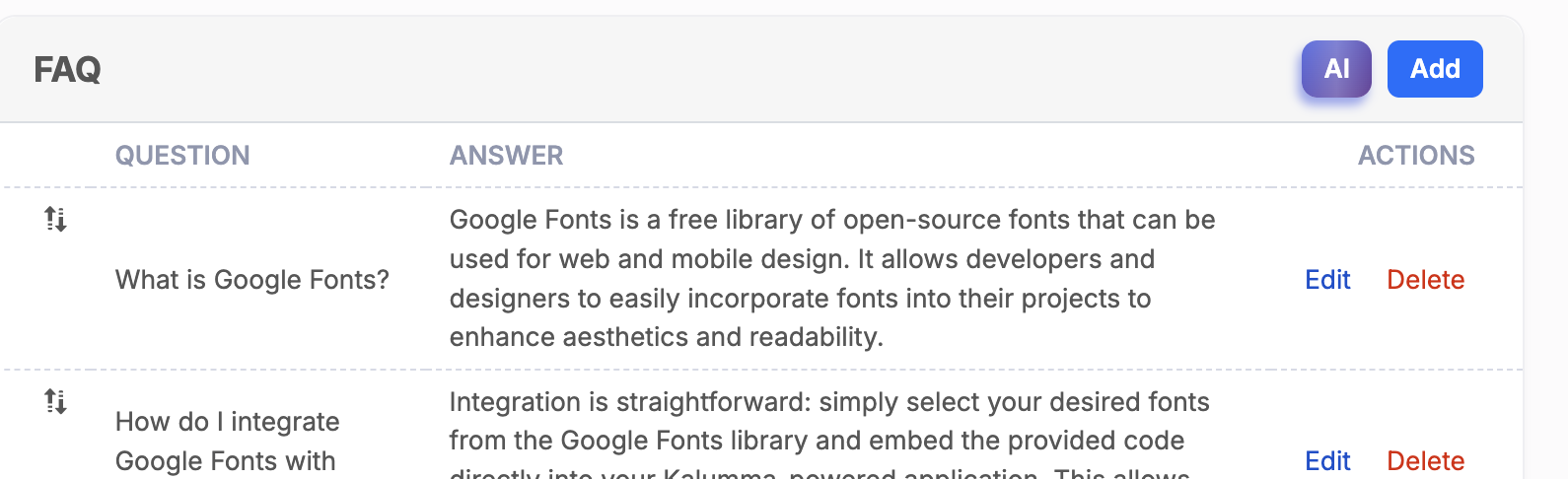
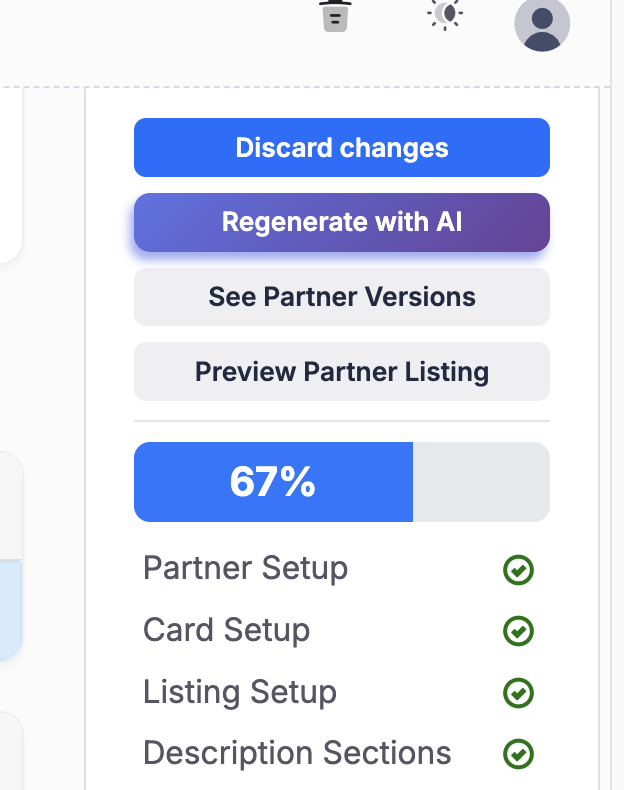
OR Select New Draft and update the listing section by section using AI
-
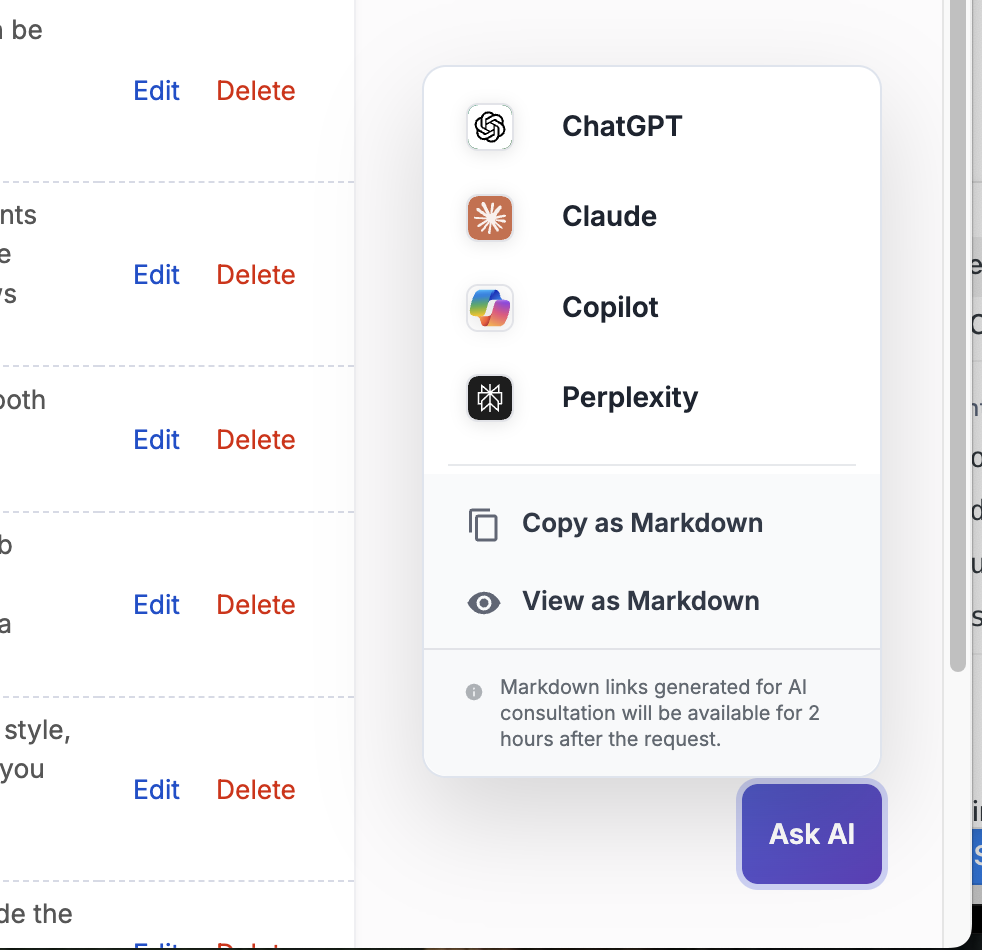
Unsure? Ask AI. This button will ask AI to give you tops on how to enhance your listing, how to improve content, etc. It will provide a markdown file with this request, so you can use it in your AI of choice.
Part 3: Grant Partners Permission to Generate Listings with AI
- Go to Users › Roles & Permissions.
- Click Edit next to the partner‑facing role you want to update or click + New Role.
- In the System Permissions section, click AI Listing Generation and click Save.
-
Optional: Adjust field‑level permissions (e.g., Benefits, Services, Features, etc.) so partners can refine AI content after generation.
-
FAQ
| Question | Answer |
|---|---|
| How many URLs can I add? | Up to 4. More context = better content. |
| Will AI overwrite my changes next time? | No. Regeneration creates a new draft; published content stays untouched. |
| Can partners edit their own listings later? | Yes, any field you marked Editable in their role permissions. |
| Is my data used to train public models? | No. All data stays within Partner Fleet and vetted AI providers. |
| What if a section is wrong? | Edit it manually or click Re‑generatee for a new draft. |
| What makes a good AI Context Prompt? | Provide clear role & scope, brand context, and a single objective; frame it for your target audience; prioritize key content; give a concrete first step; enforce accuracy and style guardrails; adapt for edge cases; and reinforce a consistent, on-brand tone. Have character limitations and html specifications like include <strong> and <UL> tags as necessary. |
| What template sections can I add generate with AI | Description Features Pricing Team Benefits Services Next steps Testimonials FAQ Custom description section |
Recommended Character Limits
| Section | Character Limit Recommendation |
|---|---|
| Description | ≈ 150‑200 characters |
| Features (each) | ≈ 80‑100 characters |
| Details/Specs | ≈ 250‑300 characters |
| Testimonials | ≈ 100‑150 characters |
| Benefits (each) | ≈ 100‑120 characters |
| Services/Scope | ≈ 200‑250 characters |
| FAQ | Q ≤ 80 characters | A ≤ 180 characters |
Troubleshooting
| Symptom | Fix |
|---|---|
| Generate button disabled | Add at least one valid URL and use a template with AI‑enabled sections. |
| Logos missing | Upload manually or confirm the partner site allows image scraping. |
| Copy feels generic | Provide more specific URLs or refine the template‑level prompts. |
| Need to disable AI for a section | In the template, uncheck Generate with AI for that section or switch to a non‑AI template. |
Updated about 1 year ago