

Test Tools
Learn how to generate and validate JWT authentication tokens for App Marketplace development, testing, and troubleshooting.
App Marketplace setup
What this tab does
Test Tools help you generate and validate JWT authentication tokens during marketplace development and testing. They ensure your SSO implementation works correctly before deploying to production.
You can use two tools:
- Generate Test Token — create JWT tokens to test authentication flows without modifying your backend code.
- Decode & Verify Token — validate JWT tokens to troubleshoot authentication issues and verify token structure.
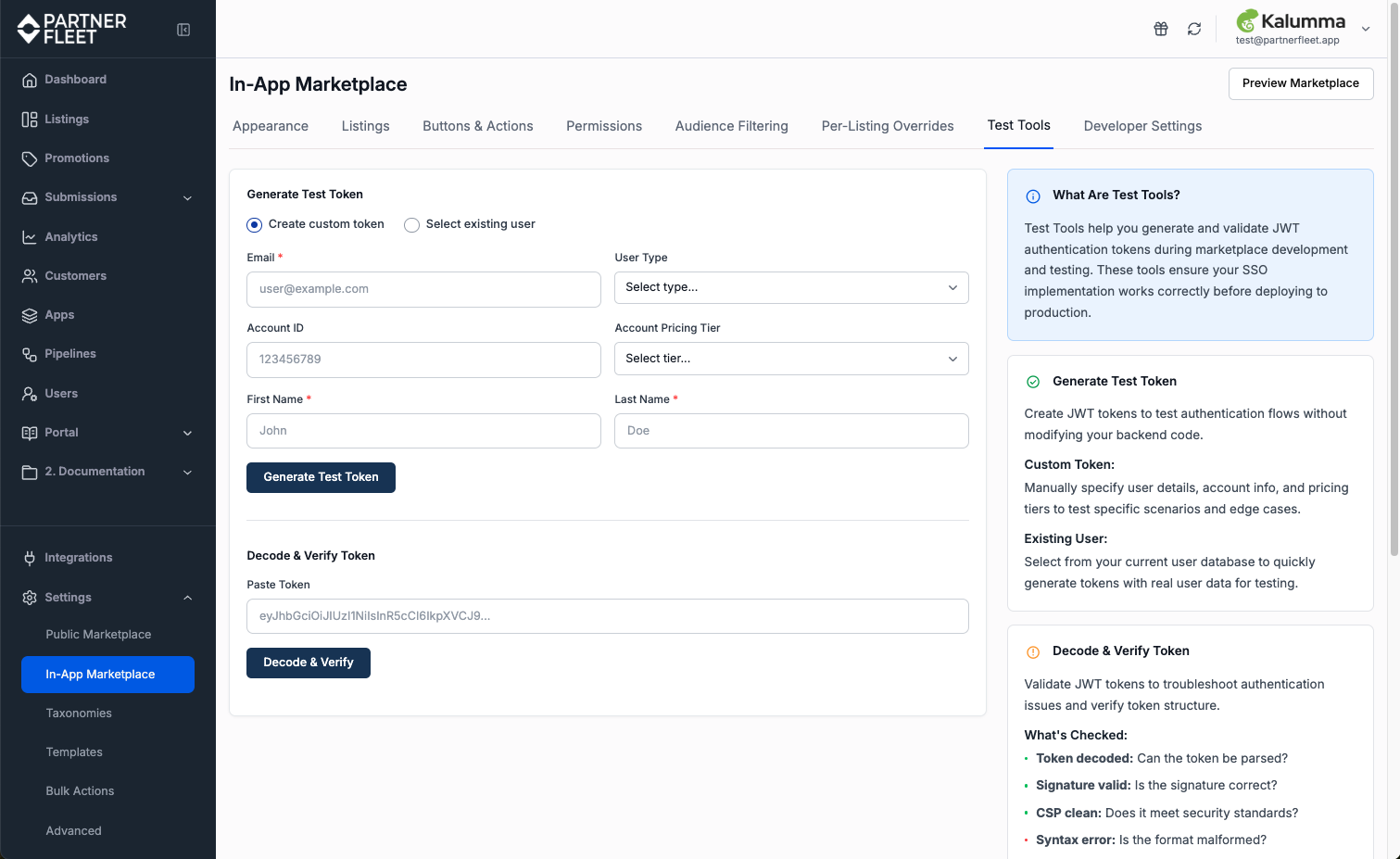
Generate Test Token
Generate Test Token creates a signed JWT using your configured shared secret, so you can test the marketplace without standing up a backend endpoint. There are two modes:
Create custom token
Manually specify user details, account info, and pricing tier. Use this to test specific scenarios and edge cases, such as what the marketplace looks like for an Enterprise admin in North America or a Free-tier user with no role.
Required fields:
- Email.
- First Name.
- Last Name.
Optional fields:
- User Type — choose from your configured user-level permission options.
- Account ID — the unique identifier for the account.
- Account Pricing Tier — choose from your configured account-level permission options.
Select existing user
Select from your current user database to quickly generate tokens with real user data for testing. Use this to reproduce issues a specific end user is seeing — generate their token, paste it into your test embed, and see exactly what they see.
Generating and using the token
After filling in the form, click Generate Test Token. Partner Fleet generates and displays a signed JWT. Copy the token and use it in your embed code, or paste it into the Decode & Verify Token tool to validate its structure.
Decode & Verify Token
Paste any JWT into the Decode & Verify Token tool to validate it. The tool checks five things:
| Check | What it verifies |
|---|---|
| Token decoded | Can the tool parse the token? Catches malformed tokens, encoding issues, and tokens missing the standard JWT structure: header.payload.signature. |
| Signature valid | Is the signature correct? Verifies that the token uses your configured shared secret and HS256. |
| CSP clean | Does it meet security standards? Checks for tokens that Content Security Policy would reject. |
| Syntax error | Is the format malformed? Checks for structural issues in the JSON payload. |
| Field name error | Does the tool recognize the field names? Catches typos in the payload, such as first_name instead of ufn. |
Common use cases
- Test SSO authentication during integration — generate a token, paste it into your embed, and verify the marketplace renders correctly.
- Debug token-related errors in production — ask the end user for their token, or generate one with their data via Select existing user, and use Decode & Verify to identify the issue.
- Validate token payload structure before deployment — verify the JWT your backend generates has all required fields and correct casing.
- Test different user roles and pricing tiers — quickly switch
user_typeand tier values to see how the marketplace adapts. - Verify token expiration and refresh workflows — use Decode & Verify to inspect the
expclaim and confirm your refresh logic.
When to use Test Tools in your setup process
Test Tools are most useful in two phases:
- Initial setup — after configuring Developer Settings, especially the JWT shared secret, use Generate Test Token to confirm the secret is working before involving your engineering team in the embed work.
- Ongoing debugging — when an end user reports an issue, generate a token matching their account and user properties, and inspect it with Decode & Verify to isolate whether the issue is in your JWT, the marketplace configuration, or somewhere else.
Updated about 13 hours ago