

Archive a Form
Stop a form from accepting new responses everywhere it appears, while keeping every response it has already collected. Unarchive it anytime.
When a form has done its job, like last year's partner application or a one-off survey, archive it instead of deleting it. An archived form stops accepting responses everywhere: on its hosted page, wherever it's embedded, in your partner portal and on your listings. Its existing responses are kept, and you can bring the form back with one click.
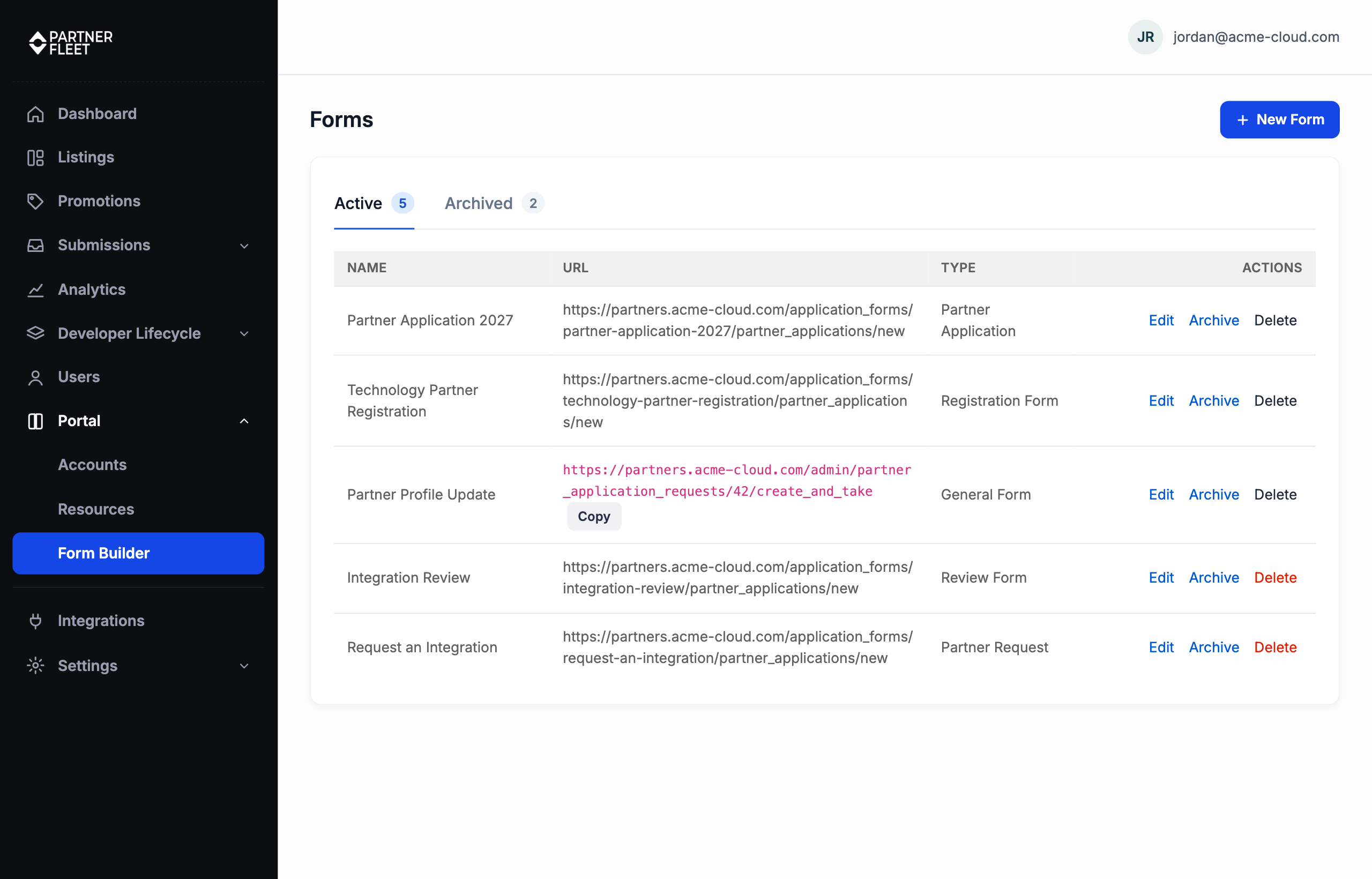
Archive a form
- Go to Portal → Form Builder.
- On the Active tab, find the form and click Archive.
- Confirm. The message reads "New submissions will be blocked. Existing responses are kept."
The form moves to the Archived tab. Each tab shows how many forms it holds.
App Approval forms can't be archivedEvery other form type can be archived. App Approval forms aren't listed on the Forms page and have no Archive option.
What happens when a form is archived
Visitors and partners can't submit it. Everyone who opens the form sees its name and "This form is no longer accepting responses." This applies on the hosted form page and on your website where the form is embedded. If someone opened the form before you archived it and submits it afterwards, they see the same message and nothing is saved.
It's removed from your marketplace and partner portal:
| Form type | What changes |
|---|---|
| Partner Application used as a template's claim form | The Claim Listing button disappears from listings that use that template. |
| Review Form | Listings fall back to the standard review (a star rating and a written review), so visitors can still write reviews. Someone editing a review written with the archived form gets the standard review too. |
| Request a Partner | The request card no longer appears on your marketplace. |
| General Form | The form leaves your partners' list of available forms. A partner who opens an old link, or tries to finish a response they had started, lands on their dashboard with the message "This form is no longer accepting responses." |
It's removed from form pickers. Archived forms aren't offered when you choose a form elsewhere in the admin, for example a template's claim or review form, an automation or a pipeline trigger. A picker that already uses the form still shows it, so archiving never clears your existing setup. You also can't assign an archived form to a partner.
Find responses to archived forms
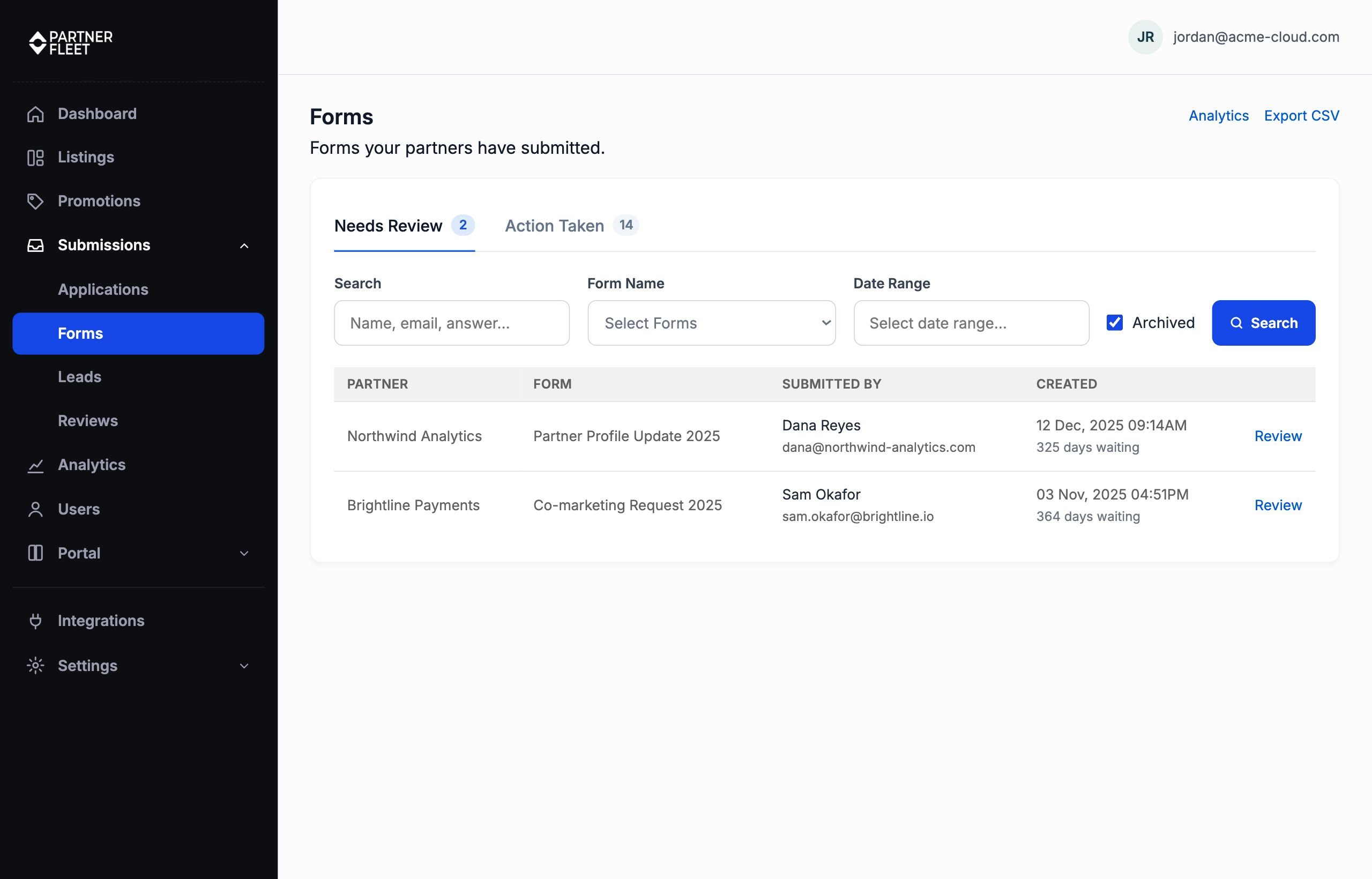
Responses to archived forms are kept, but they're hidden from the default view so they don't crowd your review queue.
- Go to Submissions → Applications or Submissions → Forms.
- Tick Archived, then click Search.
The list now shows only responses to archived forms, and the Form Name filter lists only archived forms. You can still open, approve and reject these responses as usual. The view stays on archived responses until you untick Archived.
Unarchive a form
- Go to Portal → Form Builder and open the Archived tab.
- Click Unarchive on the form.
The form accepts responses again right away, and it returns everywhere it was used: listing buttons, your partners' list of forms and the form pickers.
Archive or delete?
| Archive | Delete | |
|---|---|---|
| Stops new responses | Yes | Yes |
| Keeps existing responses | Yes | Only possible when the form has no responses |
| Can be undone | Yes, with Unarchive | No |
Archive is the safe choice for any form that has collected responses. You can still edit an archived form, and delete it once it has no responses.
Related
Updated 1 day ago