

Airtable Webhook Setup
Follow the steps below to set up the Airtable integration in Partner Fleet using webhooks.
In Airtable
Click on Automations
Click on Create Automation
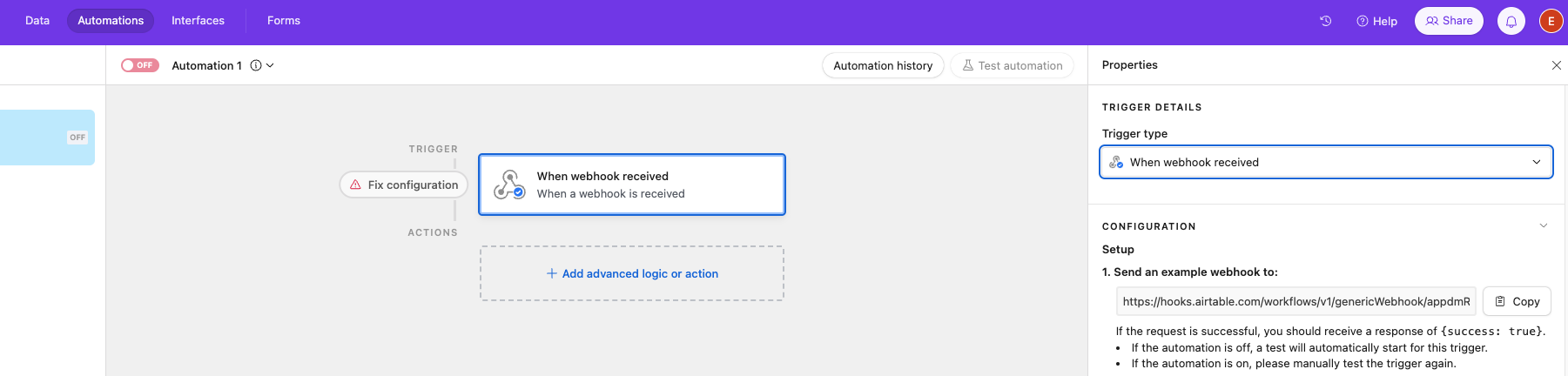
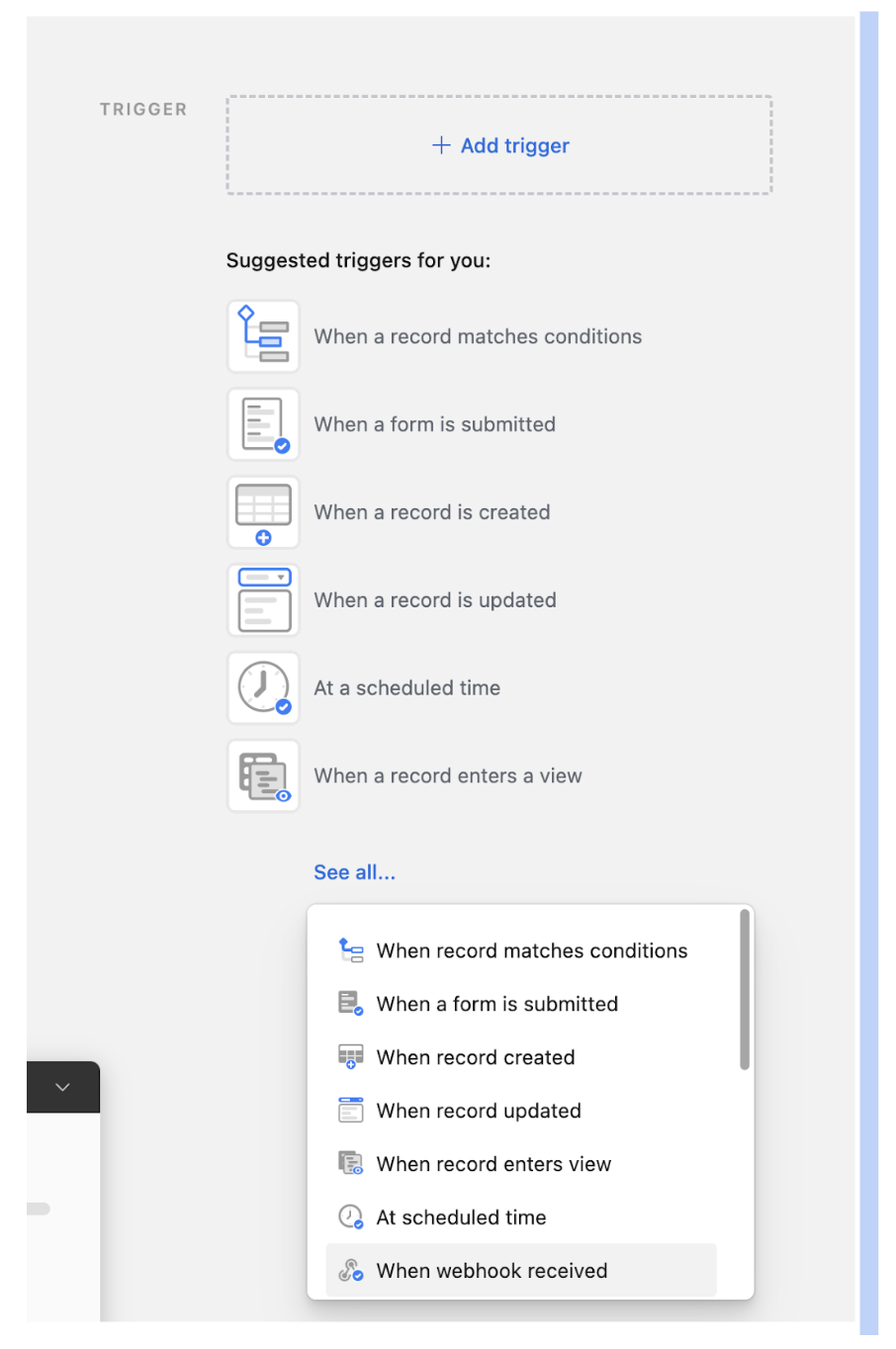
- Select Trigger “When Webhook Received”
- Copy the Webhook URL
See Screenshot
In Partner Fleet
Go into Partner Fleet
Click Configurations > Webhooks
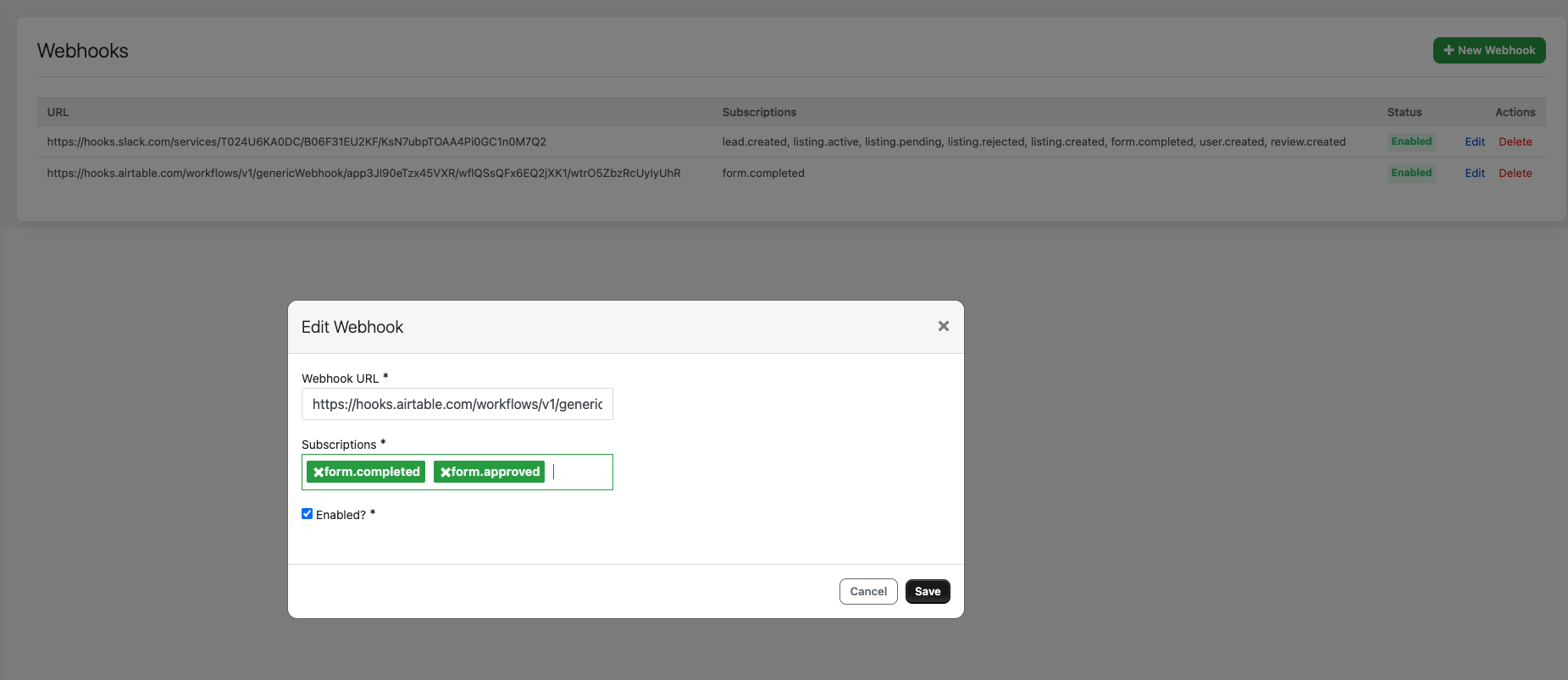
Click New Webhook
- Paste the URL into “Webhook URL”
- For Subscriptions
- Form.completed is when a form is submitted
- Form.approved is when a form is approved
- Select “Enabled?”
- Hit Save
See Screenshot
Open a new tab in incognito mode
In Incognito submit this form:
https://gong.partnerfleet.app/application_forms/become-a-gong-technology-partner/partner_applications/new
This will be used by Airtable to create a sample JSON request to build out the rest of the automation.
In Airtable
Click Test Trigger
From there build the automation as necessary. Below are a couple suggestions when building the workflow:
- Create a condition to only trigger is the name of the completed form is “Become a Gong Technology Partner”
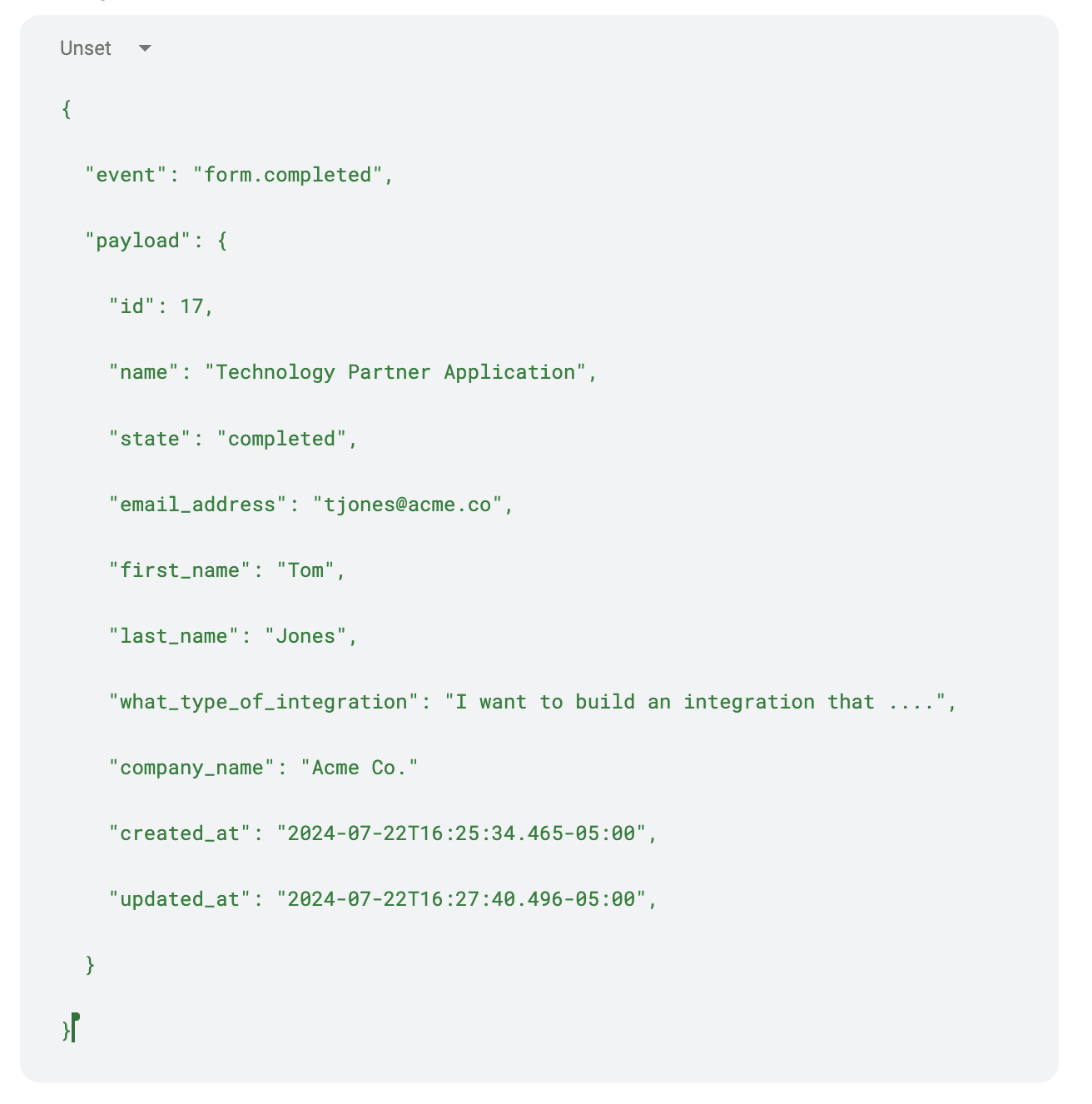
- The name of the field in the form is mapped to the webhook by lowercasing it and replacing Space with i.e. Email Address becomes emailaddress
Here are a few additional supporting images related to the steps above
Example Webhook Result:
See Screenshot
Webhook Trigger:
See Screenshot
Example Condition to limit to specific form:
See Screenshot

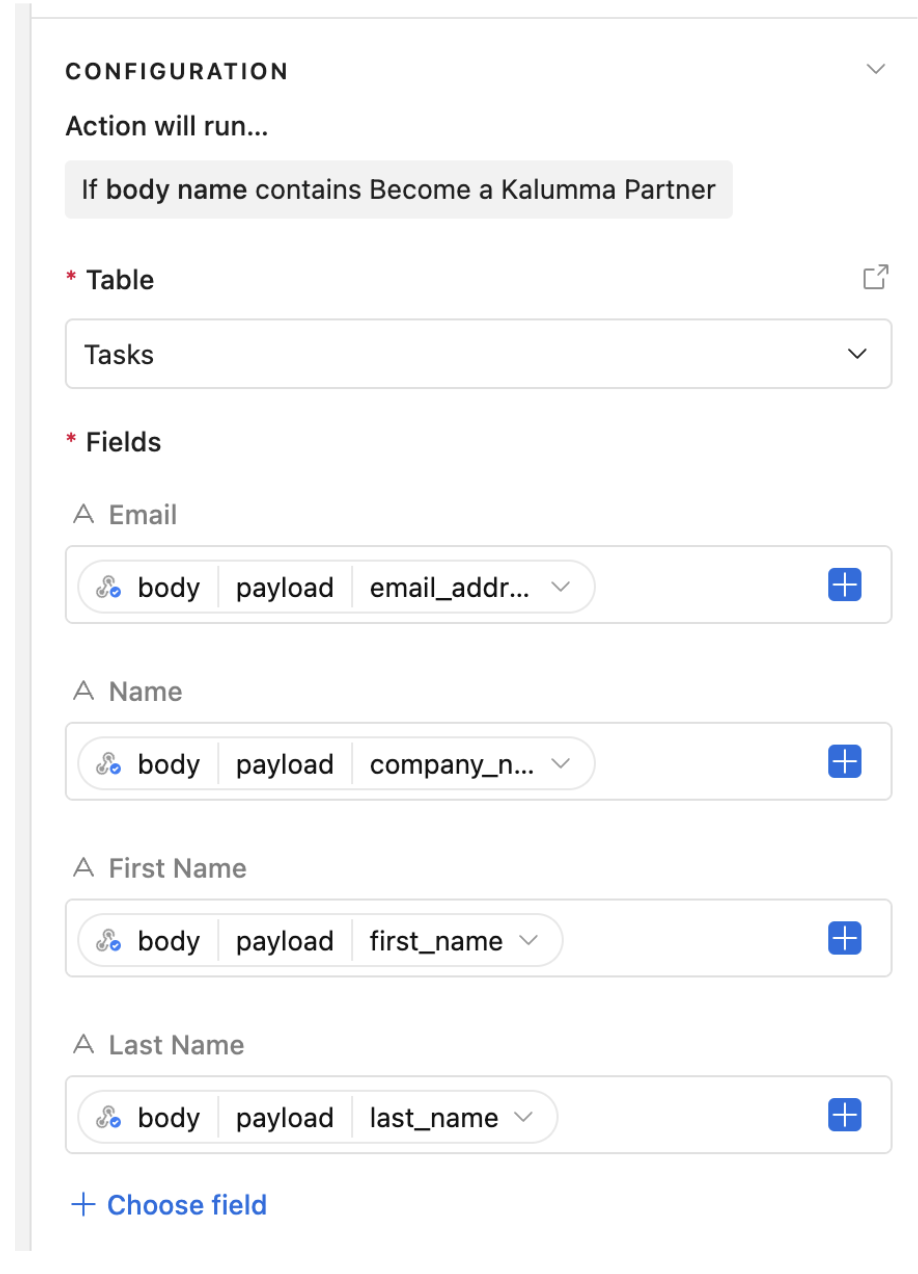
Simple Example of a Create Record action using the payload from the request.
This maps email_address to Email, company_name to Name, first_name to First Name and last_name to Last Name in an Airtable table called Tasks:
See Screenshot
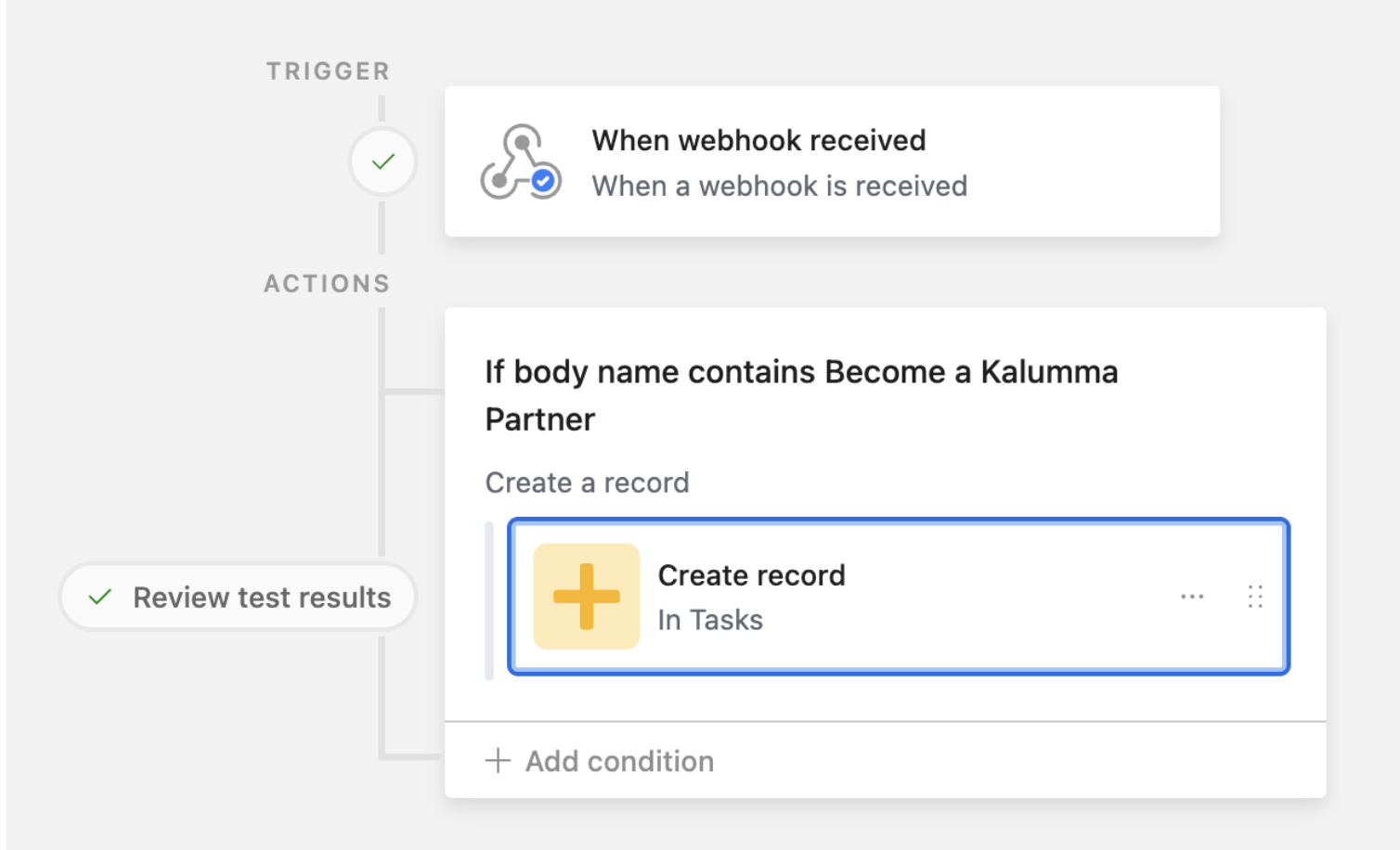
Example of what a full automation can look like:
See Screenshot
Updated over 1 year ago