

Listings
Learn how to choose which Partner Fleet listings appear in your App Marketplace and manage listings with filters, search, and bulk actions.
App Marketplace setup
What this tab does
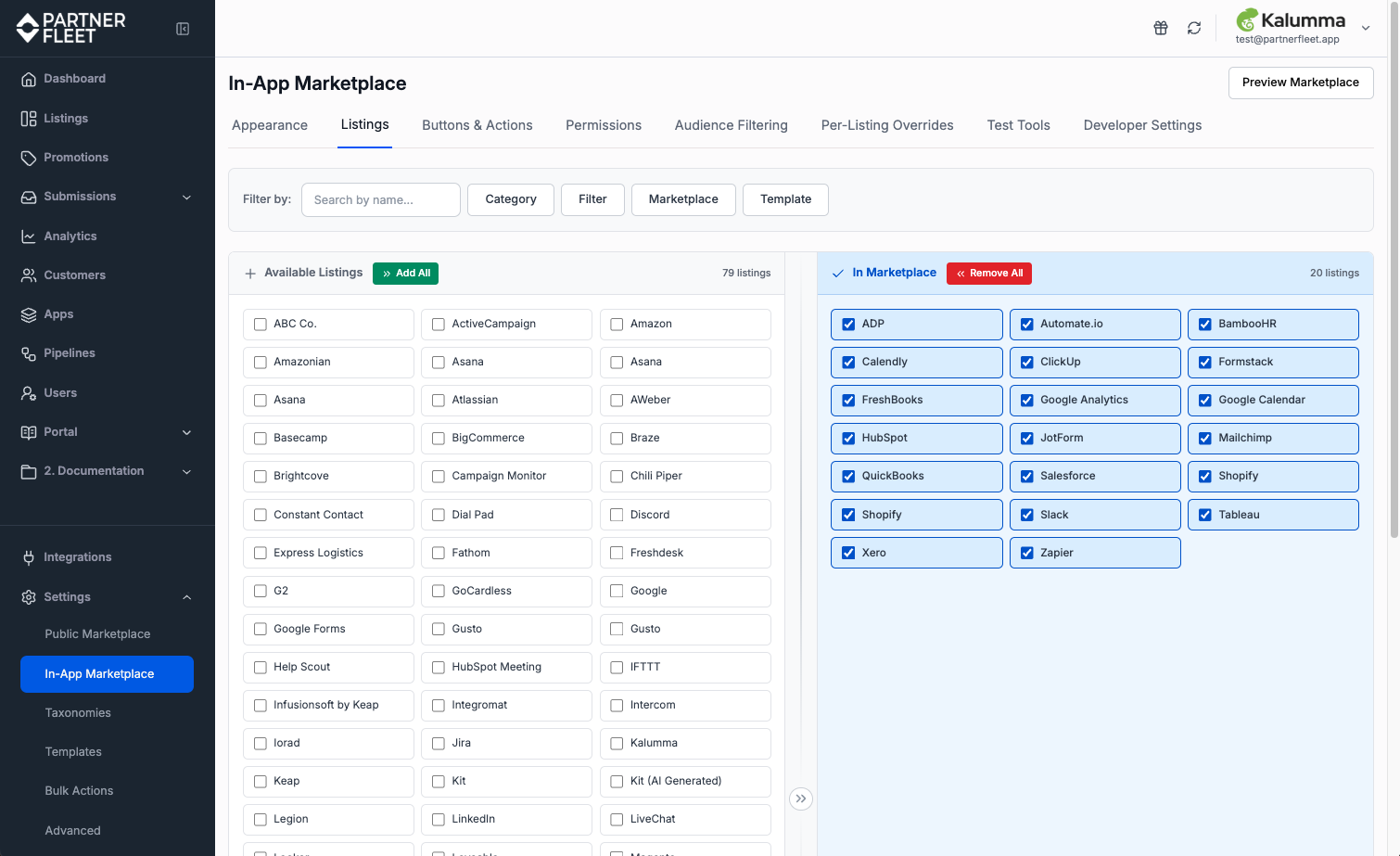
Your Partner Fleet account contains a catalog of all your partner listings. Some of those listings appear on your public marketplace, some appear in your App Marketplace, and some appear in both. The Listings tab in the App Marketplace setup area is where you choose which listings appear in your App Marketplace specifically.
How the two-panel view works
The page has two panels:
- Available Listings (left) — every listing in your Partner Fleet catalog that is not currently in the App Marketplace.
- In Marketplace (right) — listings that currently appear in your App Marketplace.
To add a listing to the App Marketplace, check its box in Available Listings. It moves to the In Marketplace panel. To remove a listing, uncheck it in In Marketplace. It moves back to Available Listings.
Bulk actions
- Add All — moves every listing in Available Listings into In Marketplace. Use this when you want every partner in your catalog to appear in the in-app experience.
- Remove All — moves every listing out of In Marketplace and back to Available Listings. Use this when you want to start fresh.
Bulk action note:
Add All and Remove All affect every listing currently visible based on your filters. Apply filters first to scope the bulk action to a specific subset, such as adding all listings in the CRM category.
Filtering and search
The Filter by row at the top of the page lets you narrow the listings shown in both panels:
- Search by name to find a specific listing.
- Filter by Category to scope to listings in a particular category.
- Filter by Filter to scope by your custom filter dimensions.
- Filter by Marketplace to show only listings already configured for a particular marketplace.
- Filter by Template to show listings using a specific listing template.
Why some listings might be in one marketplace but not another
Many teams run multiple marketplaces, such as a public partner directory and an embedded App Marketplace. The set of partners that makes sense in each can be different:
- Some partners are end-user-facing, such as productivity integrations. Show them in-app.
- Some partners are evaluator-facing, such as reseller partnerships. Show them publicly but not in-app.
- Some partners are universal. Show them in both.
This tab gives you the control to decide on a per-listing basis.
After adding or removing listings
Once a listing is in the In Marketplace panel, it inherits all your defaults from the Buttons & Actions and Permissions tabs. If a specific listing needs different behavior, such as different status mapping, different access rules, or different destinations, use the Per-Listing Overrides tab to customize it.
Updated about 13 hours ago