

Static Sections
Write a section once and show it on every listing that uses a template, such as a support policy or partner program details. Partners can't change it.
Overview
A Static Section is a description section that you, the admin, write once. It shows the same content on every listing whose template includes it, including listings that already exist. Partners can't see it in their listing editor or change it.
Use it for information that should be identical on every listing, for example:
- a support policy
- partner program details or certification terms
- a legal disclaimer
- a "How to get started" note that points to your own resources
On the listing page, a Static Section looks like any other description section: a heading and its content, in the layout you pick.
Before you start
- You need to be a marketplace admin. Static Sections are created and placed in listing templates.
- Save your template first. Creating or editing a section reloads the template editor, and any unsaved changes to the template are lost.
Create a Static Section
- In the admin sidebar, go to Settings → Templates.
- Click Edit on a template.
- In the Sections Layout card, click the green Description Section button.
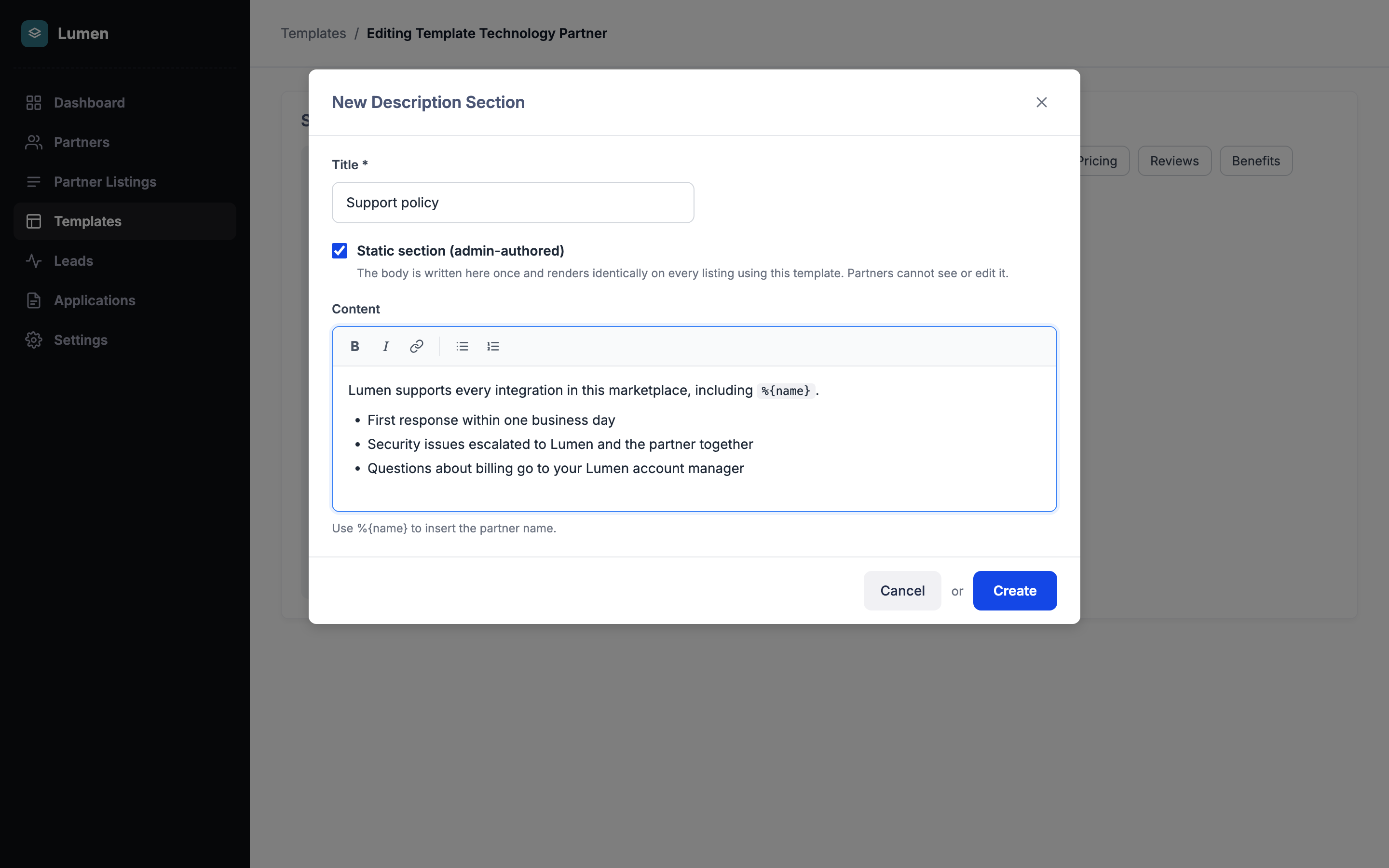
- In New Description Section, enter a Title. This is the heading visitors see on the listing.
- Check Static section (admin-authored). The Content editor appears.
- Write the section's content. You can use bold, italics, links, headings and bulleted or numbered lists.
- To show the listing's name, type %{name}. For example, "Support for %{name} is provided by Acme" reads "Support for Harbor Analytics is provided by Acme" on the Harbor Analytics listing. %{name} works in the title too.
- Click Create.
You can only choose Static section (admin-authored) when you create a section. To turn a static section into one partners fill in, or the other way round, create a new section.
Add it to a template's layout
Creating the section doesn't add it to any listing yet. Place it in the template's layout:
- In the Sections Layout card, click the new section's button in the list of sections.
- Pick one of the five layouts shown and drag it into the layout on the left, where you want the section to appear on the page.
- Click Save at the bottom of the template.
Every listing on that template now shows the section, including published listings and listings that are still drafts or waiting for approval. Partners don't need to do anything, and no listing needs to be approved again.
A section can be placed once in each template. You can place the same Static Section in other templates too: every template you add it to shows the same content.
What partners and visitors see
| Who | What they see |
|---|---|
| Visitors | The section on the listing page, with %{name} replaced by the listing's name. It appears in both your Public Marketplace and your In-App Marketplace. |
| Partners | The section on their live listing page. It doesn't appear in their listing editor, so they can't change it. |
| Admins reviewing a listing update | The section in the Visual preview tab, on both the live and the submitted version. It isn't listed in the Changes tab, because partners can't change it. See Reviewing Partner Listing Updates. |
Because partners don't fill it in, a Static Section is never part of a template's requirements. It doesn't affect a listing's scorecard or whether it can be sent for approval.
Edit a Static Section
- Open any template that uses the section (Settings → Templates → Edit).
- In the Sections Layout card, click ⋮ beside the section's name and click Edit. You can also click the cog on the section's block in the layout.
- Change the title or content and click Save.
The change appears on every listing in every template that uses the section, straight away.
Remove a Static Section
- From one template: click the trash icon on the section's block in the layout, then click Save at the bottom of the template. Other templates that use the section keep it.
- From everywhere: click ⋮ beside the section's name and click Delete, then confirm. The section is removed from every template and every listing, and its content is deleted. This can't be undone.
Translations
If your marketplace is translated, you can write the section in each language:
- Open the section with Edit.
- Pick a language with the language buttons at the top of the window.
- Enter the title and content for that language and click Save.
A language you haven't translated shows the content in your default language. %{name} works in every language.
If AI Translations are on, a new Static Section is translated automatically when you create it. Editing it later doesn't translate it again, so update the other languages yourself. After an AI translation, check that %{name} is still in each translated version. See AI Translations.
Where Static Sections don't appear
Static Sections are template content, not part of each partner's listing. They're left out of:
- The partner's listing editor, and the template's requirements and scorecard
- The Changes tab of a listing review (they do show in the Visual preview)
- Marketplace search. Searching for words that appear only in a Static Section doesn't find listings.
- The AI Listing Builder. It never writes a Static Section's content.
- The API and the MCP server. Listing responses don't include Static Section content, and a Static Section can't be written through them.
Special cases
| Situation | What happens |
|---|---|
| The content is empty | The section doesn't appear on listings, and neither does its heading. |
| You add the same section to several templates | Every listing on those templates shows it, and an edit changes all of them. |
| Two sections with the same title | Not allowed. Each description section's title must be unique across your account. |
FAQ
Can partners edit a Static Section?
No. Partners don't see it in their listing editor. Only admins can create, edit or delete it.
Do I need to update each listing?
No. Once the section is in a template's layout and the template is saved, every listing on that template shows it, new or existing.
Can I show something different on each listing?
Only the listing's name, with %{name}. For content that changes from listing to listing, use a normal description section that partners fill in, by leaving Static section (admin-authored) unchecked.
Can I turn an existing description section into a Static Section?
No. Whether a section is static is set when you create it. Create a new section with Static section (admin-authored) checked, place it in your templates, and remove the old one.
Does it show in the In-App Marketplace?
Yes. Listings show their Static Sections everywhere they appear.
Updated about 1 hour ago