

SEO
Search Engine Optimization
Partner Fleet comes equipped with powerful, built-in SEO features that ensure your marketplace is optimized for search engines from the moment you launch. It seamlessly manages critical SEO elements like meta tags and URL structures, enabling strong search engine visibility.
For those aiming to elevate their SEO efforts, the platform offers a suite of customizable settings. This blend of automatic optimization and flexible enhancements allows users to maximize their search engine rankings while adapting their strategy to meet specific business goals.
Additionally, there are three key areas within the platform where you can further enhance SEO through tailored customization, giving you even greater control over your marketplace’s visibility and performance.
- Marketplace SEO customization
- Category SEO customization
- Listing SEO customization
1. Customize SEO for Your Marketplace
Navigate to Settings -> Marketplaces
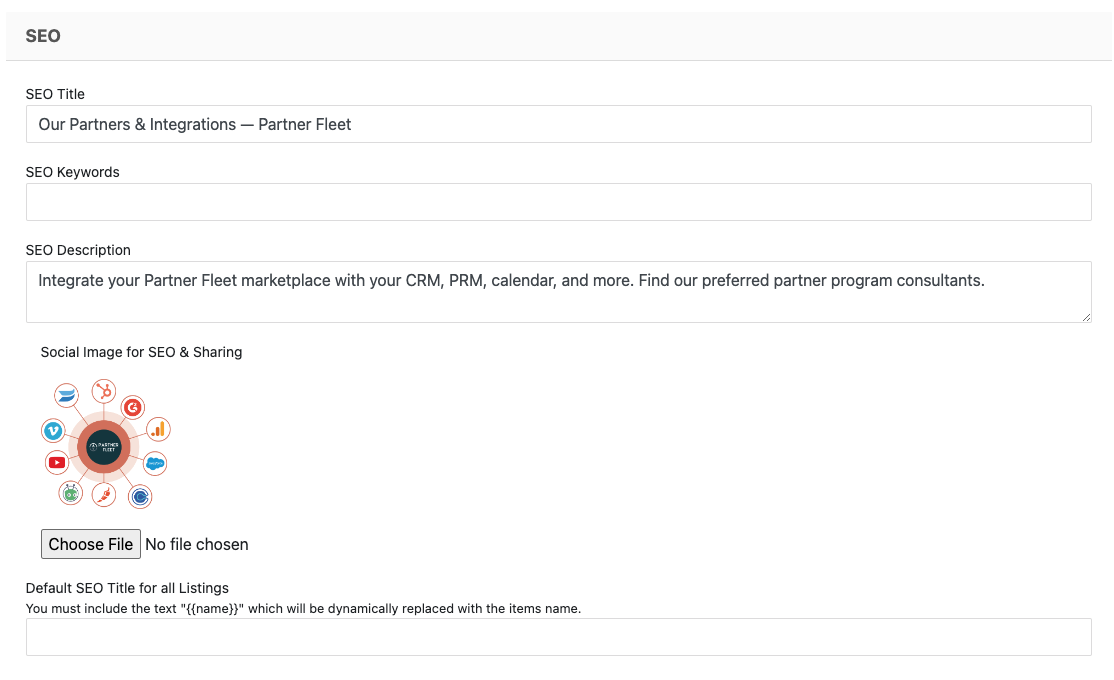
In this section, you can enhance your marketplace’s SEO by customizing the SEO title, keywords, and description. You can also add an engaging image that will appear when your marketplace is shared on social media.
See Screenshot
Steps to Customize SEO
- Title: Ensure your marketplace has a precise and appealing title. This title will appear in search engine results and when your URL is shared on social media.
- Keywords: Add relevant keywords that accurately reflect your marketplace's content. These keywords help search engines understand what your marketplace is about, improving visibility.
- Description: Write a compelling description that highlights the key features and benefits of your marketplace. This description will appear in search engine results and can influence click-through rates.
- Social Sharing Image: Upload an image that represents your marketplace. This image will be displayed when your URL is shared on social media platforms, enhancing engagement.
See Screenshot
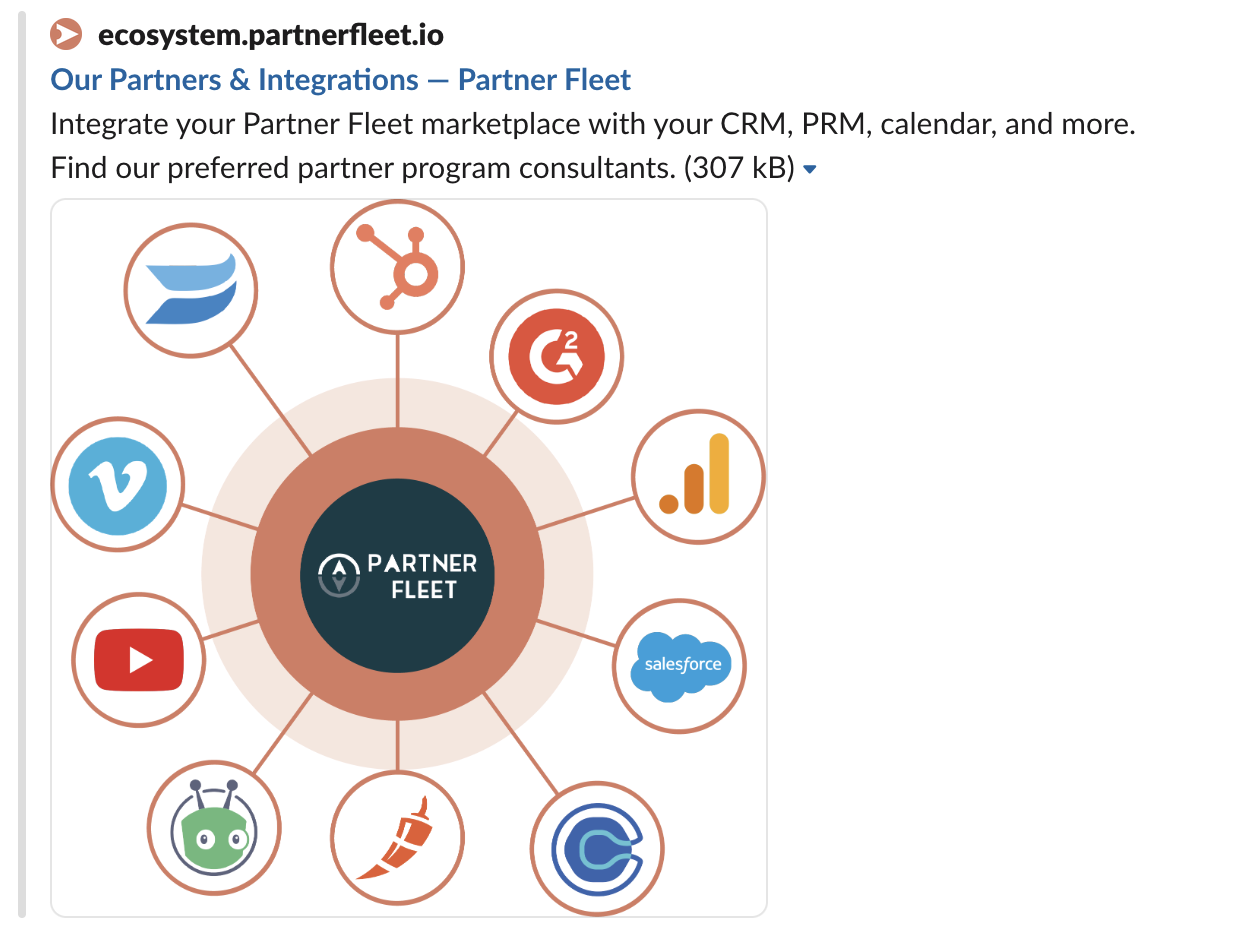
Additionally, you can set a default SEO title for all listings by adding text in the provided field. This text will be dynamically replaced with the item's name.
By leveraging these customization options, you can improve your marketplace’s search engine rankings and social media presence, driving more traffic and engagement.
2. Customize SEO for your Categories
Navigate to Settings > Taxonomies
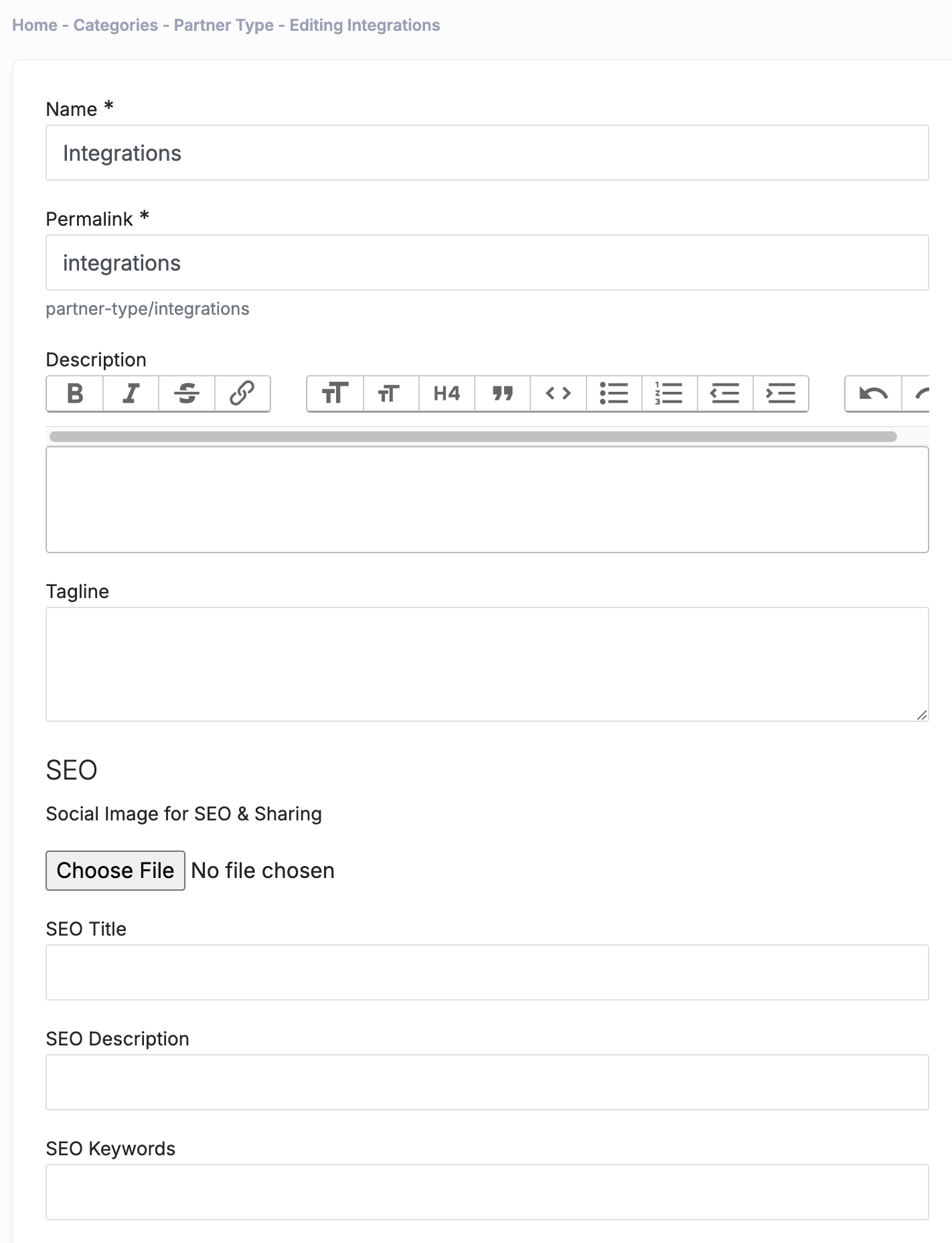
Click Edit on the Category you would like to update. Then right click on the individual category, and click on the Edit cog that appears.
The Category SEO section enables full control over SEO settings for individual categories, similar to marketplace options. Enhance your category visibility by customizing the SEO title, keywords, and description to attract your target audience. Additionally, upload a compelling social media image, which will display when this category’s URL is shared, boosting engagement and click-through rates. This setup helps maximize the reach and impact of each category within your marketplace.
See Screenshot
3. Customize SEO for your Listings
Navigate to Listings
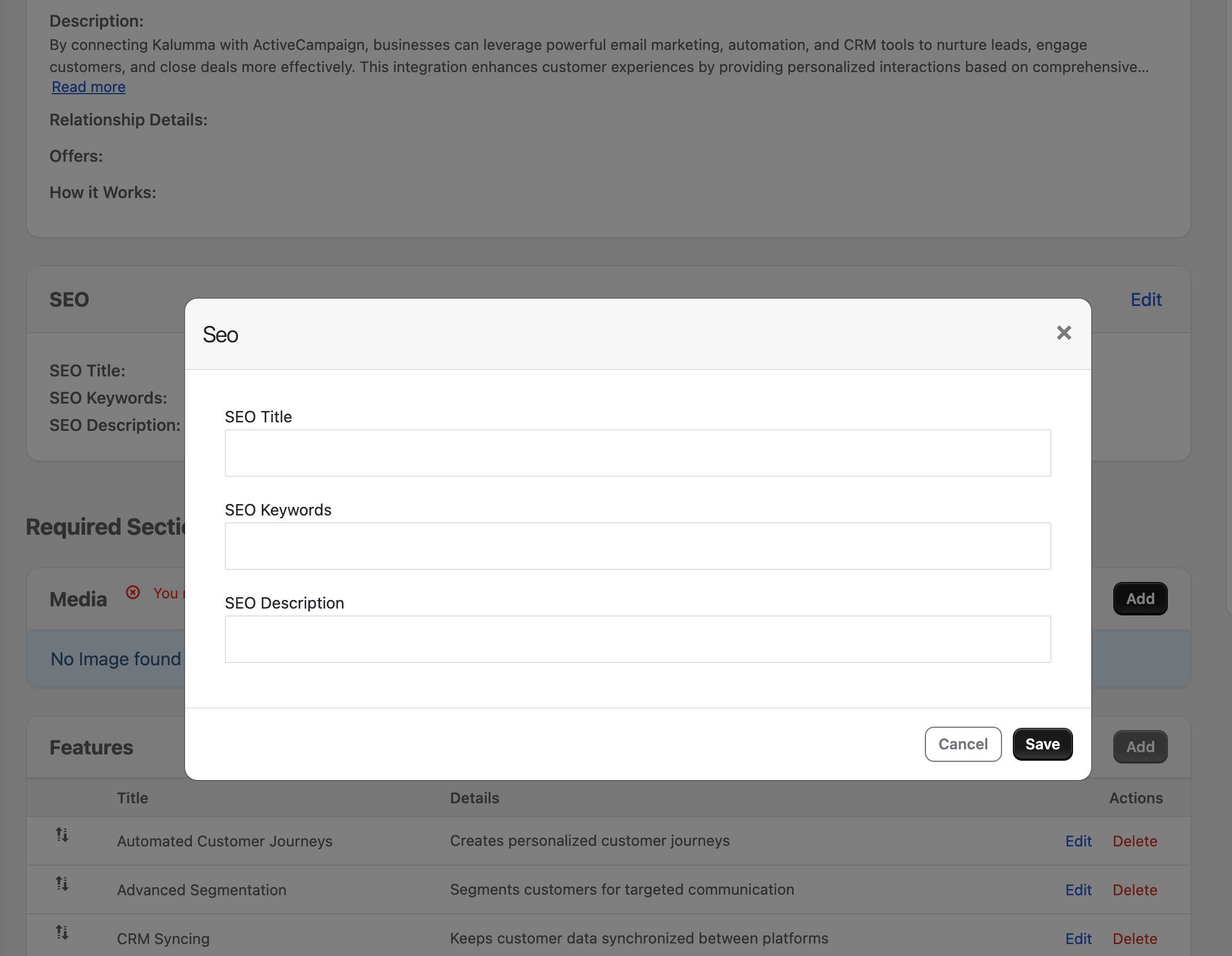
Click Edit on the listing you want to update. Once inside, scroll to the SEO section and select Edit. This will open the SEO module, where you can easily customize the listing’s SEO title, keywords, and description.
Customizing the SEO title, keywords, and description allows you to optimize how search engines, like Google, rank and display your listing. A well-crafted title and keywords can help your listing appear higher in search results, making it easier for potential customers to find you.
By making these edits, you directly improve your listing's visibility and attractiveness, which can lead to increased traffic, conversions, and sales.
See Screenshot
Remember, if you do not want your partners updating the SEO section in their listing you can always restrict their permissions in Users -> Roles & Permissions.
Updated over 1 year ago