

In-App Widget Implementation Tutorial
Steps to implement the In-app Widget:
Add this code to where you would like to link your In-app:
<partnerfleet-widget company="https://COMPANYMARKETPLACEURL" apikey="APIKEYEXAMPLE" inappid="1"></partnerfleet-widget>
<script type="module" src="https://widget.partnerfleet.io/partnerfleet.js"></script>
Parameters
We have 2 required attributes on our code: company and apikey.
company and apikey.company = Your marketplace URL
For company, please use <https://yourmarketplace.companyurl.com>
Example: https://marketplace.google.com
apikey = Your CMS API key. Instruction to generate your API key are below.
We also have an optional parameter partnerid
partneridpartnerid = Deeplinking feature, partner slug
You can find the partner slug on the end of the URL of the main marketplace or on the partner listing edit page, on the Slug field.
If you add the partnerid attribute, the page will open with the designated partner listing. For this to work correctly, a logic needs to be implemented on your code in order to recognize that the partneridexists and is needed.
An Example implementation would be:
- If your app URL is <https://COMPANYMARKETPLACEURL/partners/PARTNERSLUG>
- Then when rendering the script code you would add the partnerid as well:
<partnerfleet-widget company="https://COMPANYMARKETPLACEURL" apikey="APIKEYEXAMPLE" partnerid="PARTNERSLUG" inappid="1"></partnerfleet-widget>API Key Generation
- Login to Partner Fleet admin
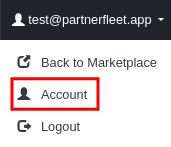
- Click on your email on the top right of your page, then on the dropdown click on "Account."
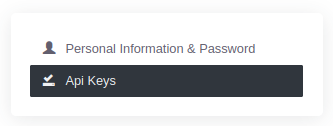
- Now, click on API Keys tab on the right sidebar.
- Create a new API Key or use any other that you have created before.
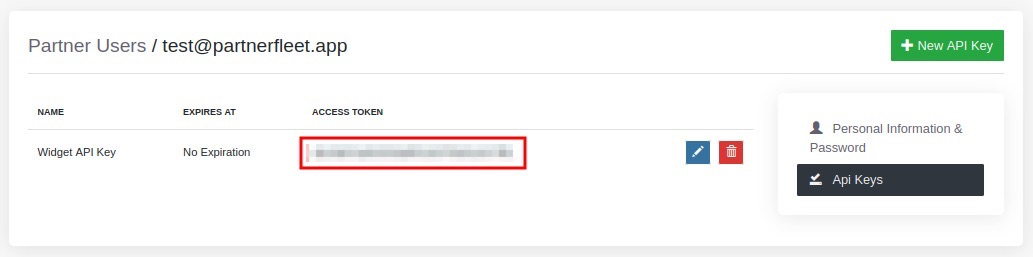
- Get the API Key Access Token
Congratulations!
Your In-App directory been successfully setup. Please reach out if you have any questions.