For AI agents: the docs index is at https://help.partnerfleet.io/llms.txt. Append .md to any documentation page URL to get its markdown version.
- In Pardot, create a form that contains all the fields you’d like to gather, and click generate.
- This page will not be seen by buyers - the simpler the better
- Make sure that no field other than email address is marked as required on your form, and that the form is in HTTPS
- Put that form onto a landing page
- Go to the landing page you created, and inspect the page
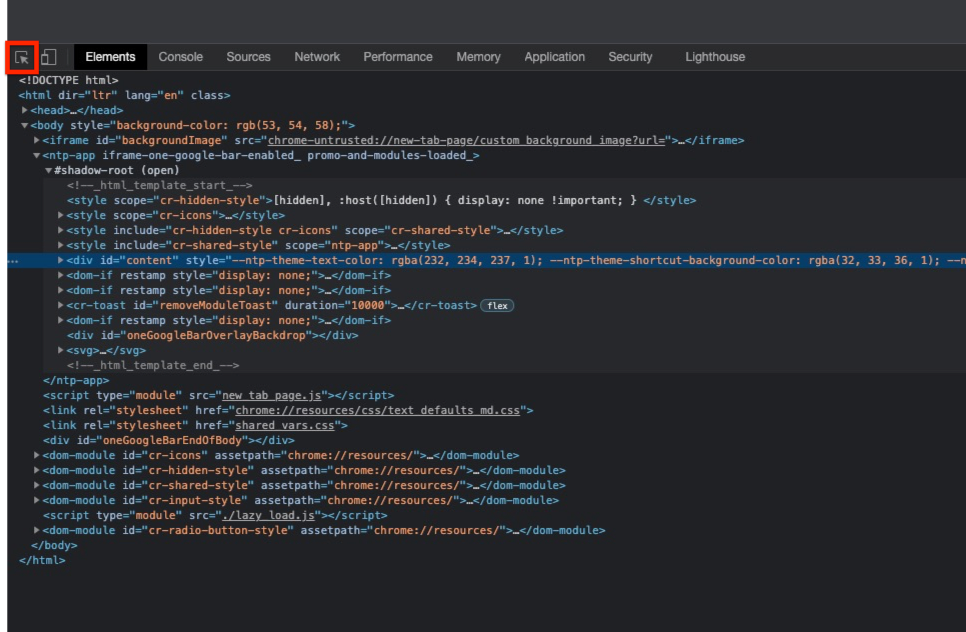
- Right-click to inspect the page. Hover over the fields by selecting the cursor icon in the top left corner of your dev tools as shown below:
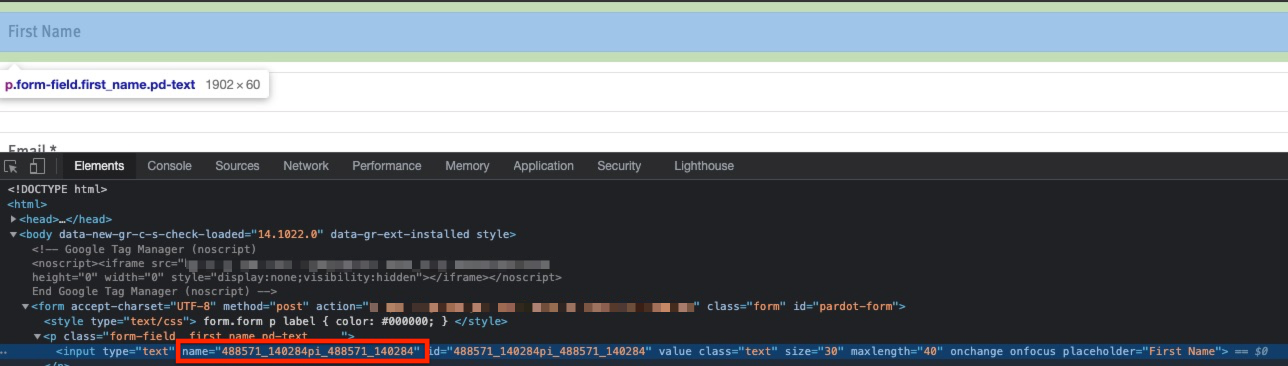
- Look for the API names by hovering over the field while you have the cursor icon checked. Look for “name=” to find the API names.
- These API names will be a string of numbers:
- In Admin Partner Listings -> Partner Pages -> Pencil Icon -> Lead Form
- Edit the fields and add the internal name to match the API name from above
- Add your endpoint URL and set the format as “Form Data”
- Your endpoint URL will be the landing page URL
- Once all the fields have been added, save this page
- Add your hidden fields, custom fields, and checkboxes
- In Pardot, fill out the form handler with all of the fields you’d like to gather
- Make sure that email is the only required field, and that the form is in HTTPS
- Note: for Pardot form handler, we can support spaces in the API names of the standard fields on the Lead Webhooks tab, but we cannot support spaces in the custom field API names on the Lead Form tab.
- In Admin Partner Listings -> Partner Pages -> Pencil Icon -> Lead Form
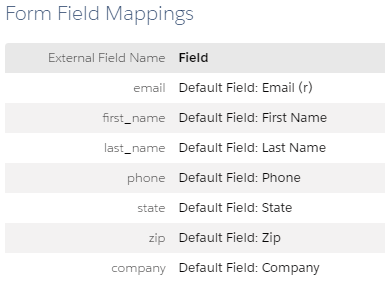
- In the Lead Webhooks section, include the API names of the fields from the form handler
- Add your endpoint URL and set the format as “Form Data”
- Your endpoint URL will be found on the page where you created the form handler
- Add your hidden fields, custom fields, and checkboxes
- Save this section and send a test lead from the front end of your profile