

CSA Partner Portal
Welcome to the Cloud Software Association Directory
- How to login
- How to navigate
- How to invite coworkers
- How to manage your listing
How to login
How to Login
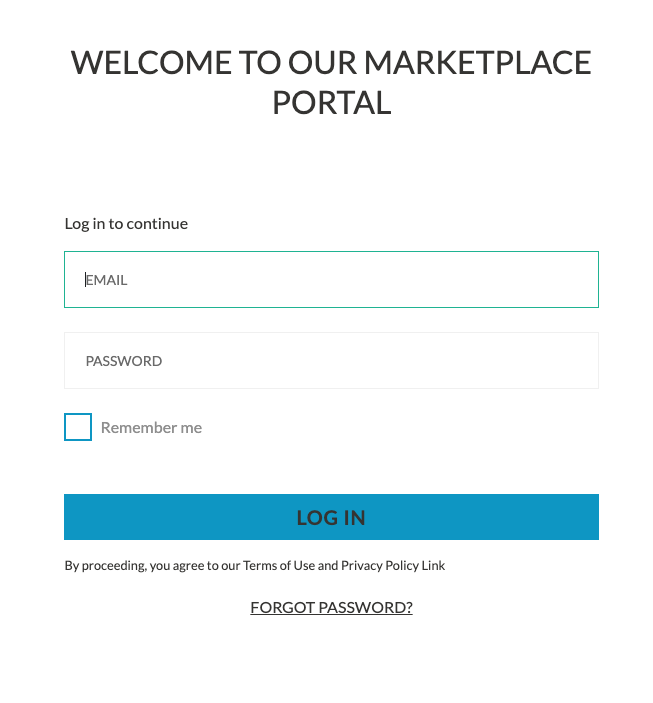
Go to https://csa.partnerfleet.app/admin
If you are not logged in you will see a login page. Enter your email address and the password you received in the email.
How to Navigate
How to Navigate
Dashboard
- The dashboard give you quick links and some analytics around how you are performing in the marketplace.
Partner Listings
- This is where you will manage your listing and update data related to your listing.
Partner Program
- This will be where you submit any additional information to RedRoute such as tech reviews, app updates, etc. that are not related to the public listing.
Settings
- This is where you manage invites and details related to your organization
How to invite coworkers
How to invite coworkers
To invite your co-workers, you need to click on the left sidebar Settings tab:
Then click on the right menu Invites:
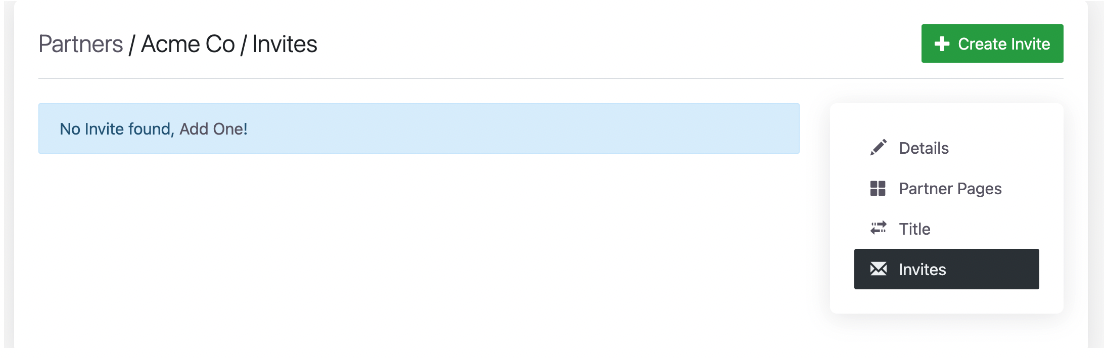
Click Create Invite
Now you just need your co-worker email and the role your co-worker will be set.
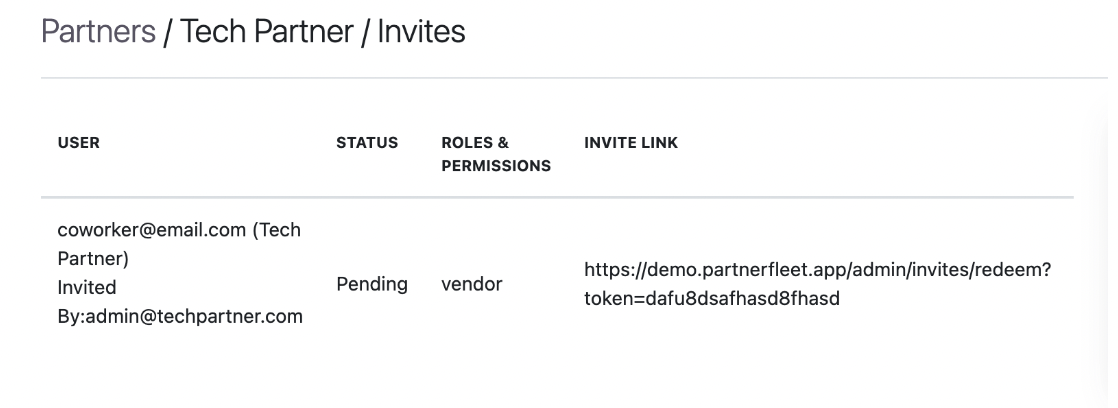
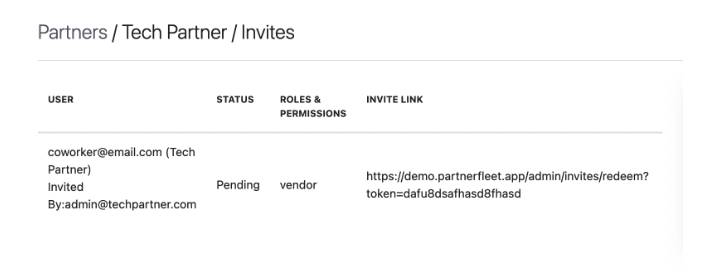
Send them the invite code and they will be able to create a new account to log in
How to manage your listing
How to Manage Your Listings
Go to Partner Listings > Partner Pages
- Click the Pencil Icon next to the listing you want to edit
- Editing your Listing
- If you don't have a draft you will have to click to create a new version
- Click Clone & Edit
- Make all edits to the content of your listing
- If you have a draft version
- Click the pencil icon
- Make all edits to the content of your listing
- If you don't have a draft you will have to click to create a new version
- Once you are ready to request approval click See Partner Versions
- You can compare your version with the published version by clicking
- If you are satisfied with your changes you can request approval by clicking the green button
- Our team will review and approve or reject with comments.
You may not have access to each of the below sections but see the details for each section you do have access to.
Details
This is where you will set the general content about your listing:
Basic Information:
- Name
- Header Title
- Logo
- Header Image (If available)
- Available On date
- Description
- Listing Tagline (Shows on Listing)
- Tagline (Shows on Tile)
Calls To Action:
These CTAs render at the top of the page
- Button Text
- Button Type (URL, Lead Form(If applicable))
- Destination (If URL type)
Pricing:
This content only shows up if the larger Pricing section is available for your listing.
- Pricing Details
- two CTAs
Data Flow Details:
This content only shows up if the larger Data Flow section is available for your listing.
- Integration Details
- two CTAs
Organization:
- Categories - Select the categories your solution fits in best.
- Filter Options - Which filters apply to your products
Lead Form
See the Lead section here.
Screenshots
A screenshot can be an uploaded png, gif, jpeg; they can also be youtube links. Select the type and upload an image or set the youtube url.
- Image
- Video URL
- Type
Images
This is for a single highlight image on the profile that is separate from the screenshots above.
Valid image types are: png, gif, jpeg
Filter Options
For each filter that matches your offering create a filter option record
Features
- Title
- Image(png, jpeg, gif) (If applicable)
- Details
Pricing
- Title
- Price
- Price Modifier (shows after the price such as "per month" or "annually")
- Description
- Features (One feature per line)
Permissions
* Object - This is the name of the data object in RedRoute
- Data Flow Direction - Used to identify if this data is pulled in to RedRoute or pushed to RedRoute
- Partner Object - This is the name of the data object in your system
Team
* Name
- Title
- Link Text
- Link Destination
- Bio
- Image (png, jpeg, gif)
Benefits
* Title
- Image(png, jpeg, gif) (If applicable)
- Details
Services
* Title
- Image(png, jpeg, gif) (If applicable)
- Details
Next Steps
* Title
- Image(png, jpeg, gif) (If applicable)
- Details
Testimonials
* Name
- Title
- Quote
- Image (png, gif, jpeg)
Resources
* Title
- Link Text
- Link
- Image (png, jpeg, gif)
- Details
FAQ
* Question
- Answer
Associated Partners
* Marketplace (If you have more than 1)
- Associated Partner (The partner you are associated with)